
TL;DR
- Keep it silent and useful. Play short patient education, practice updates, and calming visuals – kept silent or captioned.
- Know what to leave off. Avoid uncontrolled live news, content without public-display rights, and patient information that isn’t approved for public display.
- You own the screen. Digital signage lets you own the screen, control every item, and update in minutes.
- Low cost to start. Running your own screen starts at about $14 per screen per month.
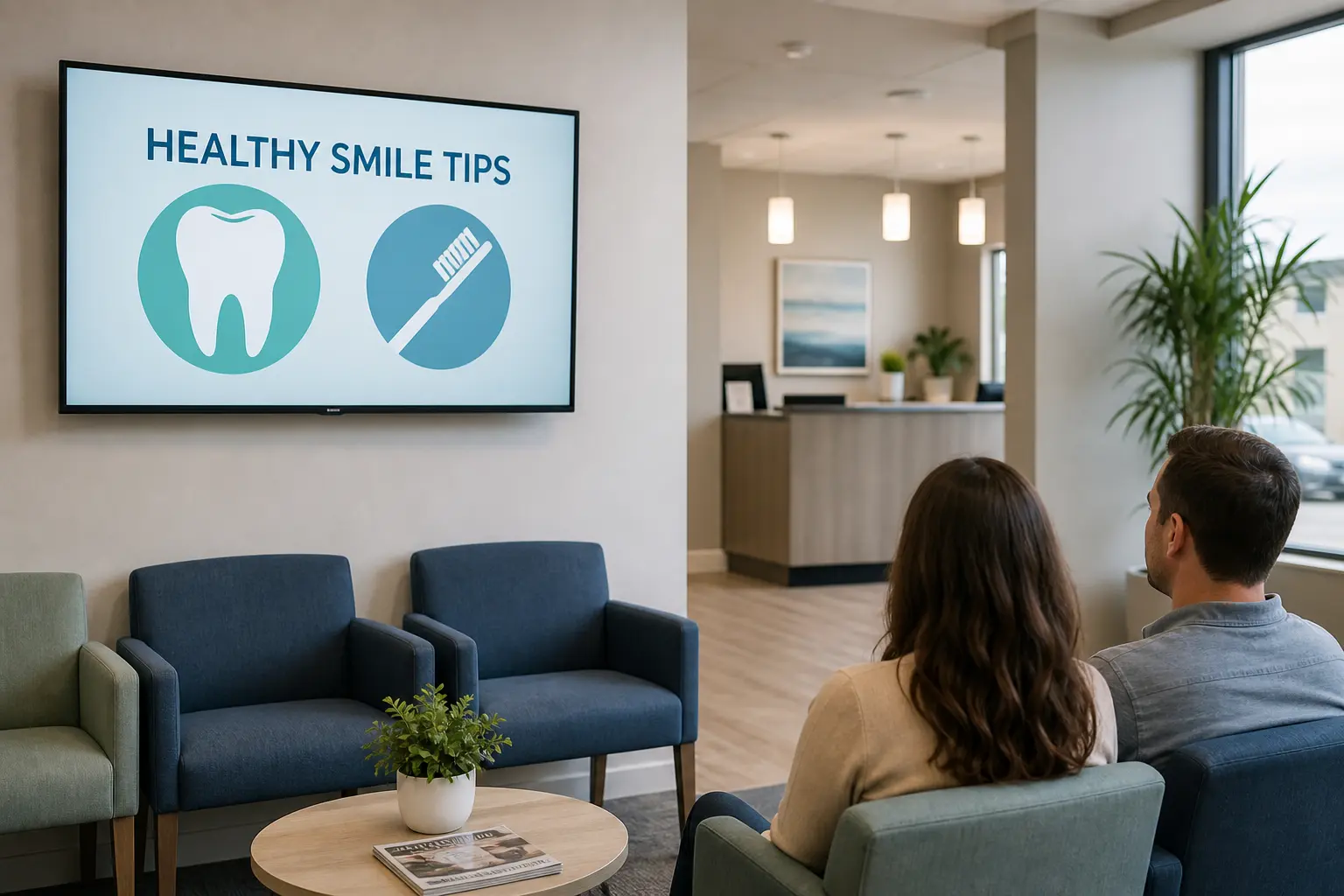
A waiting room TV is a screen in a patient waiting area that plays video, health information, and practice updates while people wait. In healthcare settings – doctors’ offices, dental practices, and clinics – the right content can calm patients, answer common questions, and make the wait feel shorter. This guide covers what to play, what to avoid, and how to run the screen so it stays useful and appropriate for a medical setting.
What Should You Play on a Waiting Room TV?
Use a balanced mix of patient education, practice information, and calming visuals. Each item should work without sound:
- Patient education clips – short explainers on procedures, conditions, and aftercare build trust and answer common questions.
- Practice information – services, hours, insurance accepted, new providers, and staff introductions help patients know what to expect.
- Health tips and seasonal reminders – flu shots, screenings, hydration, and allergy-season advice give people a useful reason to look up.
- Calming visuals – nature, an aquarium, or slow scenery can help create a calmer atmosphere.
- Local weather and controlled clinic updates – steady, useful information without breaking news, political content, or loud audio.
- Light, positive entertainment – trivia, did-you-know facts, and short, rights-cleared clips keep the mood easy.
- Queue or “now serving” information and simple wayfinding – use non-identifying numbers or codes only, never patient names or appointment details.
Patient Education That Builds Trust
Patient education often does the most work. In a 2024 pre/post study of 300 people in family medicine waiting areas, an 8-minute educational video was associated with an increase in participants who understood health screening checkups, from 51.3% before the video to 68% afterward (Saeed et al., BMC Health Services Research). Keep each clip focused and easy to follow without sound.
What Does a Practical 10-Minute Waiting Room Playlist Look Like?
Start with a 10-minute loop that mixes education, information, and calm. Adjust the mix to your patients and average wait, and keep items silent or captioned.
| Segment | Time | Example content |
|---|---|---|
| Patient education | ~2 min | Procedure or aftercare explainer |
| Practice information | ~1 min | Services, hours, insurance, new providers |
| Calming visuals | ~2 min | Nature or aquarium footage |
| Seasonal reminders | ~1 min | Flu shots or screening prompts |
| Light entertainment | ~2 min | Trivia or did-you-know facts |
| Queue / wayfinding | ~1 min | Non-identifying “now serving” numbers |
| Local weather / updates | ~1 min | Controlled local weather feed |
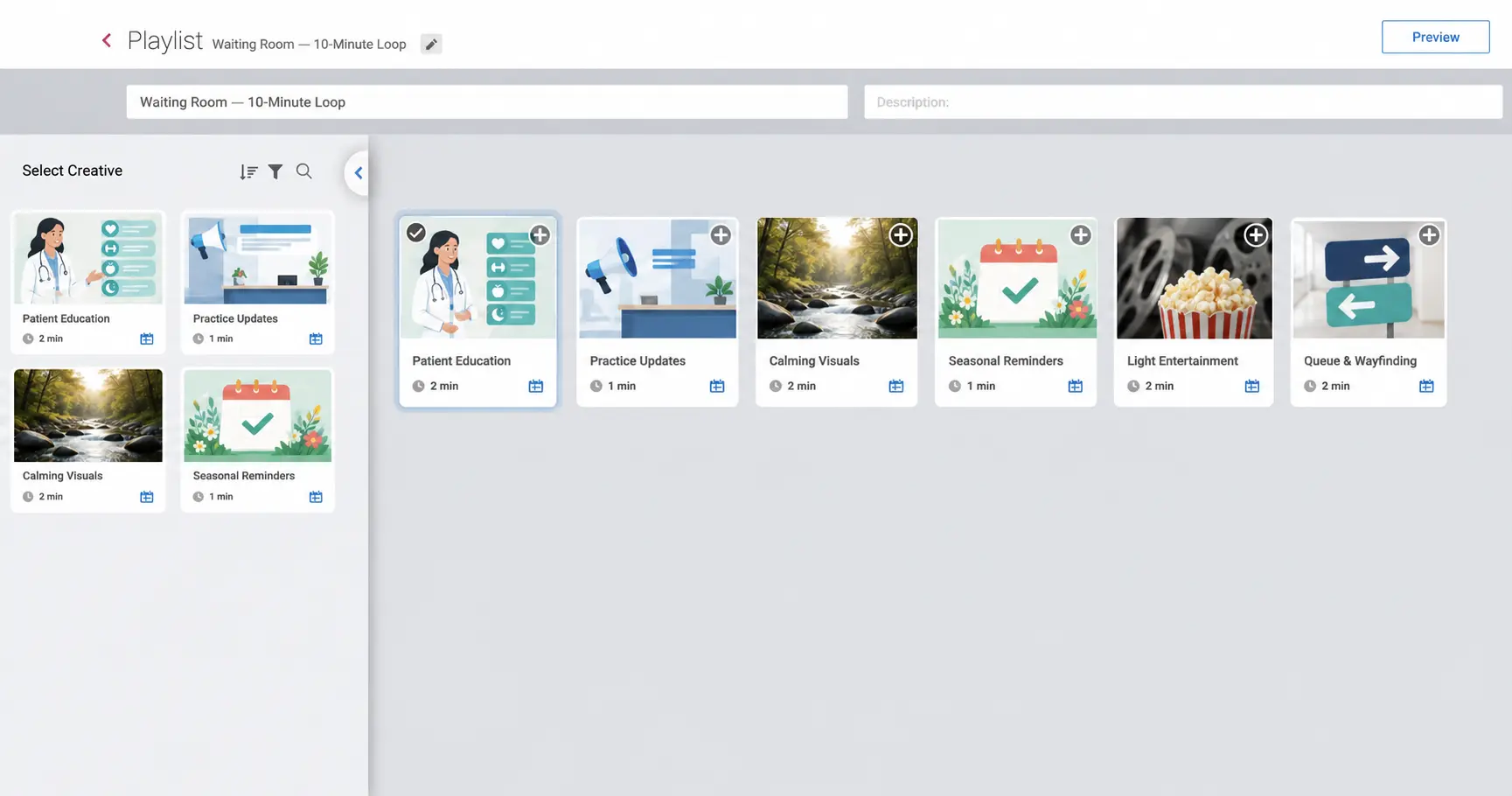
A 10-minute waiting room playlist built in NoviSign Studio, mixing education, calming visuals, and practice updates.
Why Do Waiting Rooms Have TVs?
Waiting rooms use TVs for three practical reasons: to make the wait feel shorter, create a calmer atmosphere, and share useful health information. A well-planned screen gives people something to focus on besides the clock, while short health clips reach viewers who are already thinking about their care. The 2024 study above found improved screening knowledge after a waiting-area video, but it did not measure perceived wait time or anxiety.
What to Avoid on Your Waiting Room TV
A few content types cause more problems than they solve. Keep these off the screen:
- Uncontrolled live news or talk programming – distressing headlines can raise anxiety, and you can’t control the drug ads, political segments, or breaking stories that come with a live feed.
- Consumer TV, streaming, or movie content without verified public-display rights – a home or business subscription does not automatically authorize public playback. Section 110(5) of the U.S. Copyright Act contains fact-specific exemptions for certain radio and television transmissions, but it is not a blanket exemption for films or streaming services. Provider terms and licensing requirements vary, so check both with the rights holder or a licensing body such as the Motion Picture Licensing Corporation (MPLC). This is general information, not legal advice.
- Loud or hard-to-read content – keep sound low or off, turn on captions, and use strong contrast so the message is clear without audio.
- Patient-identifying content – public-facing screens should not show diagnoses, appointment details, or other protected health information (PHI). For queue displays, the safest default is a non-identifying number or code. If a practice uses limited patient names, it should follow an approved workflow with reasonable safeguards.
- Uncontrolled advertising – some “free” waiting room TV networks fill your screen time with ads you didn’t choose.
- Set-and-forget content – a stale loop stops being useful and starts to look neglected.
Quick Pre-Publish Check
Before a loop goes live, run four quick checks:
- Do we own this content or have documented display rights?
- Could anything on screen identify a patient?
- Is it understandable without sound?
- Is every date, provider name, service, and health message still current?
Regular TV vs. a Waiting Room TV Network vs. Digital Signage
A practice has three main ways to fill a waiting room screen: regular TV, a waiting room TV network (sometimes called a waiting room channel), or digital signage. The main difference is how much control you keep over what plays.
| Option | What it is | Control and cost |
|---|---|---|
| Regular TV | Live cable or broadcast | Little control; you can’t pick the ads or headlines, and public display may need a license |
| Waiting room TV network | A paid or “free” third-party content channel | Preset content; free versions run ads you don’t choose; limited healthcare customization |
| Digital signage | Software you control on a screen you own | Full control of content and schedule; updates in minutes; from about $14/screen/month |
Because you own the content with digital signage, a new-provider announcement or a flu-shot reminder goes up in minutes, and nothing plays that you didn’t choose. Regular TV and preset networks trade away that control, which matters most in a healthcare setting.
Waiting Room TV by Practice Type
The right mix shifts a little by practice type. A few quick examples:
Dental and Orthodontic Offices
Dental and orthodontic offices can use procedure explainers, treatment-financing information, and before-and-after examples shown with documented patient consent and no identifying details. This content answers common questions before patients need to ask them.
Doctors’ Offices and Clinics
Doctors’ offices and clinics can lean on health tips, seasonal vaccine reminders, patient-portal sign-up prompts, and short provider bios that help new patients feel at ease.
Hospitals and Multi-Site Groups
Hospitals and multi-site groups use screens for wayfinding, department information, and emergency alerts across many locations. Centralized management makes those updates easier to coordinate. Appalachian Regional Healthcare uses NoviSign to manage 180 displays across 14 hospitals and clinics.
How to Set Up a Waiting Room TV With Digital Signage
Setting up a single waiting room screen with digital signage is straightforward. Larger healthcare networks may involve IT or facilities teams, but the core steps are the same:
- Pick a screen you already own.
- Connect a signage player, or install a supported signage app on the display.
- Choose a content management system (CMS) – the software where you build and schedule content.
- Build a playlist that mixes education, practice information, and calming content.
- Schedule content by time of day.
- Keep audio muted and use captions.
- Manage your screens remotely from one dashboard.
- Review time-sensitive content monthly, and remove outdated hours, staff, or offers right away.
NoviSign is one example. You can use a TV you already own with a supported signage player, or install the NoviSign app on a compatible commercial display. In the Creative Composer, you build content by drag and drop. Cached content continues playing during most internet interruptions; live web and streaming content still needs a connection. Android is NoviSign’s most capable player.
How Much Does Waiting Room TV Cost?
Waiting room TV costs fall into three broad buckets. Free, ad-supported networks cost nothing up front, but you trade control and screen time for ads you don’t choose. Paid per-screen networks charge a monthly fee for managed content. Your own digital signage runs as a subscription per screen on a TV you already own. NoviSign starts at $14 per screen per month, with all features, support, and training included. Its 30-day free trial has no setup fees or contracts.
Key Takeaways
- Build a short, silent, captioned loop that mixes patient education, practice updates, and calming visuals.
- Never show diagnoses, appointment details, or other PHI on a public-facing screen – use non-identifying numbers for queue displays.
- Verify public-display rights before playing any cable, streaming, or licensed content – a subscription alone doesn’t cover it.
- Digital signage gives you full control of content and cost, starting at about $14 per screen per month.
- Review time-sensitive content monthly so hours, staff, and offers never go stale.
FAQs
Is it legal to show regular cable TV in a waiting room?
It depends. Section 110(5) of the U.S. Copyright Act contains fact-specific exemptions for certain television transmissions based on how the signal is received and the establishment’s size and equipment. It is not a blanket exemption for films or streaming services, and provider terms can impose additional limits. Verify both the subscription terms and public-display rights with the provider or rights holder. This is general information, not legal advice.
What should a doctor’s office play on its waiting room TV?
A mix of short patient education clips, health tips and seasonal reminders, practice information, and calming visuals works well. Keep clips silent or captioned, avoid uncontrolled live news, and use non-identifying numbers or codes for queue information. A 10-minute loop that rotates education, information, and calm is a practical starting point.
Can I use a TV I already own for waiting room signage?
Yes. You can connect a supported signage player to a TV you already own, or install a compatible app on certain commercial displays. You then manage content from a content management system (CMS). NoviSign supports both approaches, so many practices can start without replacing the screen.
How is a waiting room TV network different from digital signage?
A waiting room TV network is a third-party channel of preset content, and free versions often include ads you can’t control. Digital signage is software you run on your own screen, so you choose every item, schedule by time of day, and update in minutes. The main difference is control.
Start with a short, silent, captioned loop that mixes patient education, practice updates, and calming visuals – then keep it current. If you’d like to try it on a screen you already own, NoviSign offers a 30-day free trial, with no setup fees or contracts.