Sign up for a free evaluation account
Text Download ➞
Title Subtitle Download ➞

Notification Service API

Overview

NoviSign allows customers to send remote events to their media players in order to present dynamic content, alerts, and real-time updates using push notification services.

Use Case:

A salesperson has made a sale and the company wants to celebrate and display it on dedicated screens located on the office floor where that specific salesperson works.

Please note:
To use the Notification Service API, the client must authenticate and obtain an API access token (Bearer token) used for all API calls.
This token acts like a temporary API key that authorizes secure communication with NoviSign servers.
Please contact NoviSign Support to initiate this process and receive API credentials.

How It Works

Before sending notifications, the client must authenticate and fetch an API access token (Bearer token).

Request

POST https://auth.novisign.com/keycloak/auth/realms/{your_account}/protocol/openid-connect/token

Headers

Content-Type: application/x-www-form-urlencoded

Body

grant_type=client_credentials&client_id={{client_id}}&client_secret={{client_secret}}

The response returns an access_token.
This token must be included in all Notification API calls as proof that your system is authorized.

To send dynamic data and trigger content on screens, use the following API call:

POST https://notifications.www.novisign.com/api/notification
Authorization: Bearer {access_token}
Content-Type: application/json

Body (JSON format, simple key–value structure, no arrays):

{
“to”: “playerEvents/{{PLAYER_CHANNEL_ID}}”,
“name”: “{{EVENT_NAME}}”,
“data”: {
“name”: “{{EVENT_NAME}}”,
“category”: “playlistTrigger”,
“data”: {
“creativeParams”: {
“param_key”: “param_value”
}
}
}
}

Parameters

Field Description
to The specific channel the player(s) are registered to (see Player Configuration below)
name The event name that will be sent and triggered by the player. This must match the event defined in Studio
data The dynamic data that will be injected and used within the triggered creative

Example

“to”: “CHANNEL1”,
“name”: “RFID:1”,
“data”: { JSON with data }


Studio Configuration

Important:
This setup relies on custom events that must be added to your dynamic creative and will be triggered by the above-mentioned custom (Gong) remote events.
Custom events must be enabled on your NoviSign account before continuing.
Please contact NoviSign Support and request that custom events be added to your account.

This setup allows a creative to display data received from an external API when triggered by a remote event.

Dynamic values are inserted into widgets using variable expressions.

You can add these expressions directly inside widget fields such as:

  • Text

  • Label

  • Webpage

  • Web Image

  • Web Video

These expressions act as placeholders. During playback, the player reads the JSON data received from the API, extracts the requested value, and displays it in the widget in real time.

Expression Format

${@customapi.PROPERTY_KEY.JSON_PATH}

Element Meaning
@customapi Required prefix for API references
PROPERTY_KEY The identifier defined in your API settings
JSON_PATH The path inside the JSON response that contains the value you want to display

Example JSON Response

{
“InProcess”: {
“0”: {
“orderApprovedTime”: “2023-01-01T00:00:00”,
“orderIDShort”: “1031”,
“orderID”: “83301031”
},
“1”: {
“orderApprovedTime”: “2023-01-01T00:00:00”,
“orderIDShort”: “1119”,
“orderID”: “83301119”
}
}
}

If your Property Key is:  myrestaurant

Then this expression: ${@customapi.myrestaurant.InProcess.0.orderIDShort}

Will display:

1031

After configuring the dynamic fields inside the creative, you must set it to appear only when triggered by a remote event.

Add the dynamic creative to the playlist that plays on the screen where you want the event to appear.

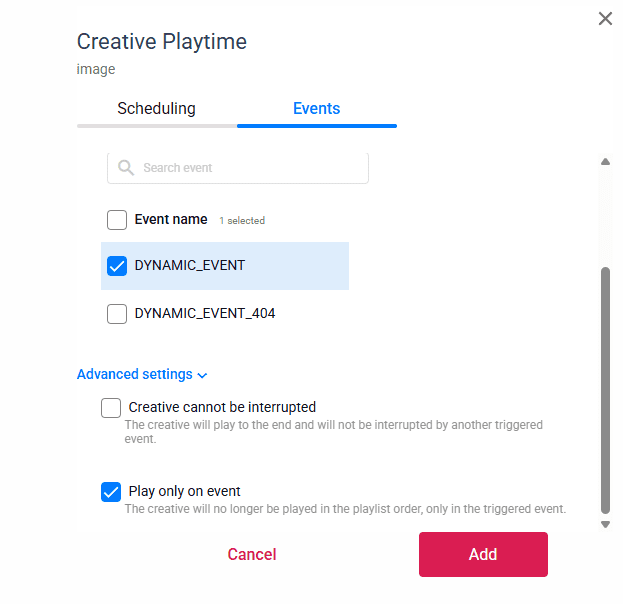
Click the creative scheduling (calendar) button.

In the scheduling window:

  • Go to the Events tab

  • Enable Custom events
  • Choose the relevant dynamic event from the list
  • Check Play only on events (this prevents the creative from displaying as part of the regular playlist)

  • Set the DYNAMIC_EVENT name (this must match the "name" field sent via the API)

dynamic event setup

Once the creative event is set and the playlist is updated, restart the media player.

Player Configuration

  • Log in to your account in the player app, then select the playlist that contains the configured dynamic creative from the drop-down list.
  • Open Settings by clicking the gear icon in the top right corner of the screen.
  • Scroll down to the API Server section and select Connection Parameters.
  • Enable Server Events.
  • In the Channel ID field, enter the same Channel ID used in the Notification API JSON request.

Channel-ID

  • Exit the settings screen and press Go to start playback.

Setup Complete

Your Notification Service API integration is now ready.

  • Your external system can send notification events through the API

  • The player listens for those events using the configured Channel ID

  • When the event name matches the one defined in Studio, the dynamic creative is triggered

  • Any data sent in the API request is automatically displayed inside the creative using the configured expressions

You can now display real-time alerts, achievements, sales updates, queue calls, and other dynamic information instantly on your screens.

NoviSign Digital Signage
Privacy Overview

This website uses cookies so that we can provide you with the best user experience possible. Cookie information is stored in your browser and performs functions such as recognising you when you return to our website and helping our team to understand which sections of the website you find most interesting and useful.