
With this feature, you can simply upload or update a PowerPoint file in a connected SharePoint folder, and the system will automatically sync, convert, and publish the updated slides to your NoviSign playlists—no manual uploads, no technical setup, and no extra steps.
SharePoint Integration
Overview
How It Works
- Upload (or replace) a PowerPoint (.PPTX) file in your designated SharePoint folder.
- The system automatically converts each slide into a static image (Creative)
- Animations and transitions are not supported and will not appear in the final display.
- You can optionally set slide duration and scheduling when uploading the file to SharePoint.
- The linked playlist in NoviSign Studio is automatically updated with the new slides.
- Older versions are replaced, ensuring your screens always show the latest content.
Benefits
- Completely automated workflow from file upload to on-screen display
- No need for FTP, manual uploads, or syncing
- Easy collaboration — multiple users can update the same presentation
- Always displays current and consistent content across all screens
- Saves time and reduces manual management efforts
A smooth, modern, and efficient way to manage PowerPoint-based content—letting you keep your screens fresh with minimal effort.
This feature requires a one-time connection between your SharePoint and NoviSign Studio.
Please contact NoviSign Support to complete the setup.
What You Need to Provide for Setup
Please send the following details:
-
sharepoint.client.id
-
sharepoint.client.secret
-
sharepoint.tenant.id
-
sharepoint.site.id
-
sharepoint.folder.path (Path to the folder where PowerPoints will be stored)
-
novisign.account.id (Your NoviSign customer ID)
Support cannot proceed without all the values listed above.
Actions Required From Your IT / Azure Administrator
These items must be completed on your side; NoviSign cannot perform them.
Your Azure App Registration must be configured with the correct Application and Delegated permissions.
A. Application Permissions
(Used for background reading of SharePoint files — admin approval required.)
| API | Permission | Purpose |
|---|---|---|
| Microsoft Graph | Sites.Read.All | Read all SharePoint site collections |
| SharePoint | Sites.Read.All | Read items in all site collections |
Your Azure admin must confirm these permissions show:
Granted for <Your Organization>
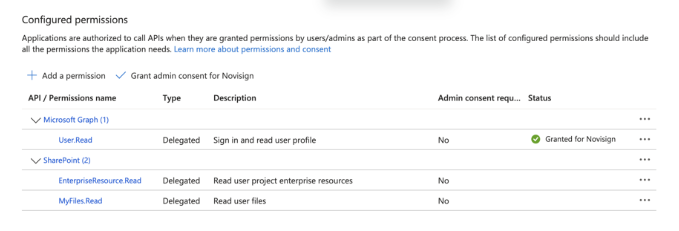
B. Delegated Permissions
(Used for user-level access — do not require admin consent, but must be active.)
| API | Permission | Purpose |
|---|---|---|
| Microsoft Graph | User.Read | Sign in and read the user profile |
| SharePoint | EnterpriseResource.Read | Read user enterprise resources |
| SharePoint | MyFiles.Read | Read files accessible to the user |
All delegated permissions must be listed and enabled.

Items to Verify Prior to Enabling the Integration
Your Azure App Registration must show:
- All required permissions listed
- Admin approval granted where required
- No missing or unapproved permissions
- Client ID, secret, site ID, tenant ID, and folder path prepared to share with NoviSign
If any permission is missing or not approved, the SharePoint–PowerPoint integration will not function.