Tags in Studio – Organize and Find Your Content Faster
Introduction
We’re excited to announce a new feature in Studio: Tags!
Tags allow you to label your items—creatives, playlists, screens, configurations, parameters, and groups—making it easier than ever to organize, filter, and search your content across the platform.
What Are Tags?
Tags are short labels you can assign to your items. They replace the old description field and provide a flexible way to categorize, organize, and search your content.
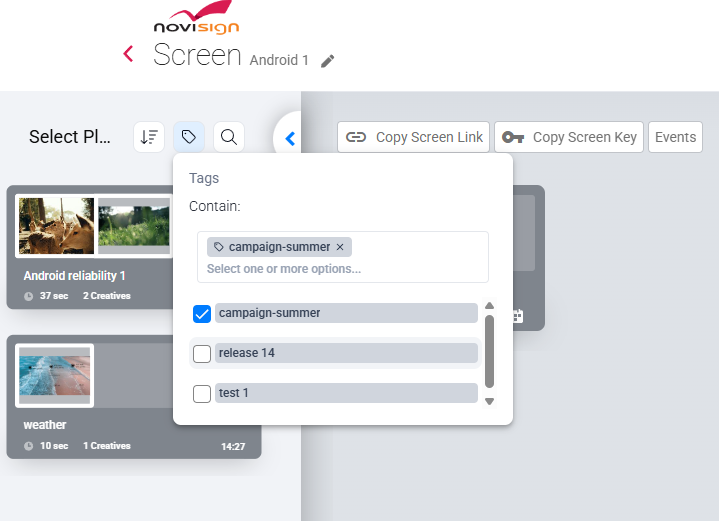
Example: You can create a tag called “campaign-summer” and assign it to a playlist, multiple creatives, and all the screens running that campaign.
Where Can You Use Tags?
Tags are available in the following sections of Studio:
-
Creatives
-
Playlists
-
Screens
-
Configurations
-
-
Groups
Why Use Tags?
-
Stay Organized – Easily group related items across sections.
-
Find Content Faster – Filter or search items by tags in list views.
-
Work Smarter – Reuse the same tags across creatives, playlists, and screens for unified campaigns.
-
Simplify Management – No need for complex folder structures—just tag and filter.
How Tags Work
Adding and Managing Tags
-
You can assign up to 10 tags per item.
-
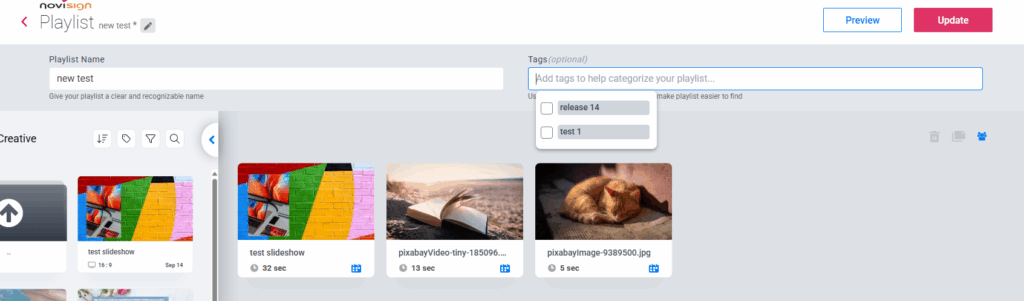
Tags are managed in the item details panel via a multi-select input.
-
Tags appear as small “chips” that you can remove anytime.
To add a new tag:
-
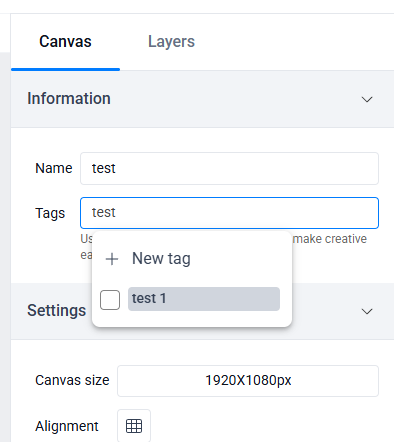
Type the tag name in the tag field and press Enter.
-
A “New tag” prompt will appear.
-
Click on the prompt to create and add the new tag.
Rules for Tags
-
Maximum length: 20 characters per tag.
-
Allowed characters: letters, numbers, hyphens (-), underscores (_).
-
Case-insensitive: “Marketing” and “marketing” are treated as the same tag.
-
Lowercase only: Any capital letters you type will be converted to lowercase automatically.
-
No duplicates: You can’t assign the same tag twice to an item.
-
Order: Tags display in the order they were added.
Filtering and Searching by Tags
-
In list views (Creatives, Playlists, Screens, etc.), there’s a Tags column.
-
You can filter items by tag using the tag filter dropdown.
-
You can also search tags within the table view.
-
Note: The global search bar at the top only searches by item name, not tags.
Examples of When to Use Tags
-
Campaigns: Tag all items related to a specific campaign (e.g., campaign-holiday).
-
Locations: Tag screens by region (e.g., ny-office, london-store).
-
Content Type: Tag creatives by type (e.g., video, announcement, menu).
-
Departments: Tag playlists or screens with department names (e.g., hr, sales).
Things to Know
-
Tags replace the description field—descriptions will no longer be available.
-
If you had descriptions before, they are automatically converted into tags.
-
Deleting a tag removes it everywhere (from all items and filters).
-
Tags stay linked even if an item is deleted and moved to the recycle bin.
NOTE: It is not possible to rename existing tags; you can only create new ones.
Tags that are associated with existing items cannot be deleted and will remain in the tag list. To remove a tag permanently, you must first remove it from all associated items, including creatives, playlists, and screens.
