Sign up for a free evaluation account
Text Download ➞
Title Subtitle Download ➞

Introducing MCP: A New Way to Integrate AI with NoviSign

Overview

NoviSign is introducing a new integration capability based on MCP (Model Context Protocol), a standard way for AI tools and external systems to securely communicate with platforms like NoviSign.

With this approach, external systems or AI assistants (such as Claude) can send structured requests to NoviSign using a clearly defined and secure connection. NoviSign then processes these requests through its backend services, applying the same account permissions and security rules that already exist today.

In this initial phase, MCP support focuses on Custom Data APIs. This makes it easier to connect external systems to NoviSign in a scalable and controlled way, without building custom integrations or exposing internal systems.

This is the first step in NoviSign’s adoption of MCP. Additional capabilities and use cases will be introduced gradually in future updates.

Important: To use this feature, please make sure you have:

  • A paid Claude subscription
    (Free Claude accounts do not support MCP connections)
  • A NoviSign Business Plus plan or higher, including Premium and Partner accounts,
    (Required to access API Keys in Studio)

How to Configure

  1. Log in to your Claude account
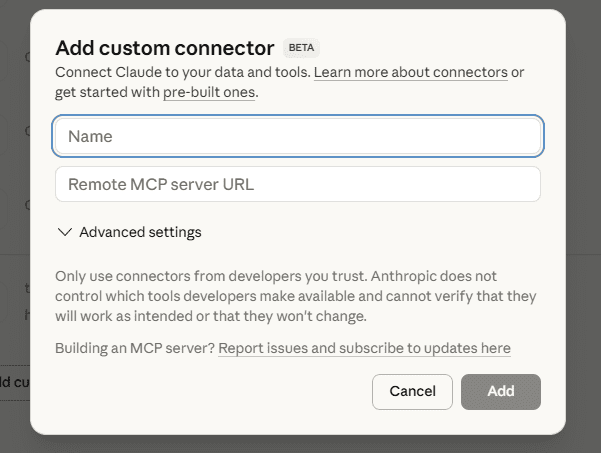
  2. Go to:
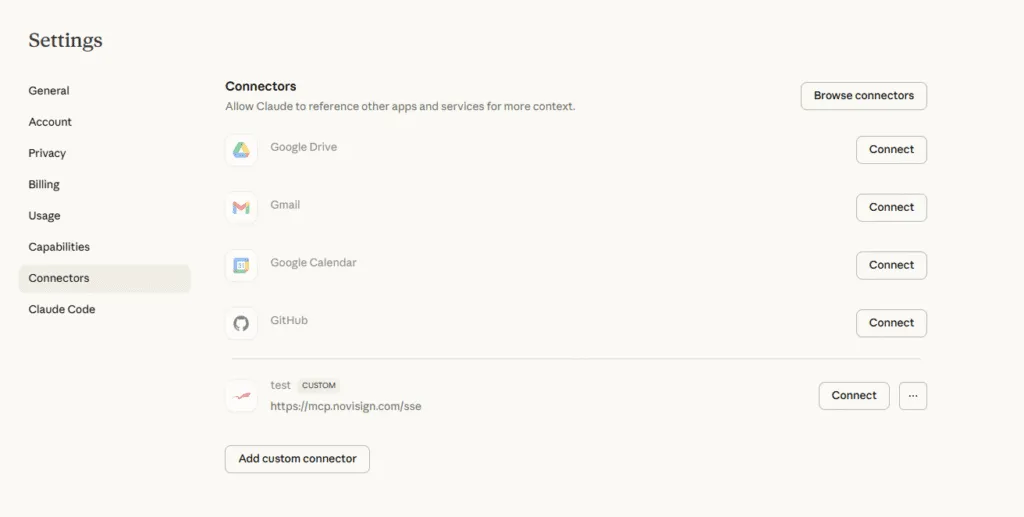
    Settings → Connectors → Add MCP Server

mcp connect

Enter the following URL:

https://mcp.novisign.com/sse

  • Claude will automatically recognize this as a secure MCP connection.

mcp connection

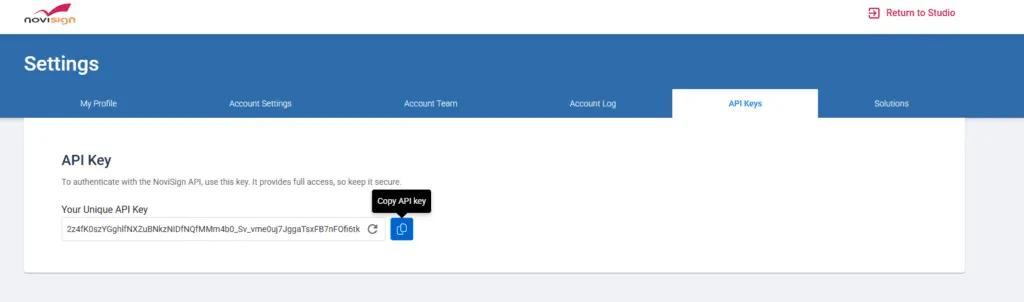
  1. Log in to NoviSign Studio
  2. Go to Settings
  3. Open the API Keys tab

API tab

Copy your API key (or regenerate it if needed)

This key allows Claude to send data to NoviSign securely.

If you’re using Claude Web or Claude Desktop (which is the most common setup), you can connect Claude to NoviSign directly using a simple prompt.

When prompted by Claude, enter a message like this:

Connect me to the NoviSign API with key {API_KEY}

Replace {API_KEY} with the API key you copied from NoviSign Studio.

Claude will securely store this key and use it to connect to your NoviSign account for all future interactions.


Once Claude is connected to NoviSign using MCP, you can start sending data into NoviSign simply by describing what you want in plain language.
No coding or technical setup is required.

Claude takes care of formatting the data correctly and sending it to NoviSign securely on your behalf.

Sending Data Using Claude (Example)

To add data, type a clear request in Claude, such as:

Add a new event called “EU Spring Conf 2027” to the events group.

The event starts on 2027-03-15 and ends on 2027-03-17.

Description: Annual Spring Conference for EU citizens.

Location: Barcelona, Spain.

You can write naturally—Claude understands full sentences and does not require a specific format.

What Happens After You Send the Request

After you submit the prompt, Claude will:

  1. Understand your request
  2. Structure the data correctly
  3. Send it to NoviSign using MCP
  4. Create the item under your NoviSign account

If everything is successful, Claude will confirm that the data was created and display the details.

Example Confirmation (What You’ll See)

Claude may respond with a confirmation similar to this:

Event created successfully

Name: EU Spring Conf 2027
Start Date: March 15, 2027
End Date: March 17, 2027
Location: Barcelona, Spain
Status: Planned

The event is now available in your NoviSign catalog.

This confirmation means the data was successfully received by NoviSign and is now ready to be used when configuring content in NoviSign Studio.

Helpful Tips

  • You don’t need to follow a strict structure—just be clear and specific
  • Claude will let you know if something is missing or unclear
  • You can also ask Claude to update, modify, or create additional data using similar prompts

What’s Next?

Once the data has been sent into NoviSign, you can use it when creating content in NoviSign Studio, as described in the next section.

To actually connect Claude (via MCP) to NoviSign Studio, you must manually compose a Catalog Service URL and add it under the Load Parameters section in Studio.

This URL tells NoviSign what type of data Claude is allowed to send into your account (for example: products, events, menu boards, etc.).

URL Structure

Use the following structure exactly as shown:

https://{your-studio-domain}/catalog/{account-key}/itemsgroup/{data-type}

What to Replace

  • {your-studio-domain}
    Replace with your NoviSign Studio domain
    (the same domain you use to log in to Studio, for example: app.novisign.com)

  • {account-key}
    Replace with your NoviSign account key
    To obtain your Account Key, open NoviSign Studio → Settings → Account Settings, locate the Account Key field, and click Copy key.

  • {data-type}
    Replace with the type of data Claude should manage
    (for example: products, events, menu-boards)

Important

  • catalog and itemsgroup are fixed values
    → They must remain exactly as shown and must not be changed

  • Only the placeholders wrapped in curly brackets {} should be replaced

Once external data is available through MCP and Custom API Integration, you can use it directly in widgets, templates, and screens inside NoviSign Studio.

Follow the steps below to create the integration and display the data on your screens

Create a Custom API Integration in Studio

  1. In NoviSign Studio, create a new Creative
  2. Enable Load Preview Parameters under Canvas tab on the right side of the Creative properties
  3. Click API IntegrationAdd
  4. Fill in the required fields:
    • Integration Name – A friendly name (for example: “External Events Data”)
    • API URL

      Paste the Catalog Service URL you created in the previous step, using the following structure:

      https://{your-studio-domain}/catalog/{account-key}/itemsgroup/{data-type}
      The {data-type} value must match what Claude is managing
      (for example: products, events, menu-boards).
    • Property Key

      The JSON key that corresponds to the same data type defined in the URL.
      For example:

      • Use products when the URL ends with /products

      • Use events when the URL ends with /events

      • Use menu-boards when the URL ends with /menu-boards

      • Refresh Interval
        Set the refresh interval to 30 seconds (this is the minimum supported value).
        Updates are often reflected even faster, but 30 seconds is required.
  5. Click Test to fetch and preview the data
  6. If the data is retrieved successfully, click Save

This step connects NoviSign to the external data source.

Display the Data on a Creative

  1. Add a Text or Label widget to your canvas
  2. Click inside the text field.Type: ${

 This opens the Compose JSON dialog

  3. Click Insert a dynamic value

  4. Select @customapi

  5. Click Insert a dynamic value again

  6. Choose the API Integration you created in Step 1

  7. Select the desired dynamic property

You can now display live, dynamic values coming from the external data source.

Automatically Send the API Configuration to Players (Recommended)

To avoid configuring each device manually, you can use Studio Configurations.

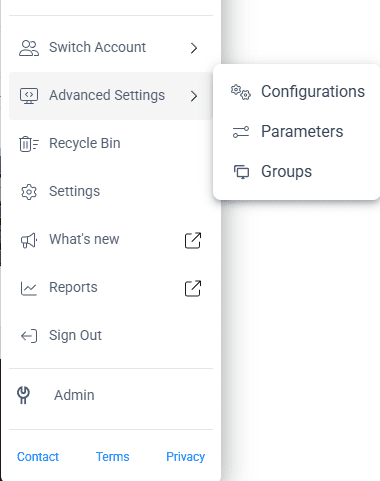
  1. Go to:

    Studio → Screens tab →  Advanced Settings → Configurations

Studio Configurations

  2. Click New Configuration

  3.Navigate to:

External Interfaces → Custom API Integration

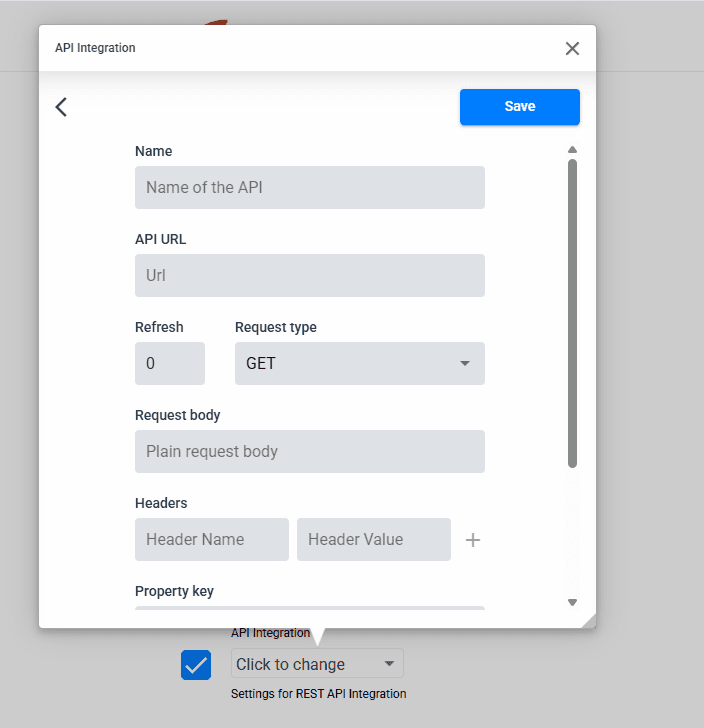
  4. Enter the same API details:

  • Integration Name
  • API URL
  • Headers (if required)
  • Property Key
    CustomAPI
    5. Click Test to confirm the JSON data is returned
    6. Click Save

This creates a configuration that you can reuse across screens.

 Assign the API Configuration to a Screen

  1. In Screen Content, locate the target screen
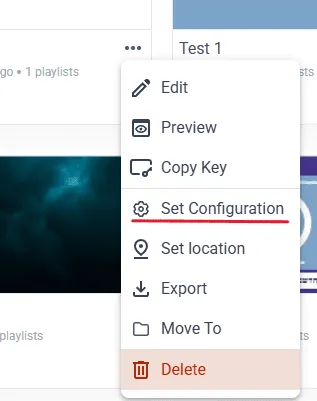
  2. Click the three dots (⋮) next to the screen
  3. Select Set Configuration

Assigning configuration

4. Choose your Custom API Integration configuration

Once assigned, the player will automatically import the API configuration when that screen is selected—no manual setup on the device is needed.

Summary

MCP (Model Context Protocol) is a new integration method that enables external AI models to securely connect to NoviSign and exchange structured data.

By following a few simple steps, you can:

  • Send external data into NoviSign
  • Automatically update your screens
  • Keep full security and control over your account

All you need is: A paid Claude subscription and a NoviSign Business Plus plan or higher (including Premium and Partner plans)

This is just the beginning—more AI-powered capabilities will be added in the future.

NoviSign Digital Signage
Privacy Overview

This website uses cookies so that we can provide you with the best user experience possible. Cookie information is stored in your browser and performs functions such as recognising you when you return to our website and helping our team to understand which sections of the website you find most interesting and useful.