Two-Factor Authentication (2FA) via the Partner Admin Console
Overview
Two-Factor Authentication (2FA) adds an additional layer of protection to NoviSign accounts by requiring users to verify their identity using both their password and a second authentication method.
This significantly reduces the risk of unauthorized access and strengthens the overall security of your organization’s NoviSign environment.
As a partner, you can decide how 2FA is applied across your user base.
The Partner Admin Console allows you to enforce 2FA for all new users or to manage it individually for specific users according to your security policies.
This article is intended for partners managing user security through the Partner Admin Console.
Configuring 2FA for Users
Partners can access and configure global 2FA settings directly from the Partner Admin Console.
How to Access the Settings:
- Log in to the Partner Admin Console
- Go to Dashboard
- Open the Authentication tab
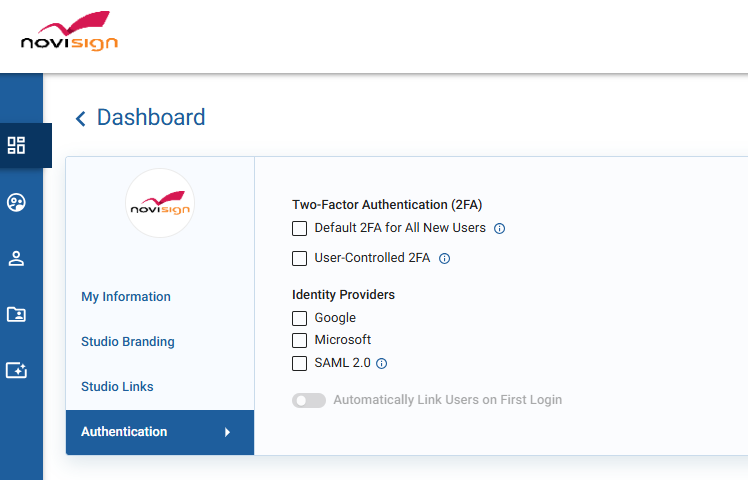
Default 2FA for all new users – automatically enforces 2FA for every new user.
User-controlled 2FA – allows each user to enable/disable 2FA in the Studio (Settings tab) and choose either email-based or a third-party authenticator app for their second factor.
Enforcing 2FA
Partners also have the ability to enforce 2FA for specific users.
How to apply it:
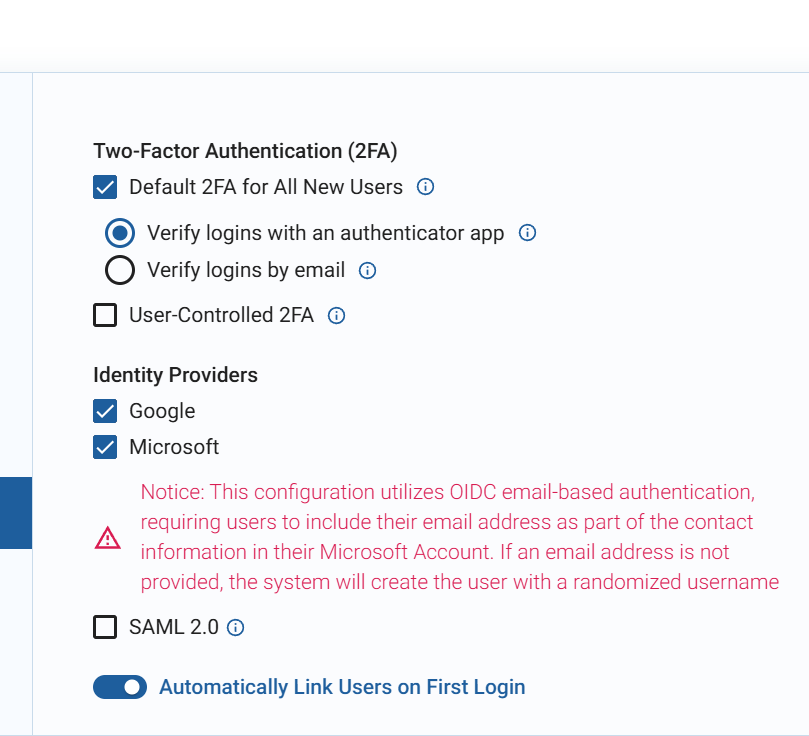
- In the Partner Admin Console, go to Settings and Enable “Default 2FA for All New Users”. Make sure that “User-Controlled 2FA” is set to off:
- In the Partner Admin Console, go to the Users tab
- Open User Settings
- Click Edit User
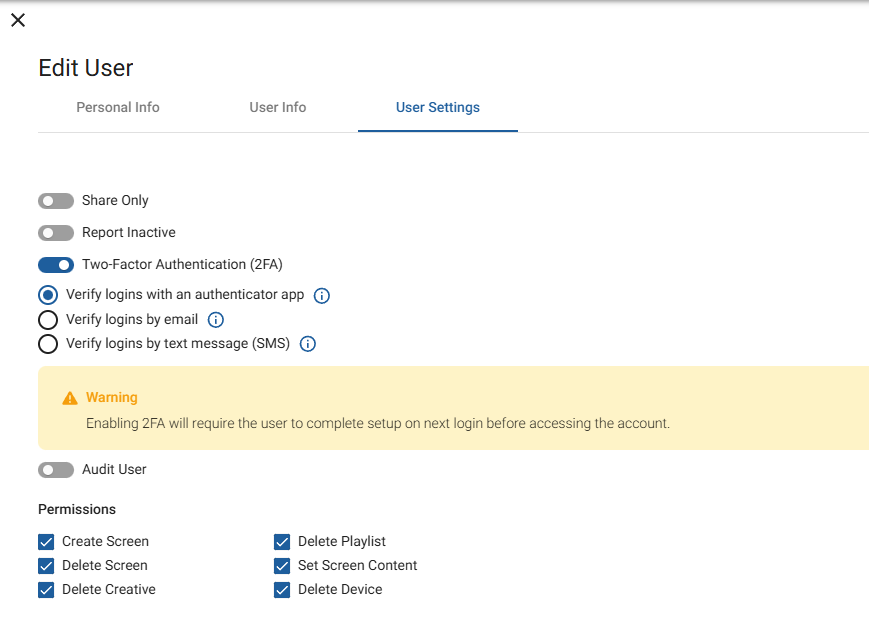
- Enable Two-Factor Authentication
Choose the verification method (authenticator app, email, or SMS)
Once 2FA is enabled for a user, they will be prompted to complete the setup on their next login only if they choose to verify logins using an authentication app, as this method requires a one-time configuration and code pairing.
For Email and SMS verification, no configuration is needed — users will simply begin receiving verification codes via their chosen method.
Verification Methods
1. Authenticator App
- Supports any TOTP-based authentication app (Google Authenticator, Microsoft Authenticator, etc.)
- Requires installing an authentication app on the user’s mobile device
- Generates time-based one-time codes used to verify login attempts
2. Email Verification
- Sends a verification code directly to the user’s registered email
- Does not require installing any additional application
- Ideal for users who prefer a simple, app-free authentication process
3. SMS (Text Message) Verification
- Available for users whose subscription plan includes SMS-based 2FA
- Users must first confirm their mobile phone number to receive verification codes
Users may choose the verification method that best fits their needs.
At this time, only new users can be automatically required to use 2FA by selecting Default 2FA for All New Users.
All existing users can still toggle 2FA on or off from the Studio Settings panel.
Watch a Video Guide
For a quick walkthrough of the Two-Factor Authentication (2FA) setup process, watch the training video below. It demonstrates how to enable 2FA for your account and complete the verification using an authenticator app.
