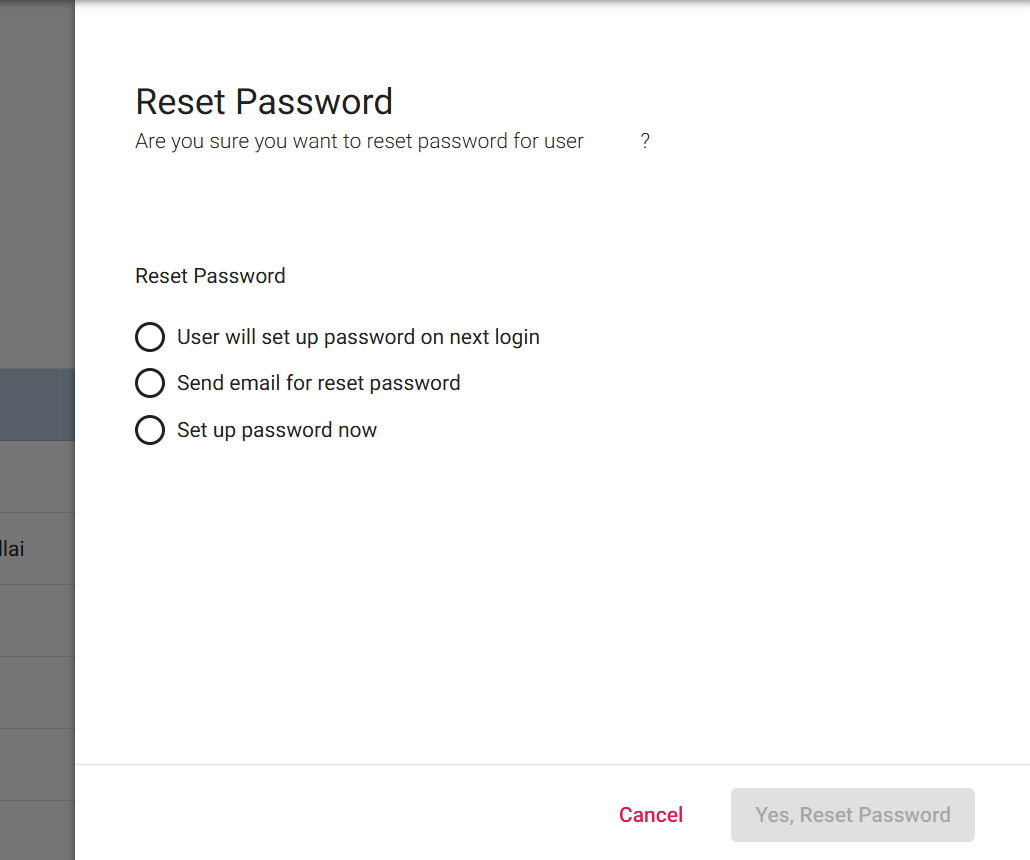
As an administrator of a subdomain with users, heer are the steps you need to take in order to change or reset an end user’s password:
Steps to change or reset a user’s password:
- Open the Admin Console.
- Open the users menu, then select the user you’d like to edit.
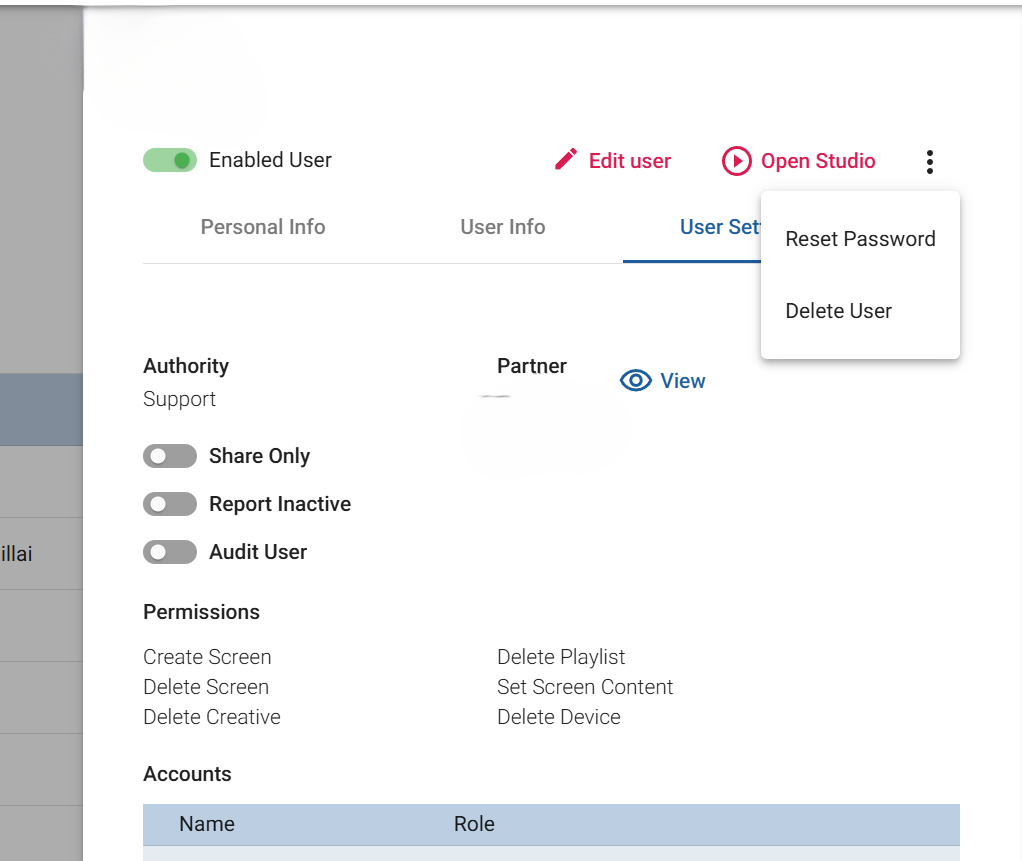
- Clicking on the user will open its user record as a tab on the right.
- Click on the 3 dots in the upper right of the tab box, and select “Reset Password”.
5. This will give you 3 options related to the password change or reset:
- User will set up password on next login – this will require the user to change the password when they login.
- Send email for password reset – this will use the email of the user in the system and require them to follow the web URL sent to them.
- Set up password now – this will allow you to change the password manually, and save it.