
Log files help the NoviSign team investigate issues related to playback, connectivity, and device behavior. Follow the steps below to generate and submit logs from your device.
Step 1: Stop the Running Content
Stop the currently playing content by:
-
Right-clicking with the mouse, or
-
Pressing the Back button on the remote
Step 2: Open the App Settings
Click the gear icon in the top-right corner of the screen to open the NoviSign app settings.

Step 3: Enable Troubleshooting
-
Click Player.
-
Turn Enable Troubleshooting to ON.
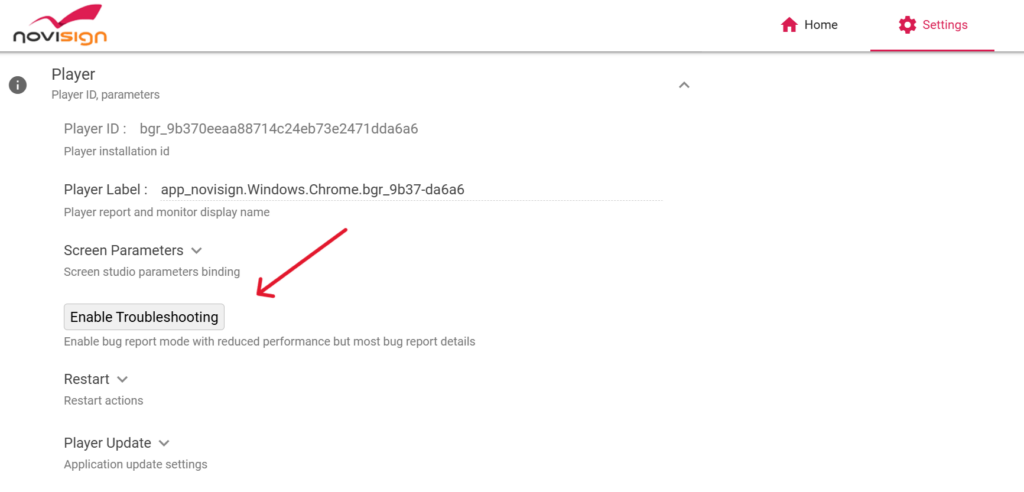
This enables more detailed log collection for troubleshooting purposes.
Step 4: Run the Content Again
-
Exit the settings and return to the main screen.
-
Click Play to start the content again as usual.
Step 5: Reproduce the Issue
Allow the content to run until the issue happens again.
Step 6: Generate a Bug Report
After the issue reoccurs:
-
Stop the playlist.
-
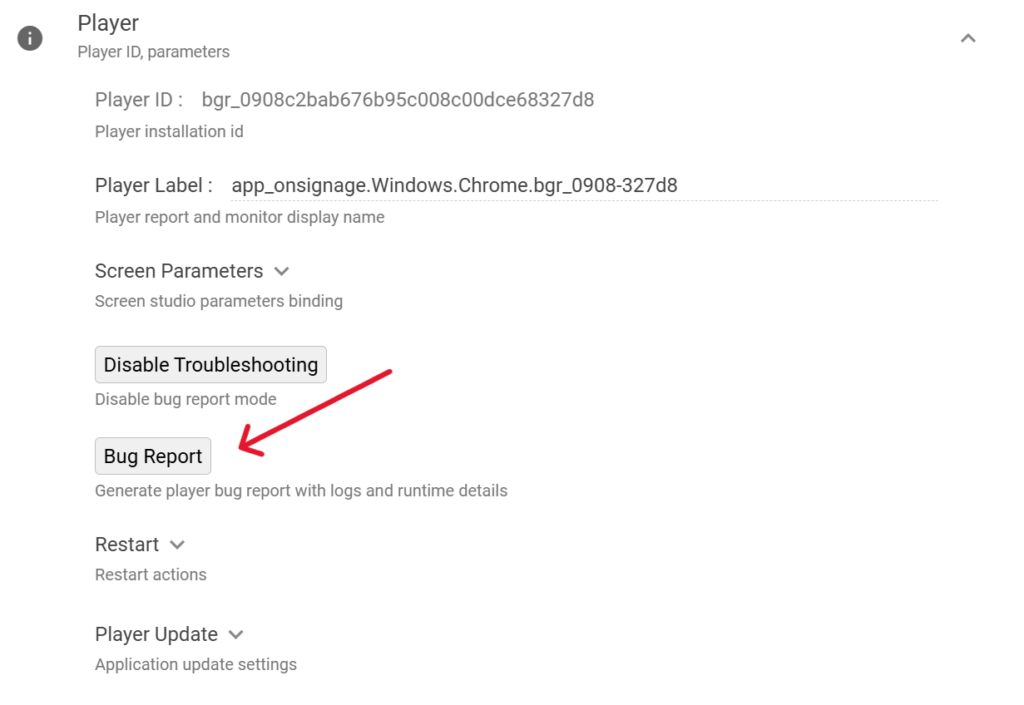
Open the Settings again.
-
Under the Player section, click Bug Report.
Step 7: Submit the Report
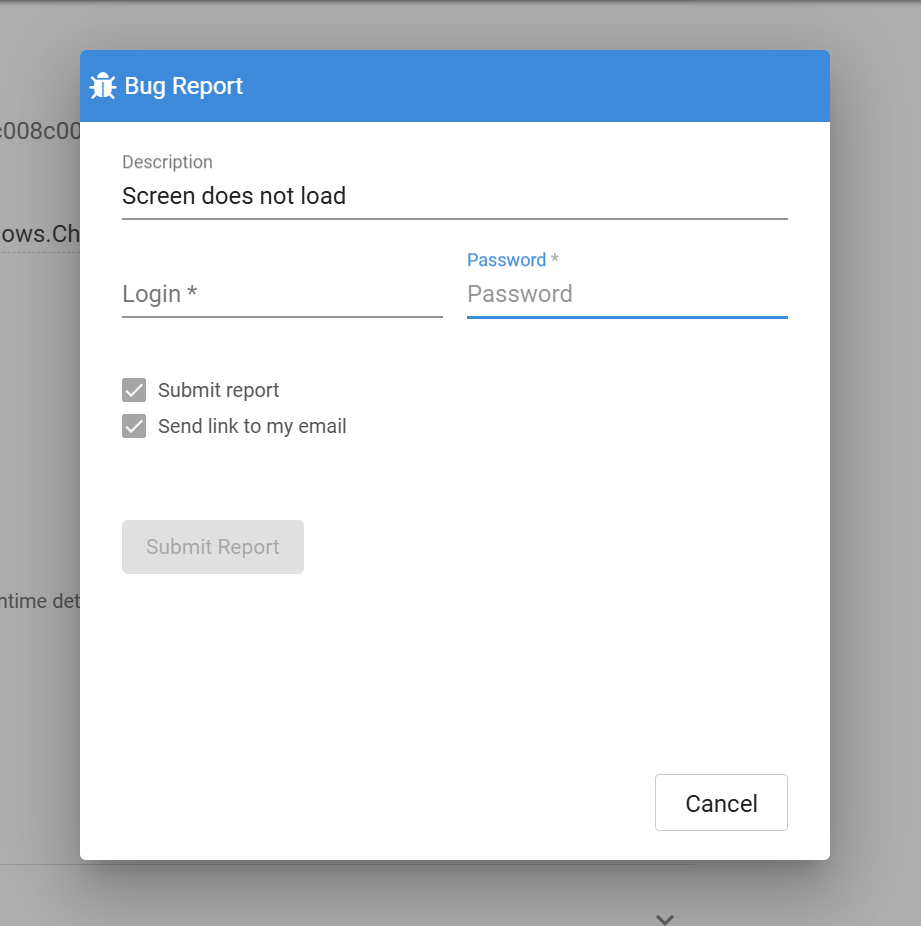
A bug report pop-up window will appear.
Fill in the following details:
-
Description – briefly describe the issue
-
User – your NoviSign Studio username
-
Password – your NoviSign Studio password
Then click Submit.
Step 8: Copy the Log URL
After a few seconds, and sometimes up to several minutes, a pop-up message will appear with a URL.
This URL points to the uploaded log files in the cloud.
Copy the URL and send it to the NoviSign support team for further analysis.