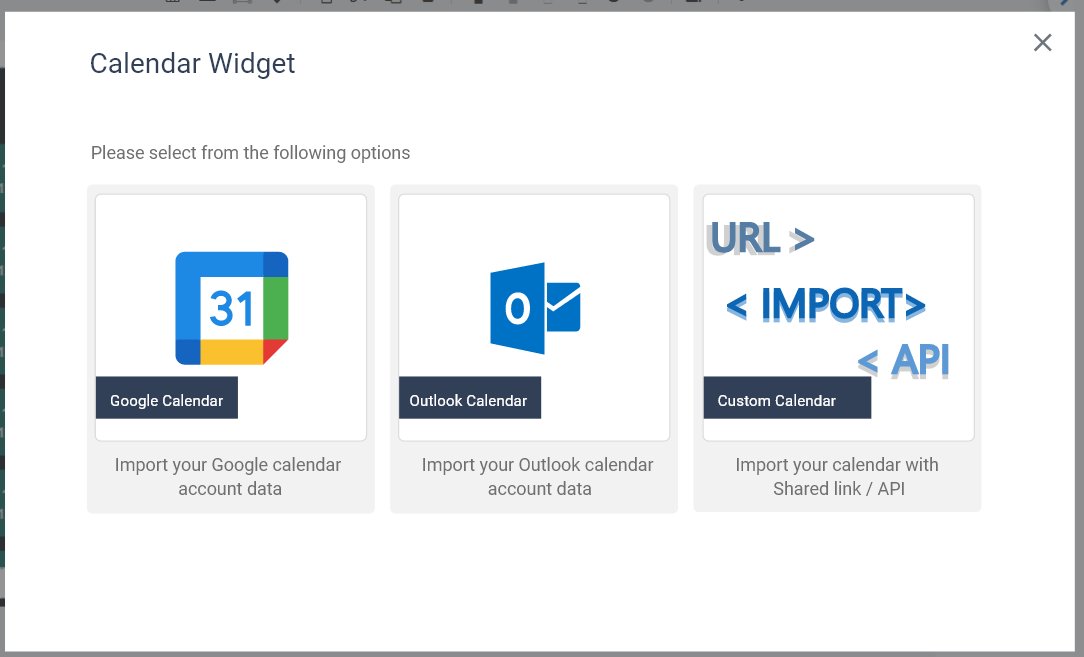
If you’re using a different calendar system, select Custom Calendar. You’ll have two options to connect:
CSV Link
Enter the URL of your CSV file.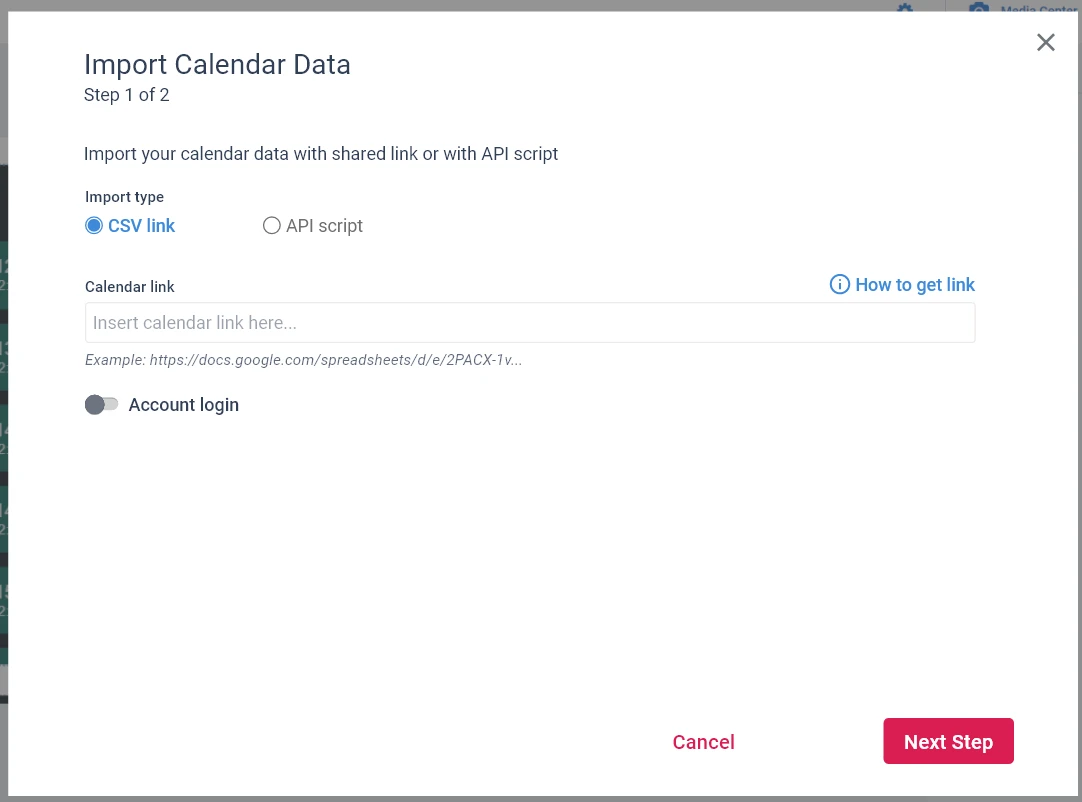
How to set it up:
- In your calendar system, export or generate a CSV link (not a downloaded file, but a live URL)
- Copy the CSV URL
- In NoviSign Studio, paste the link into the CSV Link field
- Click Test (if available) to verify the data is loading correctly
- Save your settings
Tip: If the file is password-protected, enable the “Account Login” option and enter your credentials.
Need help finding the CSV link? Check out our guide: “How to Create a CSV Link.”
CSV File Requirements
When using Calendar → Import Calendar Data → Import Type = CSV Link, the CSV file must follow a specific structure to ensure events are displayed correctly.
General format:
- The file must be comma-separated (CSV)
- The first row must contain headers
- Header names must match exactly (lowercase + hyphens)
Required Columns
The following columns are mandatory:
event-subjectevent-descriptionevent-locationdate-start → format: MM/DD/YYYYdate-end → format: MM/DD/YYYYevent-start → format: HH:mmevent-end → format: HH:mm
Optional Columns
You may also include:
-
event-attendees-email → comma-separated emailsevent-organizers → comma-separated JSON boolean values (true,false)id or IDcalendar-idevent-color
-
Tip: If the file is password-protected, enable the “Account Login” option to enter your credentials.
API Import
Paste the API URL provided by your calendar system to import events automatically.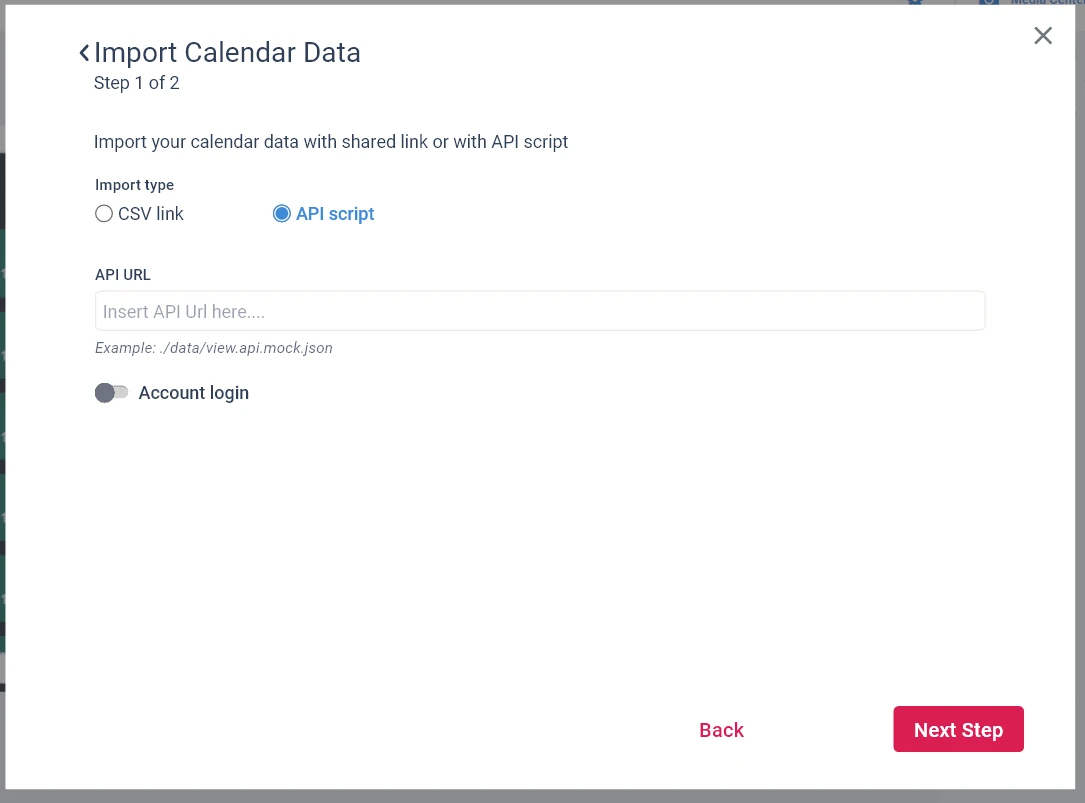
How to set it up:
- Obtain the API endpoint URL from your calendar provider
- Make sure the API returns event data in a supported format (typically JSON)
- Paste the API URL into the API Import field in NoviSign Studio
- (If required) add authentication details such as API key or headers
- Click Test to confirm the data is retrieved successfully
- Save your settings
Additional Notes
- Updates in your calendar will reflect automatically based on the refresh interval
- If no data appears, double-check the link format, structure, and access permissions
- For secure endpoints, ensure all required authentication details are correctly configured