Managing Screen Configurations in NoviSign Studio
Introduction
Configurations allow you to control and apply player settings directly from NoviSign Studio—without physically accessing the device. This section mirrors the settings available on the actual player and lets you define how the player should behave, including display settings, connectivity, cache control, API usage, app updates, and more.
Once a configuration is assigned to a screen, the player will automatically adopt the defined settings the next time it runs the content. This means:
-
No manual setup is required on the device
-
The player automatically receives the applied settings
-
All updates and adjustments can be managed remotely from Studio
The configuration layout is built to match the player’s internal settings. Available tabs include:
-
Player
-
Display
-
Connectivity
-
Reliability
-
Start Mode
-
Play Mode
-
Play Sync
-
Cache Control
-
Video Transition Tune
-
External Interfaces
-
Logging
-
Advanced
Android & Chrome OS Only:
Before You Begin: Supported Platforms
Configurations in NoviSign Studio are primarily intended for Android-based players. Most configuration tabs (Player, Display, Connectivity, Cache Control, etc.) apply only to Android at this time.
For other operating systems, only API settings are currently relevant:
-
Chrome OS
-
Samsung Tizen
-
LG webOS
On these platforms, the only supported configuration section is:
External Interfaces → Custom API Integration (API Settings)
All other configuration tabs are Android-exclusive until additional support is released.
Important Note: Most configuration settings are currently supported only on Android players.
If you are using Chrome OS, Samsung Tizen, or LG webOS, only API configurations apply.
Other configuration tabs will not affect these platforms.
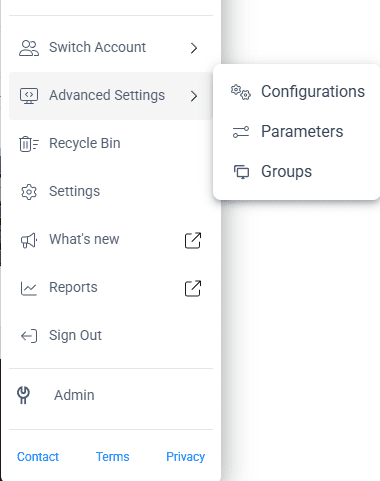
How to Create a Configuration
How to Assign a Configuration to a Screen
For a configuration to actually take effect on a player, it must be assigned to the screen in Studio.
-
Go to the Screens tab in Studio
-
Select the screen you want to configure
-
Click the three dots (⋮) on the right side of the screen name
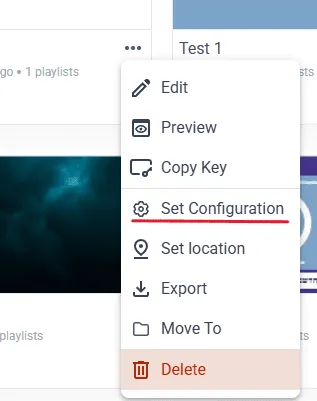
4. Choose Set Configuration
5. Select the relevant configuration from the list
6. Click OK to apply
Once assigned, the player will automatically use this configuration the next time it updates and runs the screen.
Remote App Update (Upgrade Version)
NOTE: Upgrading the NoviSign/OnSignage Player app through Configuration Settings is only supported on rooted devices.
If the device is not rooted, the upgrade will not be applied. In this case, the device will display an error message similar to: “Upgrade is ON but not supported (device is not rooted).”
If you want to update the player app remotely:
-
Open your configuration
-
Go to the Player tab
-
Enable the Upgrade Version checkbox
-
Select the version from the dropdown menu
-
“Latest” = always the most up-to-date version available
-
Some versions may not appear individually, but latest always points to the newest release
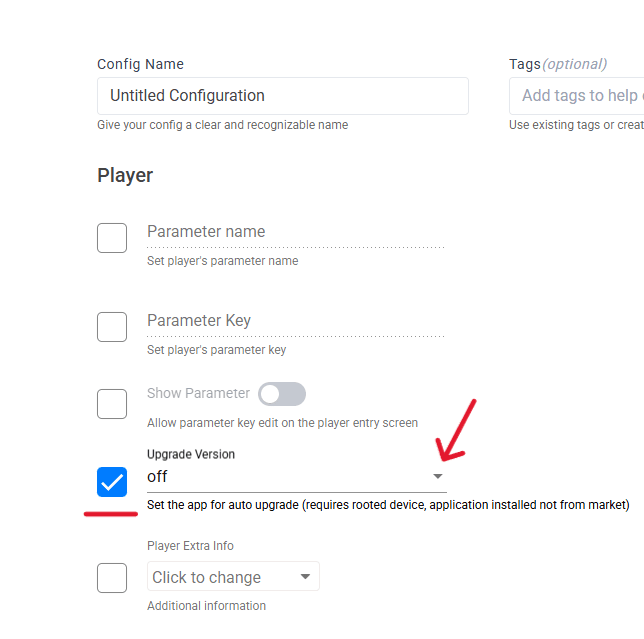
NOTE: Downgrading the app version cannot be done through Configurations. To downgrade, you must manually uninstall the current app from the device and then install the desired version directly on the device.
Using Configurations for API Integrations
Configurations are commonly used for applying Custom API settings.
To set up Custom API integration:
-
Open the configuration
-
Go to External Interfaces
-
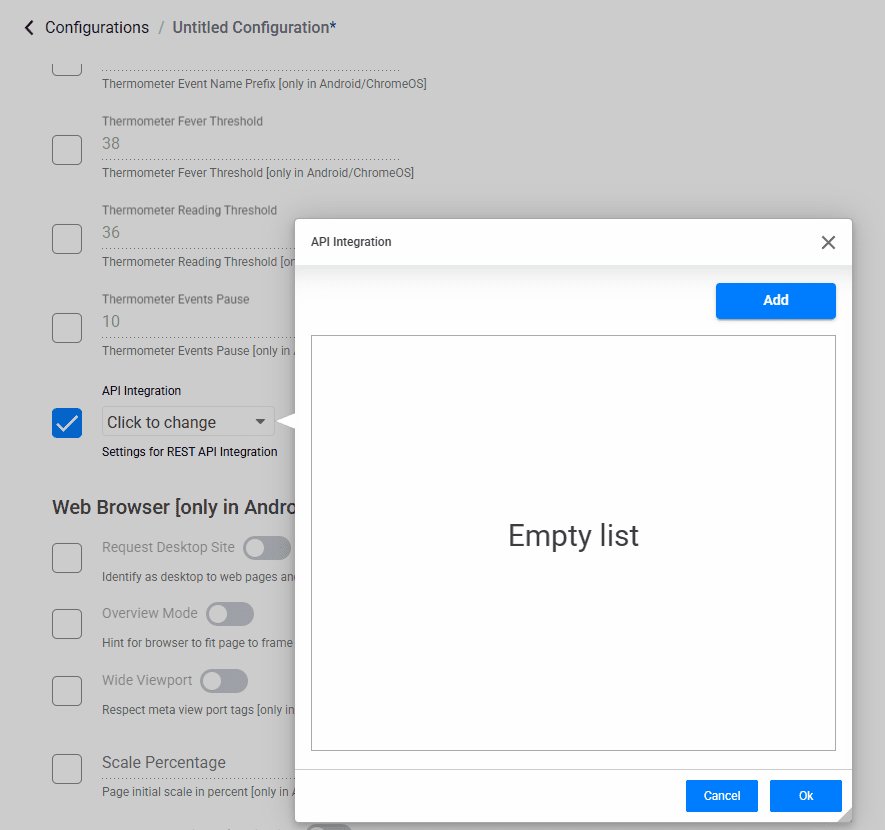
Enable Custom API Integration (toggle ON)
-
Click Click To Change
-
Use the pop-up window to enter the required API details
-
Save the configuration and assign it to the screen
Limitations
Please note the following current limitations when using Configurations in NoviSign Studio:
-
Platform support varies:
Most configuration options are currently supported only on Android devices.
For Chrome OS, Samsung Tizen, and LG webOS, only API-related settings (External Interfaces → Custom API Integration) are applicable.
-
Downgrading the app version is not supported through Configurations.
To downgrade, the current app must be manually uninstalled from the device and a different version installed directly on the player.
-
Not all app versions appear in the upgrade dropdown list.
The “Latest” option always represents the newest available version, even if specific versions are not displayed individually.
-
A configuration only takes effect once it is assigned to a screen.
Creating a configuration alone does not apply any settings to a player until it is linked to a screen.
-
Remote control features depend on the device and manufacturer.
Certain settings may be restricted by hardware or OS limitations and may still require physical access to the device.