
The Novastar Taurus is an Android-based LED controller that runs apps natively. Using VipLex Express, you can remotely push and install the NoviSign player app over the network — no USB drive or physical access to the controller required.
Installing NoviSign on a Novastar Taurus Controller
Before You Start
Make sure all of the following are ready before you begin:
- Your Novastar Taurus controller is powered on and connected to the same network as your Windows PC.
- VipLex Express is installed on your Windows computer (download from novastar.tech).
- You have downloaded the NoviSign APK file to your PC.
- Your PC and the Taurus controller are on the same local network.
Installation Steps
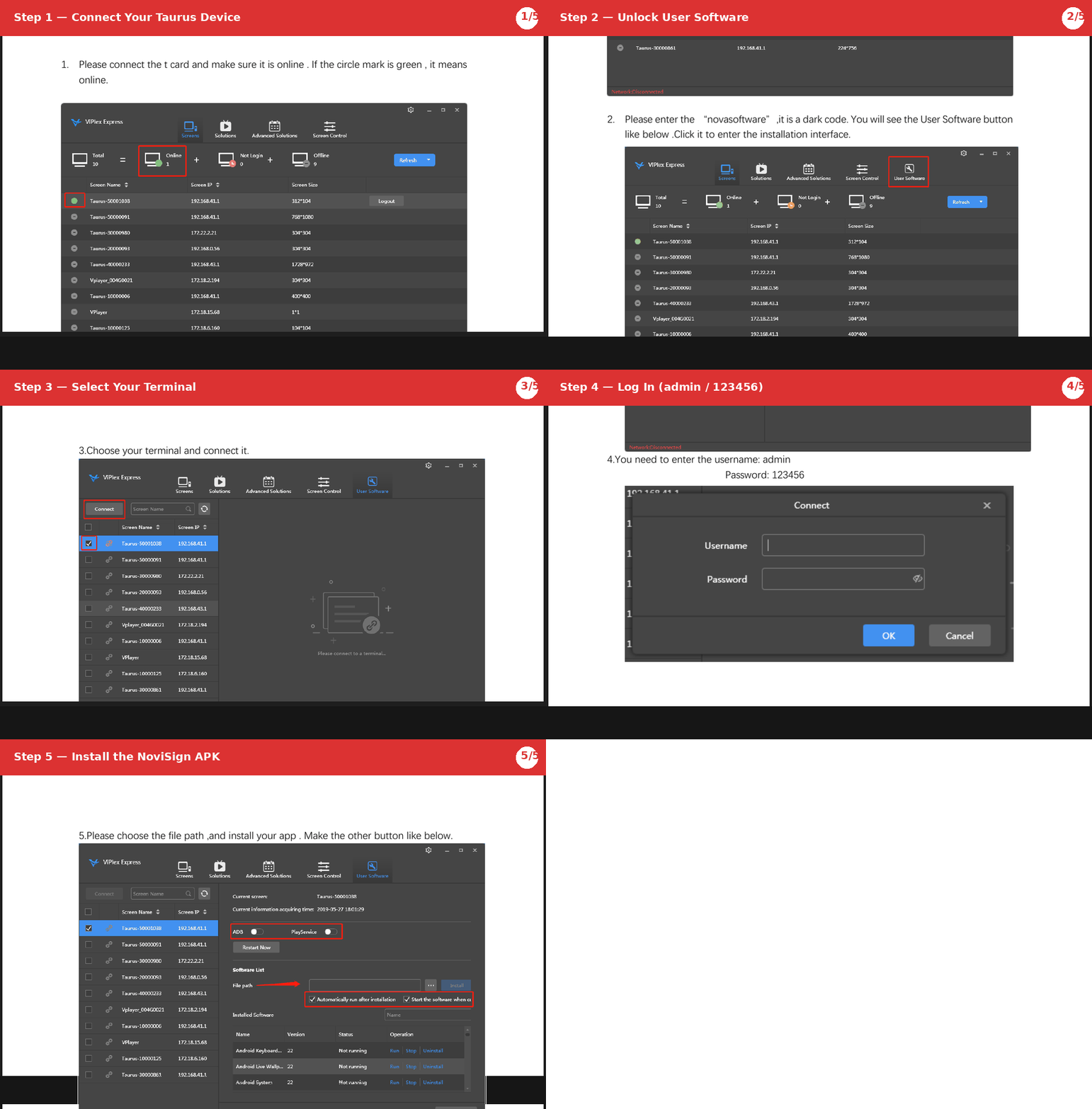
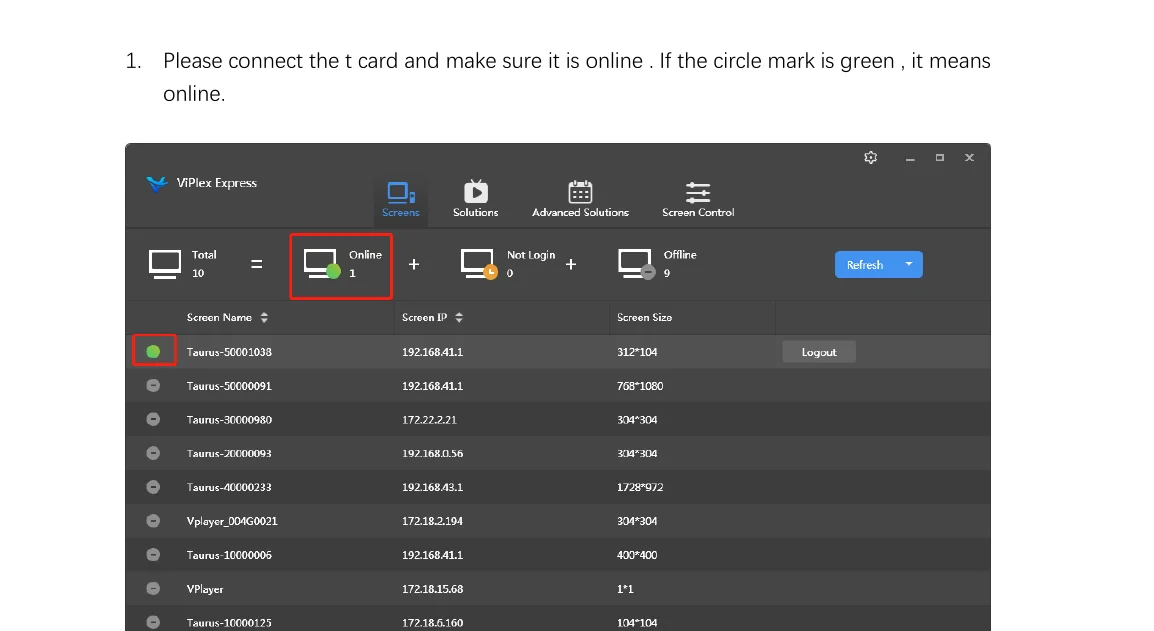
Open VipLex Express on your Windows PC. In the device list, locate your Taurus controller and verify it shows a green online indicator.
If the controller appears offline, check that both devices are on the same network and the controller is powered on.
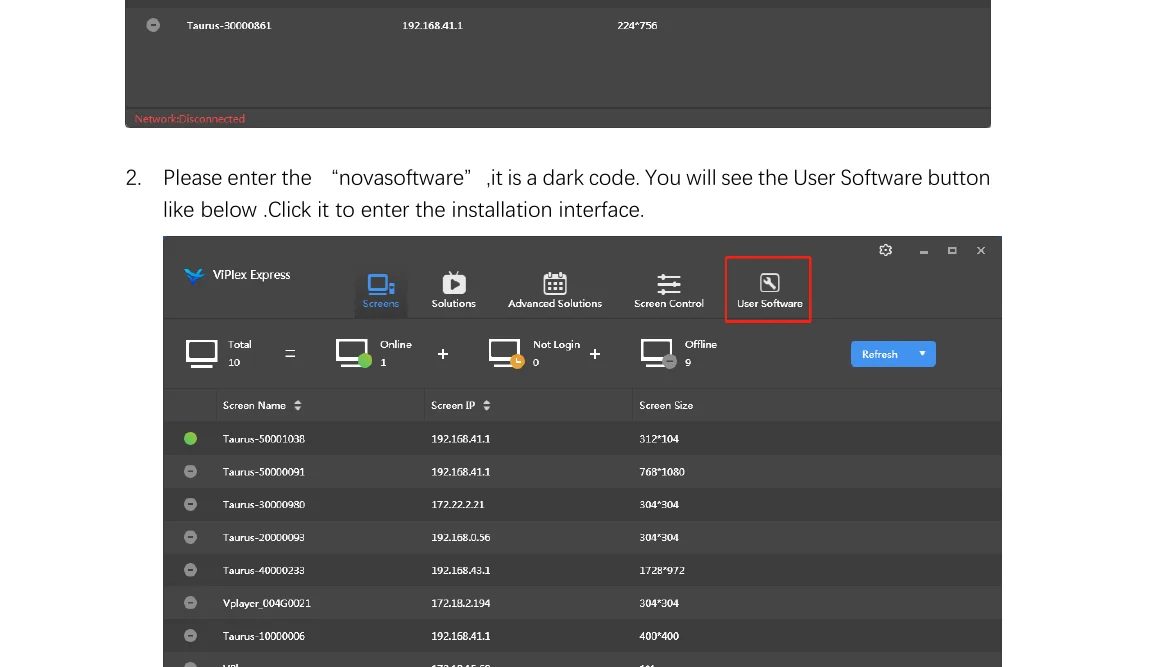
With the VipLex Express window open and in focus, type novasoft on your keyboard. This is a hidden shortcut that unlocks the User Software mode.
A popup will confirm: User Software Unlocked. This step must be completed before you can connect to the terminal.
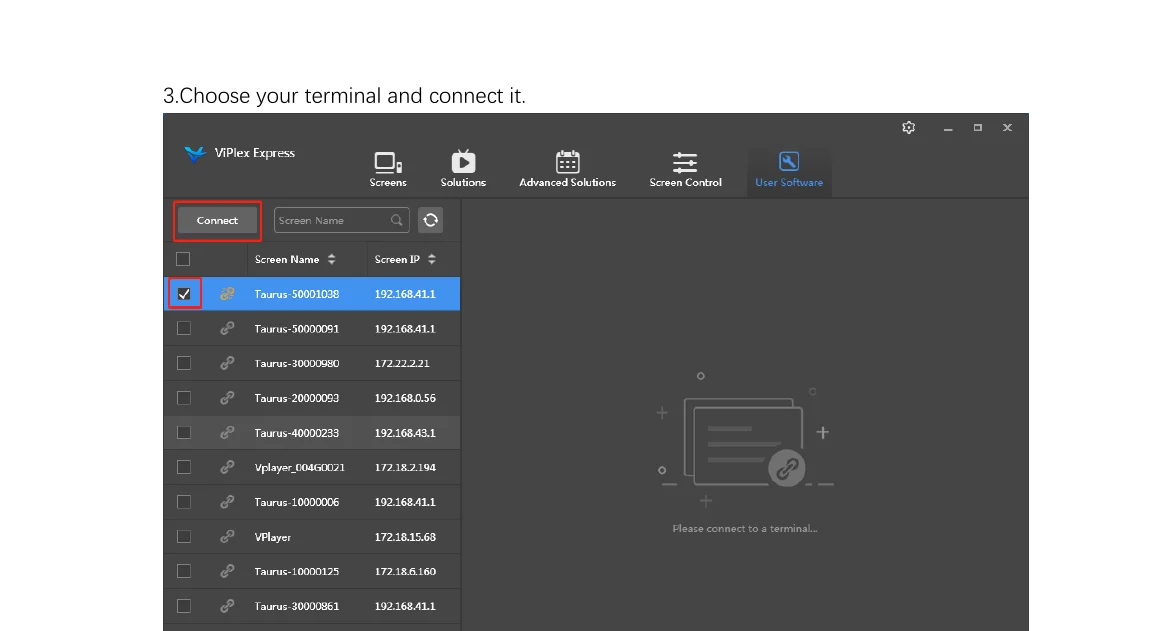
In VipLex Express, select your Taurus controller from the device list, then click Connect. A terminal session window will open.
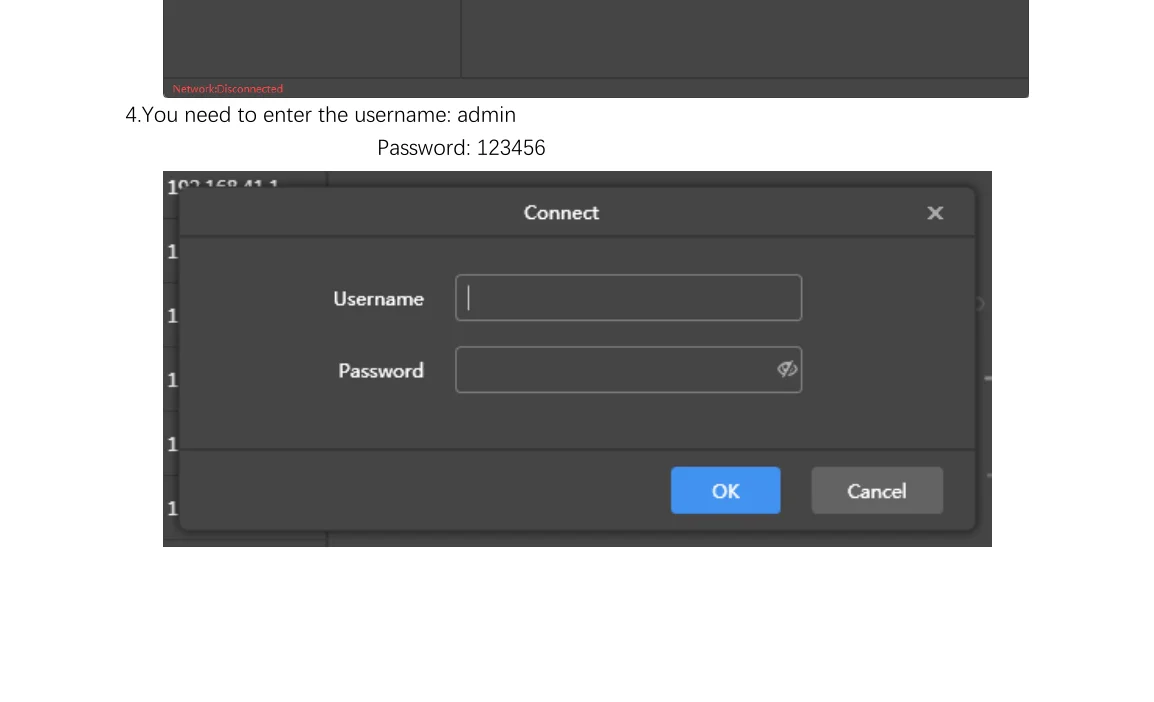
Enter the login credentials when prompted:
- Username: admin
- Password: 123456 (or
SN2008@+if the default password has been changed)
Click OK to log in.
Once connected to the terminal:
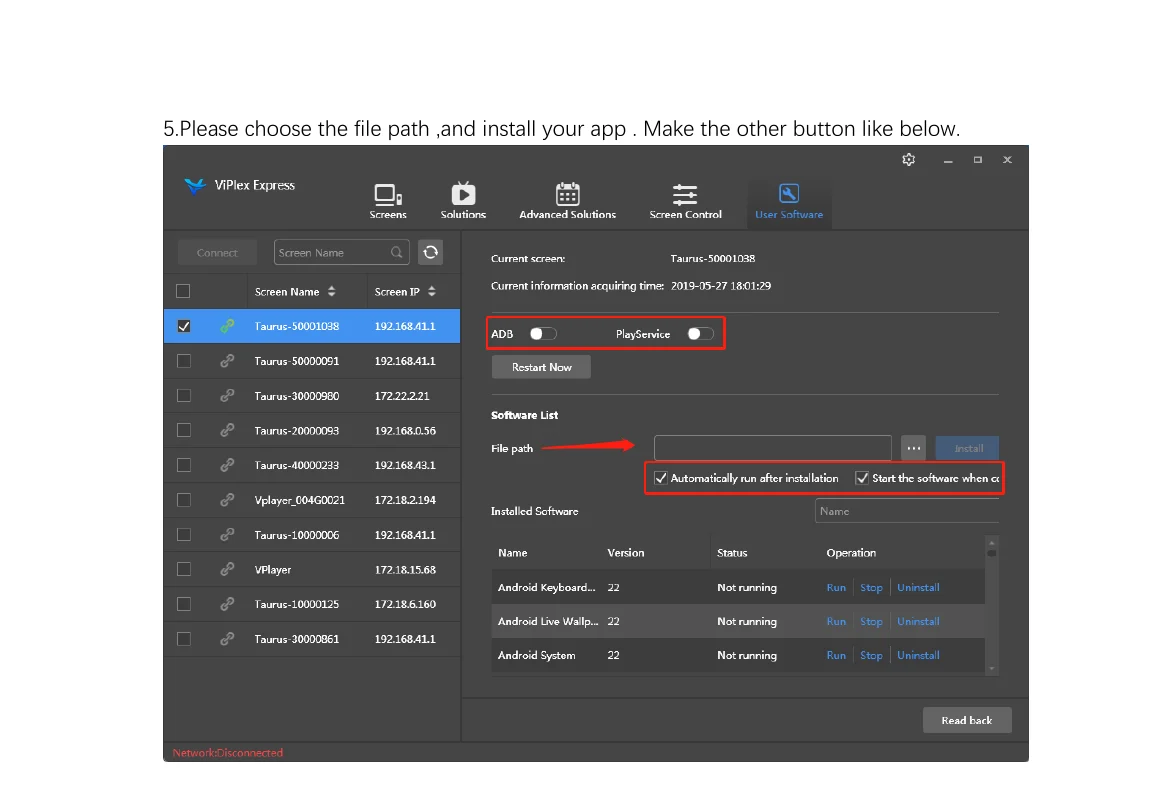
- Click Browse and navigate to the NoviSign APK file saved on your PC.
- Enable both checkboxes: Auto-run after installation and Start on boot.
- Click Install. The APK will be transferred and installed on the controller automatically.
Pairing with NoviSign
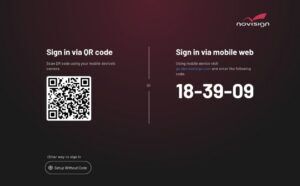
Once the NoviSign app has installed, click on the “Restart Now” button. The app will then launch on the Taurus display, showing the Quick Link pairing screen with a QR code and a 6-digit code.
To pair the screen with your account:
- Log in to your NoviSign account from any browser.
- Go to Screens and click Add Screen.
- Scan the QR code with your mobile device, or enter the 6-digit code manually.
- Select the screen from the list and click Continue.
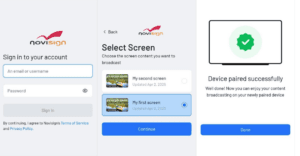
Your Novastar Taurus controller is now paired and ready to display NoviSign content.