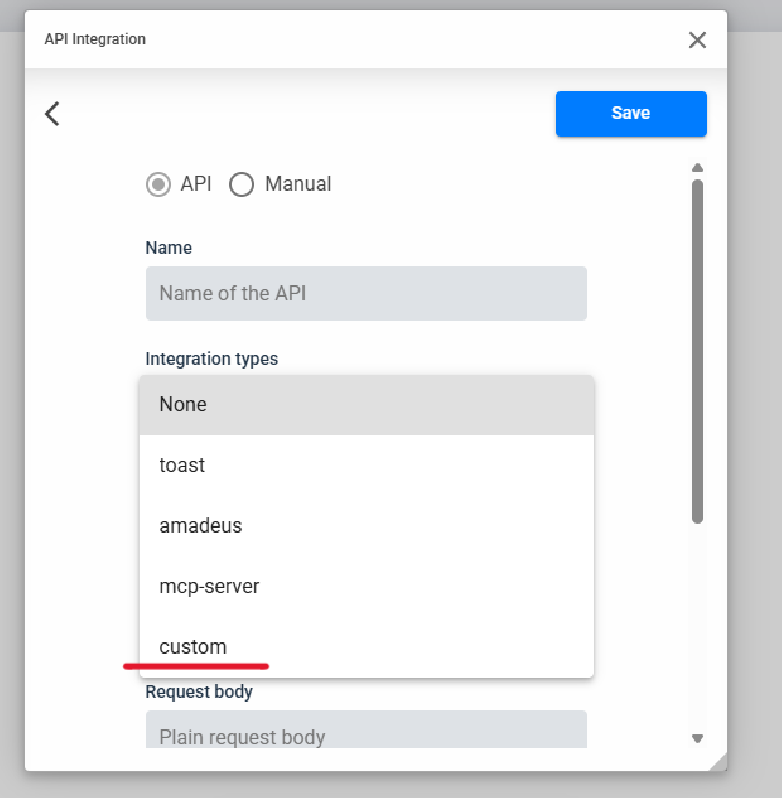
To send the API configuration to the player without configuring each device manually, you can use the
Studio → Configurations tab.
Go to:
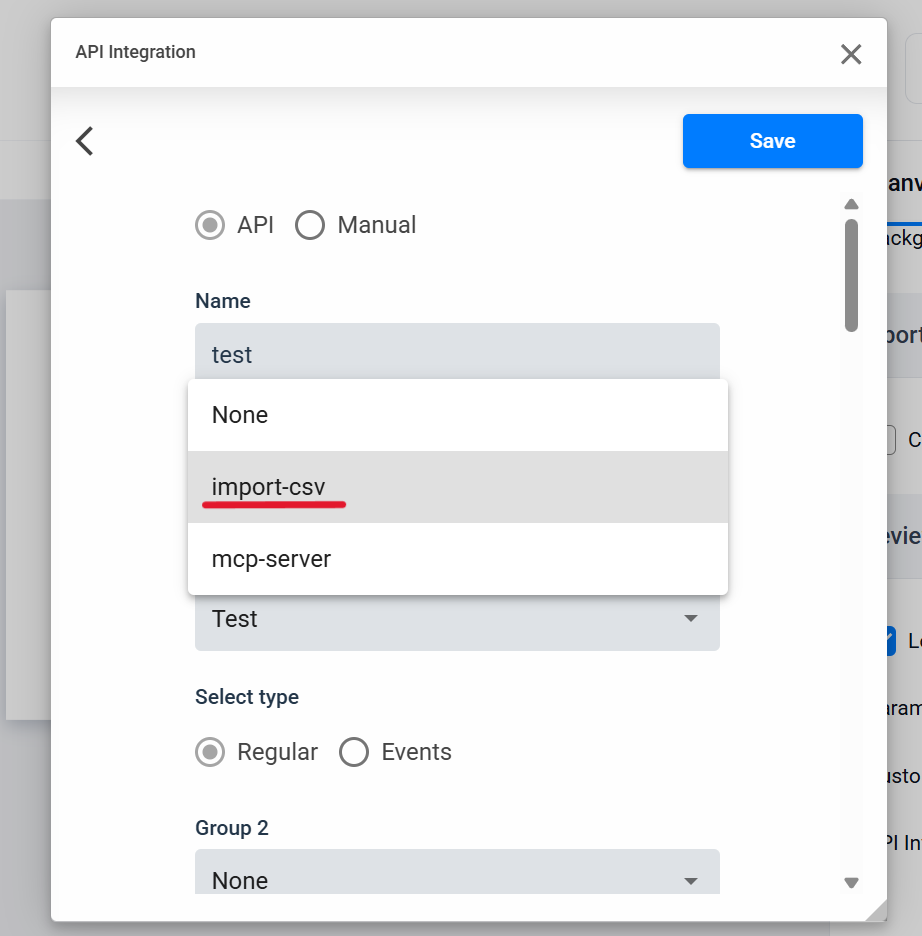
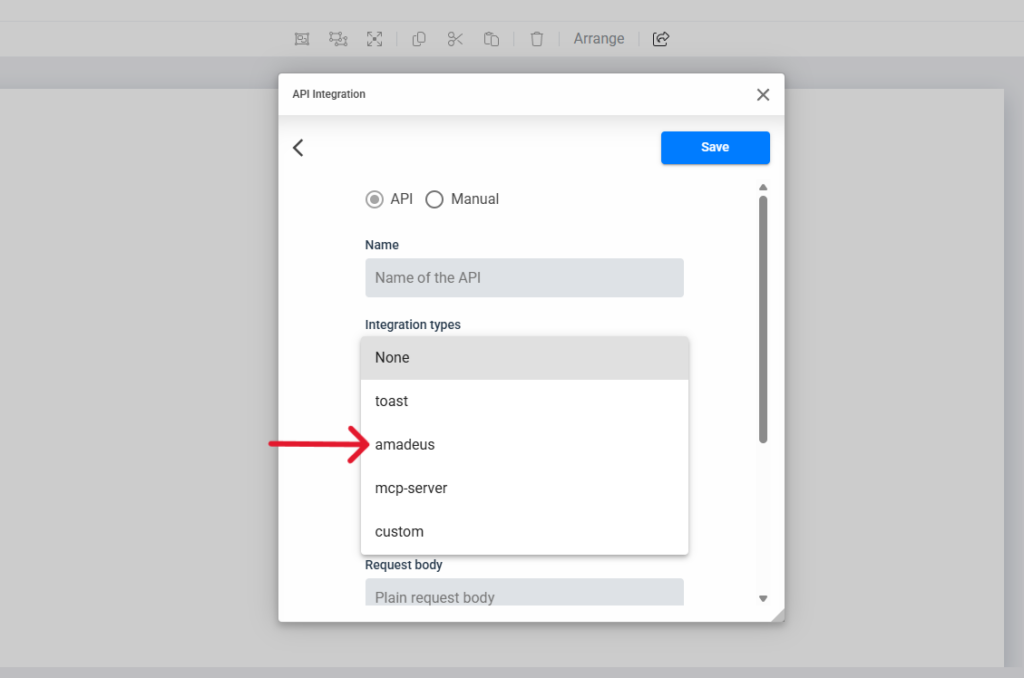
Screen Content → Settings → Configurations → New Configuration → External Interfaces → Custom API Integration
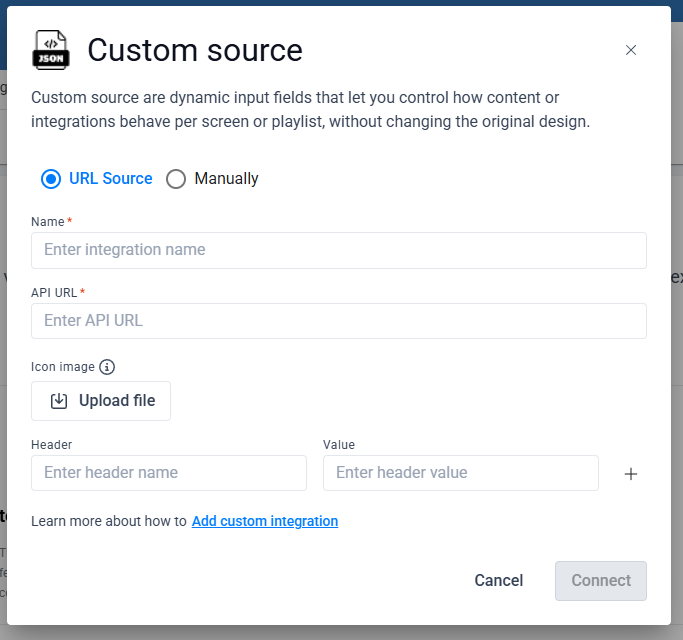
- Enter the same API details (Name / API URL / Headers / Property Key)
- Test to confirm JSON data is returned
- Save the configuration
Assigning API Configuration to a Screen
In Screen Content:
- Locate the target screen
- Click the three dots (⋮) beside it
- Select Set configuration
- Choose your Custom API Integration
Once assigned, the player will import the configuration automatically when that screen is selected.
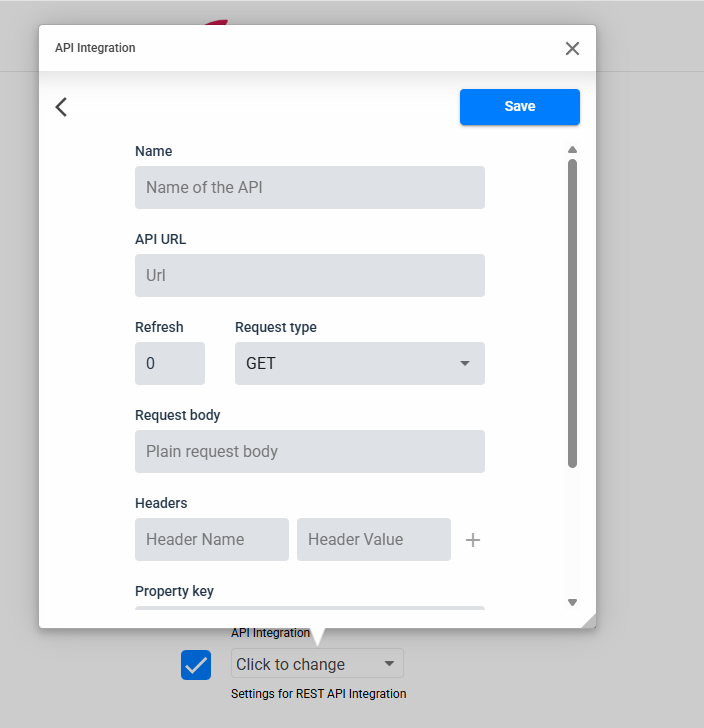
Player Configuration
Accessing the API Settings
On the player device, navigate to:
Settings → Advanced → External Interfaces → Custom API Integration
Create a New API Integration
Fill in the following fields:
Name: Give the integration a recognizable name
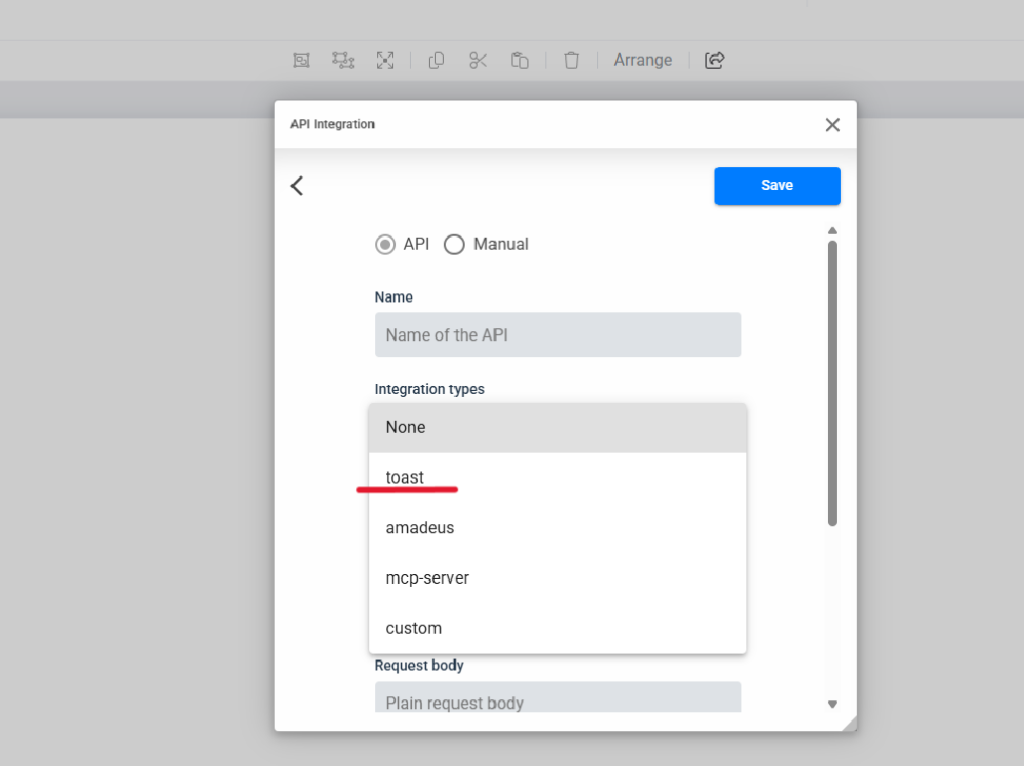
API URL: Endpoint from which the JSON data will be retrieved
Refresh: How often the API should request data (in seconds)
Request Type: GET or POST (default: GET)
Request Body & Headers Only needed if the API requires tokens, authorization keys, or specific parameters
Property Key: A unique keyword that will later be used in Studio to inject data into creatives
NOTE: The Property Key is important — you will reference it when building expressions inside Studio.
- Testing & Saving
Click Test to validate the API.
- If successful, the JSON dataset will appear in a preview window.
- Click Save to store the configuration.