
 Ilan Melchior, Marketing Manager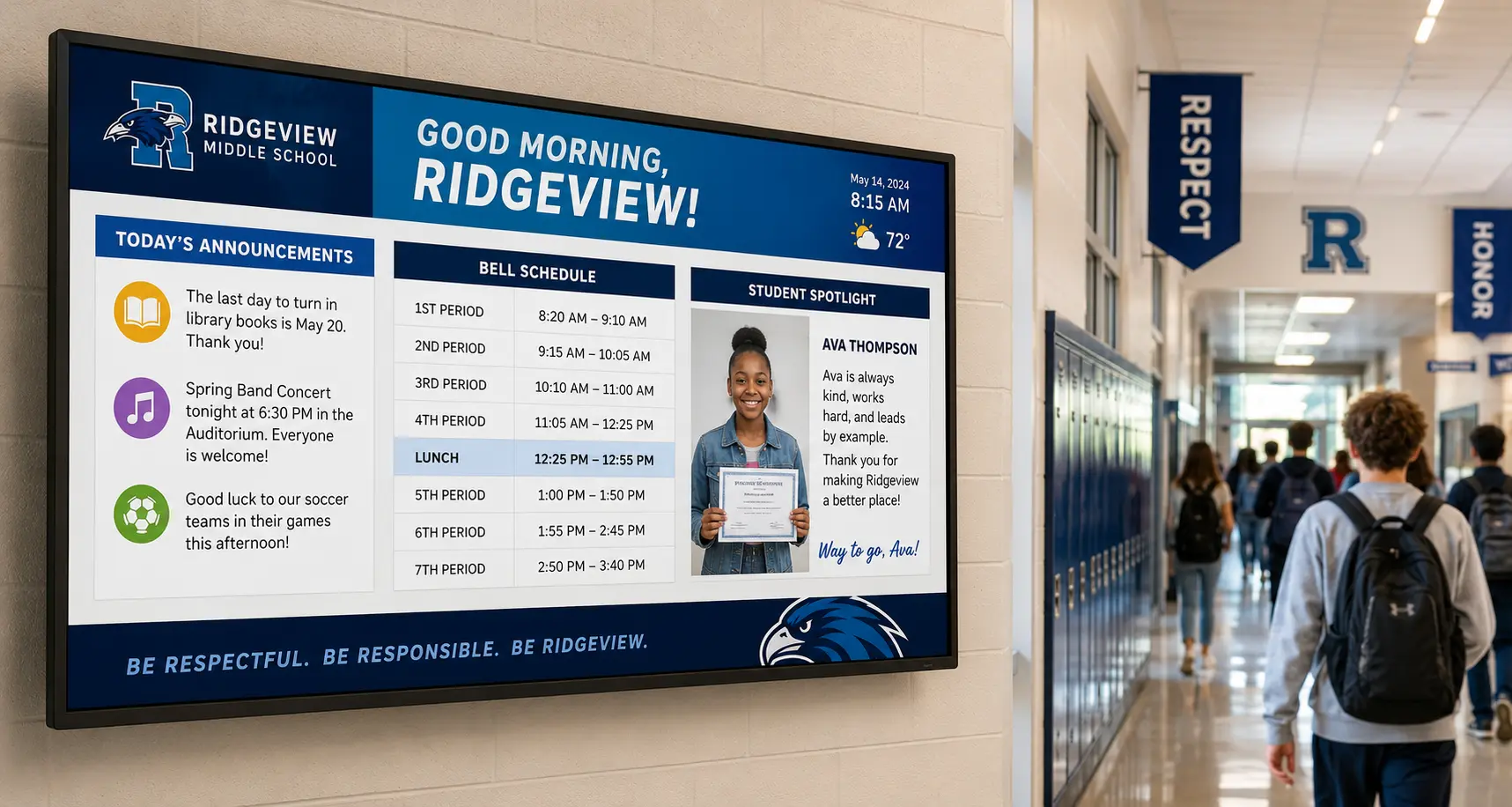
TL;DR
- School digital signage replaces printed posters with screens you update remotely in seconds, saving most campuses 5+ hours per week on manual notice distribution.
- Screens show announcements, menus, wayfinding, student recognition, and full-screen emergency alerts.
- Budget roughly $100 to $500 per screen, plus $10 to $30 per screen monthly.
- Setup follows five steps: goals, hardware, software, content, then deployment and management.
Every morning, someone in your building still walks the halls swapping out paper notices – the bell schedule, the lunch menu, last week’s announcements. What if every one of those updated in seconds from a single browser tab, and the same screens could flash a lockdown alert campus-wide the moment it mattered? That’s school digital signage, and setting it up is simpler than you’d think.
What Is Digital Signage for Schools?
Digital signage for schools uses internet-connected displays to share information across a campus, replacing printed posters and static bulletin boards with content that updates in seconds. As a key part of modern education digital signage strategies, staff can change a cafeteria menu, post a snow-day alert, share emergency notifications, or celebrate a student achievement from a web browser without printing, laminating, or walking the halls.
A static bulletin board shows one fixed message until someone physically replaces it. By contrast, education digital signage allows a single display to rotate through multiple messages on a schedule, showing the bell schedule in the morning, lunch menus at midday, and athletics results or upcoming events in the afternoon.
Why Are Schools Adopting Digital Signage?
Schools move from paper to screens for five main reasons:
- Lower printing costs: Staff update content digitally, eliminating poster printing, lamination, and replacement expenses.
- Faster communication: A message reaches every screen on campus the moment someone publishes it.
- Campus safety: Screens interrupt normal content to broadcast lockdown instructions, weather warnings, and emergency alerts in seconds.
- Student engagement: Showing honor-roll names, club promotions, and athletics results on hallway screens builds school culture and keeps students informed.
- Sustainability: Replacing printed notices with digital displays cuts paper waste.
“Very few schools come back after installing their first screens and say they bought too many,” says Chad Bogan, Director of Sales at NoviSign. “More often, they start with one use case and quickly find other departments asking for screens of their own.”
Where Can You Use Digital Signage in a School?
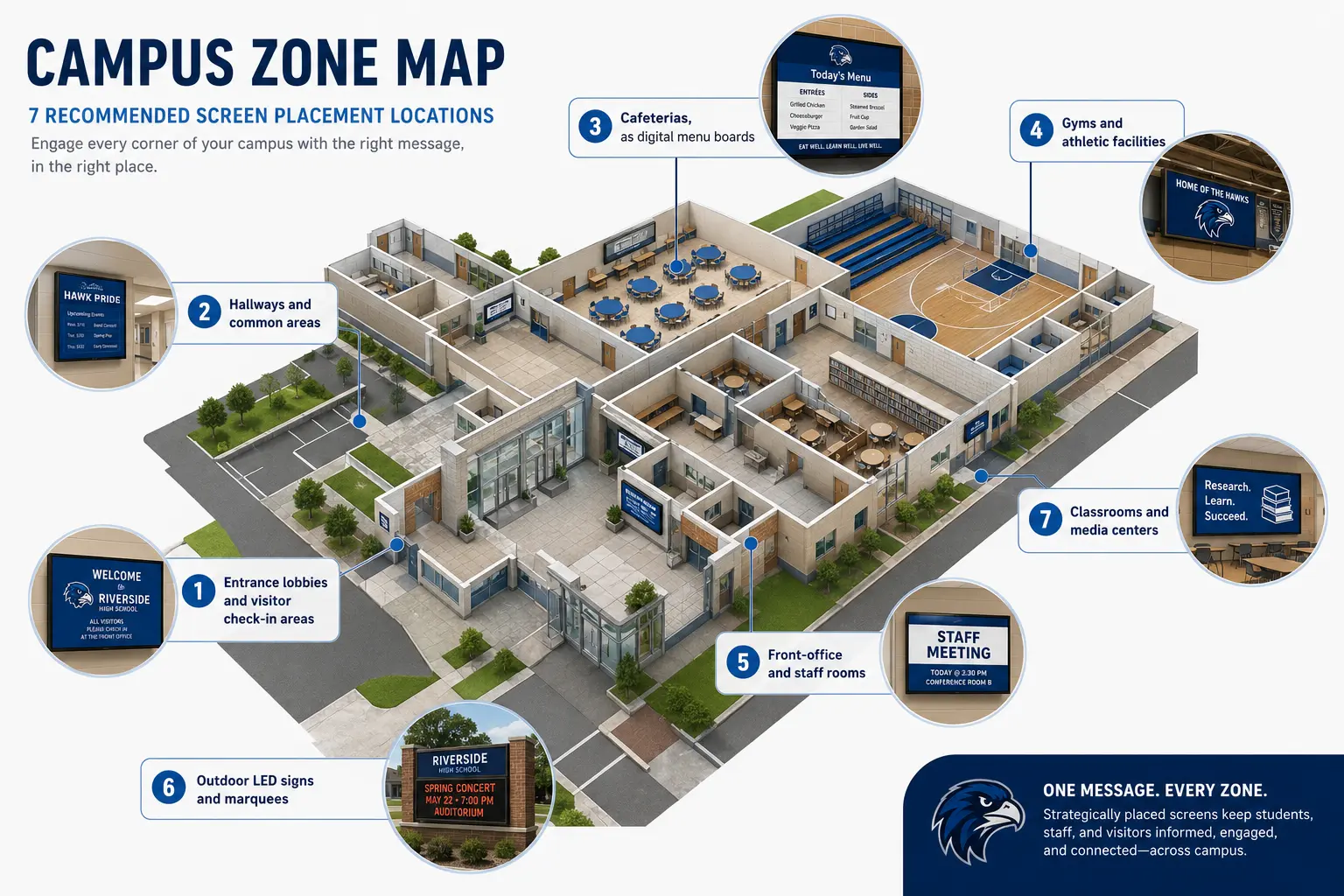
The best school screens mix daily logistics with content that builds community. Common locations include:
- Entrance lobbies and visitor check-in areas
- Hallways and common areas
- Cafeterias as digital menu boards
- Gyms and athletic facilities
- Front-office and staff rooms
- Outdoor LED signs and marquees
- Classrooms and media centers
What Content Should You Display on School Digital Signage?
The best school screens mix daily logistics with community-building content:
- Daily announcements, bell schedules, and calendars (updated by office staff each morning)
- Emergency alerts and safety protocols (triggered by administrators or automated feeds)
- Student recognition, such as honor-roll lists, athletics highlights, and birthday shoutouts
- Club and extracurricular promotions, such as drama auditions and STEM fair deadlines
- Social media feeds and school hashtags, moderated by communications staff
- Wayfinding and campus maps (updated by facilities teams seasonally)
- Real-time data widgets, such as local weather, news tickers, and graduation countdowns
- Parent and community communications such as PTA dates and enrollment reminders)
How Do You Set Up Digital Signage in a School? (Step by Step)
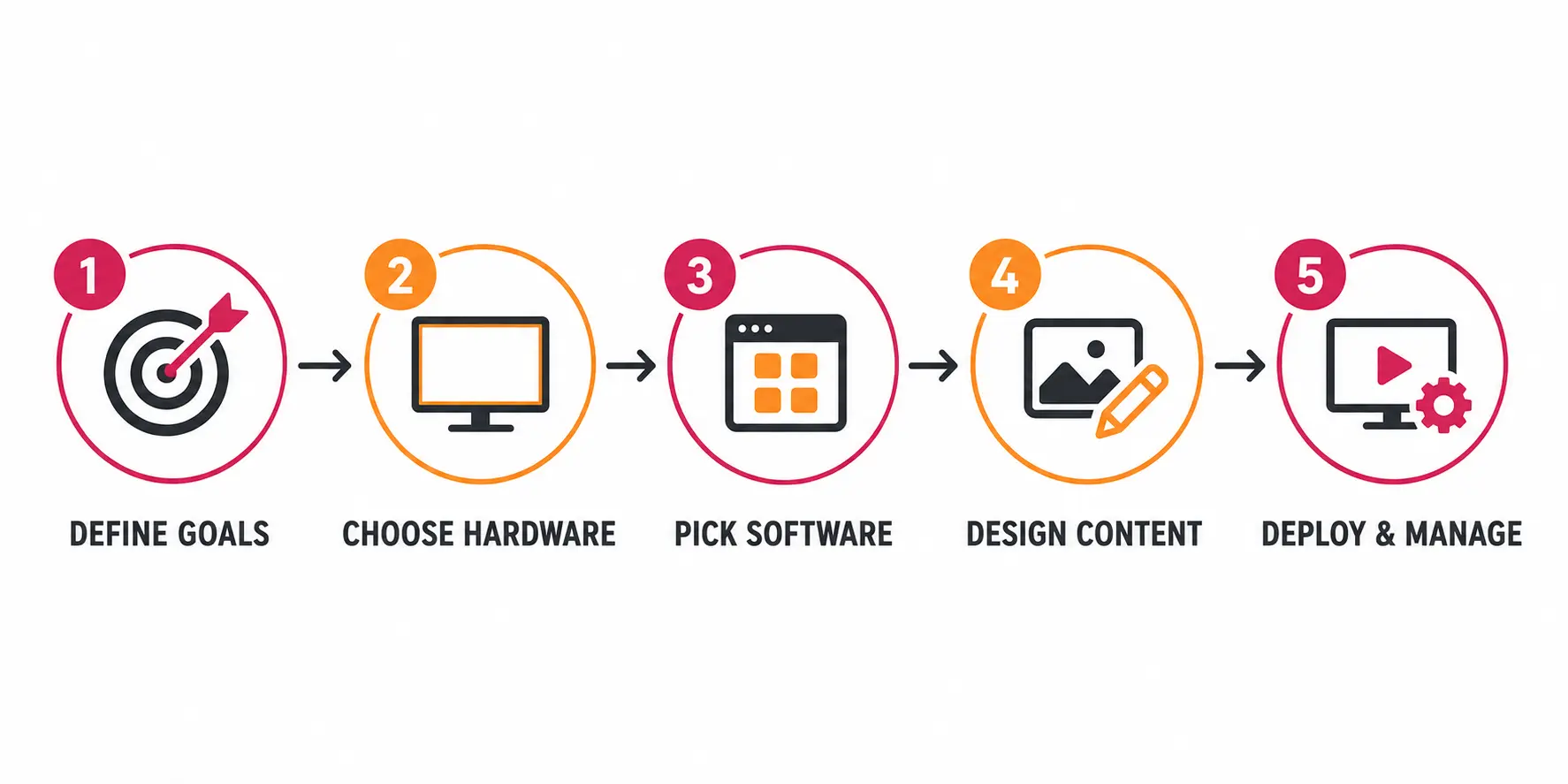
Setting up school digital signage follows five steps: define your goals, choose hardware, pick software, design content, then deploy and manage. You can start with a single screen and expand once the workflow proves reliable.
Step 1: Define Your Goals and Screen Locations
Write down what each screen should accomplish and where it will live. A lobby welcome screen, a cafeteria menu board, and a gym scoreboard serve different audiences and update rhythms.
List every planned location, the person managing each screen, and the update frequency. The list becomes your hardware count, user-role structure, and content schedule.
Step 2: Choose Your Hardware: (Media Players and Displays)
School digital signage needs a display and a media player (the device driving content to the screen). Many modern commercial displays include a built-in player.
| Hardware option | How it works | Best for | Notes |
|---|---|---|---|
| Samsung Tizen (built-in) | Commercial display with the player built into the screen | All-in-one hallway and lobby screens | No external box to manage |
| LG webOS (built-in) | Commercial display with an integrated webOS player | All-in-one screens and menu boards | No external box to manage |
| Android SoC display or Android player | Android runs on-screen or on a small media stick | Budget-friendly single screens | Wide app support and low cost |
| ChromeOS device | A Chrome-based player drives a standard TV | Schools standardized on Google Workspace | Central management through Google Admin |
| Windows PC or media player | A small Windows PC outputs to a display | Interactive kiosks and complex layouts | Higher cost and more IT overhead |
| Amazon Signage Stick | A signage-specific stick plugs into any HDMI display | Turning existing TVs into signs | Low-cost and purpose-built for signage |
| BrightSign player | A dedicated solid-state signage player | High-reliability, always-on screens | Popular in education deployments |
Step 3: Pick Your Digital Signage Software
Digital signage software, (also called a CMS), is the web platform where you design content, build playlists, and push updates. Evaluate these six criteria for schools:
- Ease of use: Teachers and office staff should be able to update screens with minimal training.
- Multi-user access and permissions: Different departments should be able to manage their own content and screens without accessing the entire network.
- Scheduling: Content should update automatically based on the time, date, or school calendar.
- Emergency alert support: Urgent messages should be able to override scheduled content during an incident.
- Remote management: IT teams should be able to monitor screens, troubleshoot issues, and publish updates from one dashboard.
- Education pricing: Per-screen and licensing costs should remain manageable as the network expands.
“Across the schools we work with, we consistently see that simpler content updates lead to more active use of the screens,” says Roey Ohana, Product Lead at NoviSign. “When staff can publish a change in a minute or two, digital signage becomes part of the school’s daily communication routine rather than a tool reserved for major announcements.”
Step 4: Design Your Content
Good school signage reads easily at a glance. Favor large text, clear images, and a few content zones rather than crowded slides. Most platforms offer pre-built school templates and drag-and-drop editors.
Split each screen into zones: a main message area, a side panel for the date and weather, and a bottom news ticker. Reuse your school colors, logo, and fonts across every screen for consistent branding.
Step 5: Deploy, Schedule, and Manage
Build playlists, schedule them by time and day, then assign user roles so staff edit only their own screens. A typical rollout includes:
- Creating playlists grouped by location
- Scheduling content to change automatically
- Setting user roles and permissions for each department
- Monitoring screen status and uptime remotely
Many schools have unreliable Wi-Fi in parts of the building, so look for offline content caching. The player stores its playlist locally and keeps showing content even when the network drops.
How Does School Digital Signage Improve Campus Safety?
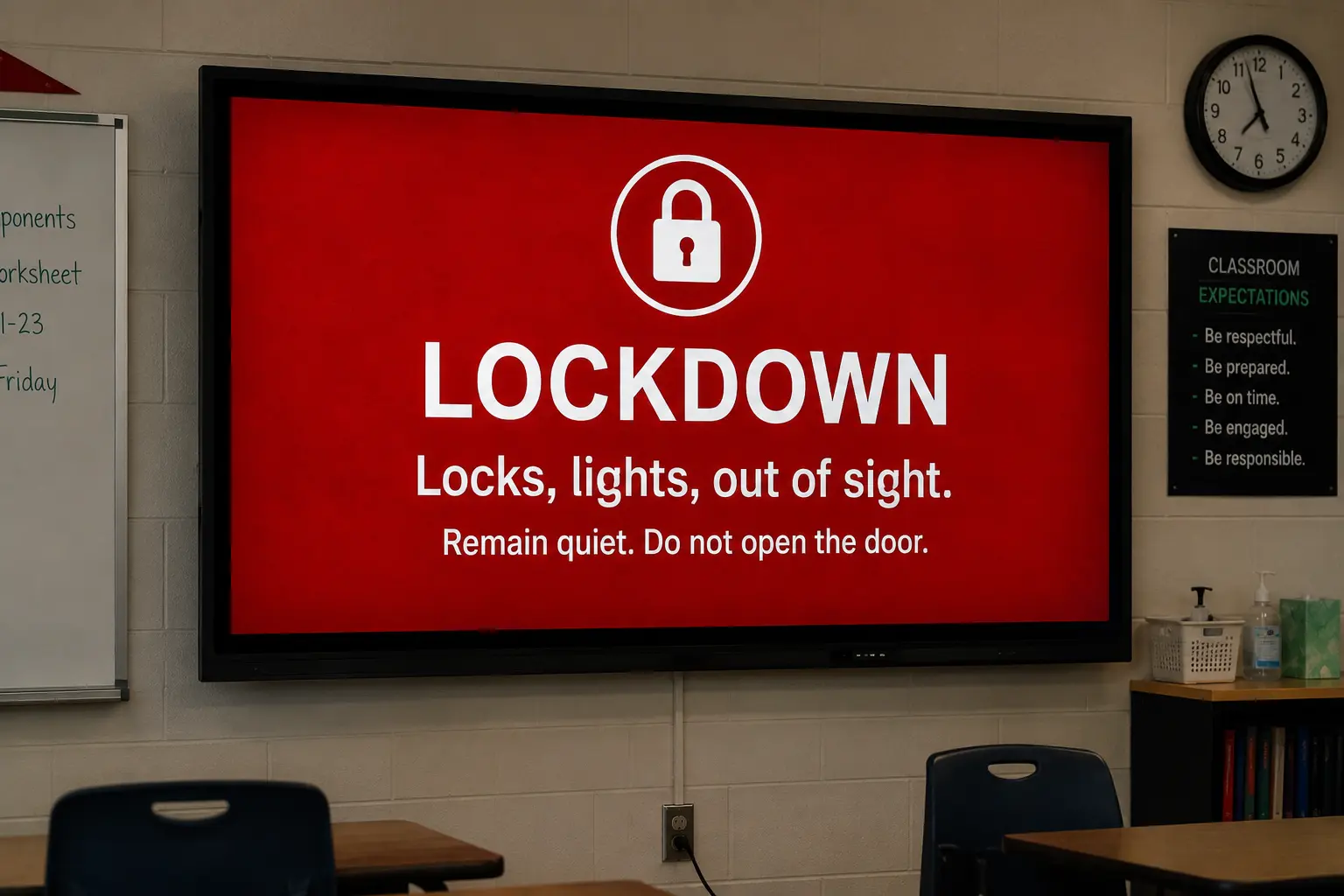
Every screen becomes an emergency notification channel that overrides normal content in seconds. Students and staff in hallways, gyms, and cafeterias see the same instruction at the same time.
Common safety capabilities include:
- Emergency alerts that interrupt all screens with a full-screen message
- Lockdown and shelter-in-place instructions triggered from one dashboard
- Automated weather alerts for severe conditions
- Integration with mass notification systems such as Alertus and Singlewire
Many systems support the Common Alerting Protocol (CAP), an open standard for exchanging emergency alerts between systems. CAP-compatible signage software receives alerts from district or municipal warning systems and displays them automatically.
What Does Digital Signage for Schools Cost?
Costs break into four parts: hardware, software, installation, and content creation. As a 2026 planning range, hardware runs roughly $100 to $500 per screen, and software runs roughly $10 to $30 per screen per month. Many vendors offer education discounts.
| Cost factor | Digital signage | Printed signage |
|---|---|---|
| Upfront cost per location | $100–$500 hardware setup | Low per poster, but recurring |
| Ongoing content cost | $10–$30 per screen per month | Printing, ink, and lamination with every update |
| Update speed | Seconds, from a web browser | Hours or days to reprint and repost |
| Reach of a single update | Every screen on campus at once | One physical location per copy |
A digital screen costs nothing extra per update once the hardware is in place, so the cost advantage grows with update frequency.
Key Takeaways
- Match each screen to a clear goal and location before buying hardware.
- Many 2026 displays include built-in players, so a separate box is often unnecessary.
- Pick software with multi-user roles, scheduling, and emergency alert support designed for schools.
- Offline content caching keeps screens running during Wi-Fi outages.
- For campus safety, choose a platform that supports CAP or integrates with Alertus or Singlewire.
Frequently Asked Questions
What is the best digital signage software for schools?
The best software lets non-technical staff manage screens safely, with multi-user roles, scheduling, emergency alerts, and education pricing. Top options include NoviSign, Rise Vision, Yodeck, ScreenCloud, and Carousel Digital Signage. Evaluate two or three with a free trial on a single screen before committing campus-wide.
How much does digital signage cost for a school?
Expect roughly $100 to $500 per screen for hardware and $10 to $30 per screen monthly for software, plus installation and content time. Many vendors offer education discounts that lower the per-screen cost on multi-screen orders.
Can digital signage be used for emergency alerts in schools?
Yes. Most platforms override normal content with a full-screen emergency alert, and many integrate with Alertus, Singlewire, or the Common Alerting Protocol (CAP).
What hardware do I need for school digital signage?
You need a display and a media player, although many commercial displays include built-in players. Options include Samsung Tizen and LG webOS displays, Android and ChromeOS devices, Windows players, the Amazon Signage Stick, and BrightSign players.
Is digital signage FERPA compliant?
Compliance depends on what you display and how the platform handles data. The Family Educational Rights and Privacy Act (FERPA) protects student education records. Avoid showing protected student information on public screens and confirm your vendor’s data-handling practices.
How do teachers update digital signage content?
Teachers log into the web-based CMS and use a drag-and-drop editor with pre-built templates. User roles restrict each teacher to their assigned screen or playlist without affecting other campus displays.
Can digital signage work without internet?
Yes, if the player supports offline content caching. The player stores its playlist locally, keeps showing scheduled content during an outage, then syncs new updates once the connection returns.
About The Author: Ilan Melchior
More posts by Ilan Melchior