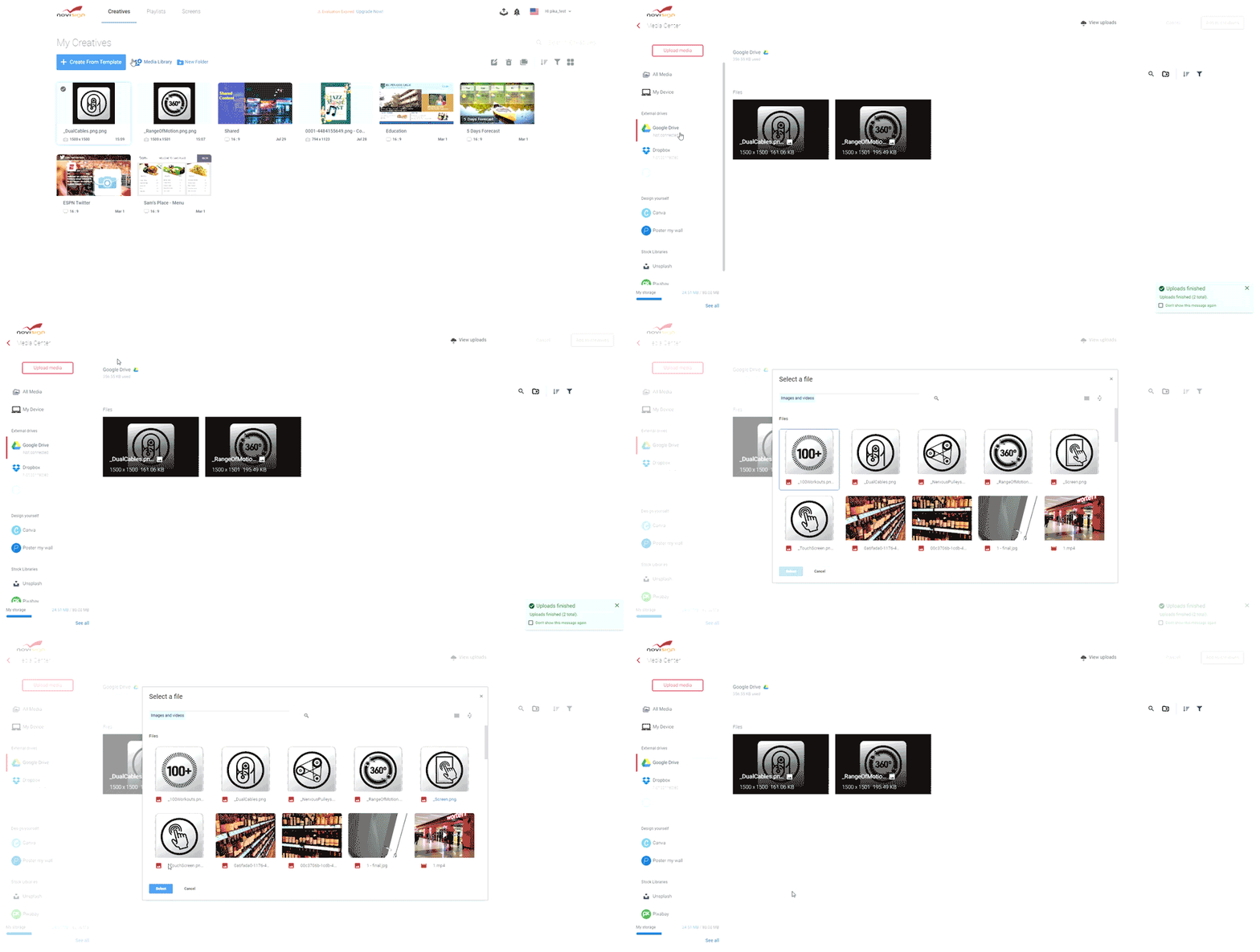
The Media Center is a centralized hub in the NoviSign Studio (introduced in 2021) where you can easily access and manage all your media files—images, videos, and animations—that you’ve added to your account.
Think of it as your personal media library for creating content in the Studio.
You can upload media not only from your computer but also directly from various external sources, including:
-
Sign in to your NoviSign account.
-
Go to the Creative tab.
-
Click the Media Center icon in the top-right corner of the screen.
-
Select a Source: Choose the media source you want to import from.
-
Upload Media: Click the Upload button to select the files you’d like to add to your Studio account.
-
Grant Access (if needed): For sources like Google Drive or SharePoint, you’ll need to grant permission the first time you connect.
-
Manage Content: After uploading, the files will appear under that specific source’s section in your Media Center.
For example, if you upload 5 images from your PosterMyWall account, they will appear under the PosterMyWall section. You can return there anytime to upload more or browse additional media from that source.
This process works the same way for all other sources.
A helpful feature of the Media Center is the storage overview, which shows how much storage is available in your account and how much you’ve used—especially now when your account has aggregated media items from multiple resources.
You can see it on the bottom left corner of your screen.