
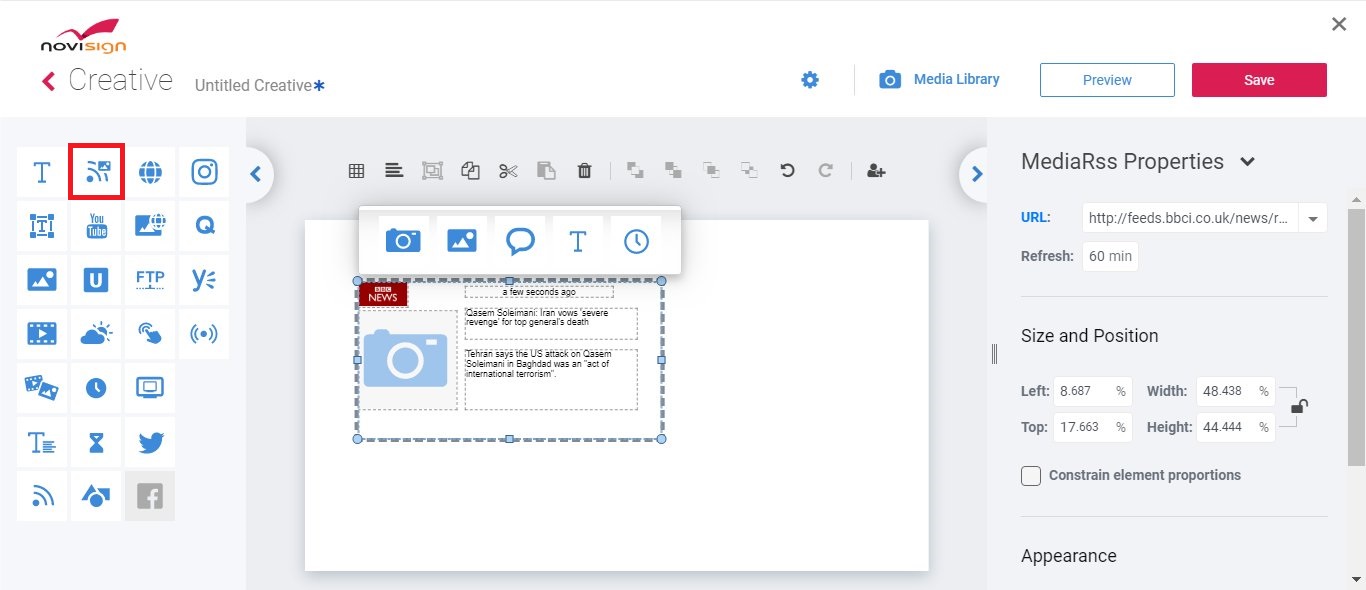
The MRSS widget is similar to the RSS widget, which is primarily used for displaying news tickers. However, unlike the RSS widget, the MRSS widget also displays media content such as images — hence the name Media RSS (MRSS).

The MRSS widget is similar to the RSS widget, which is primarily used for displaying news tickers. However, unlike the RSS widget, the MRSS widget also displays media content such as images — hence the name Media RSS (MRSS).
Note: This feature is supported in NoviSign Player apps version 4.4.115 and above.
Set the URL of the MRSS feed (just like with RSS, it uses a URL) to any MRSS feed you want to display.
Examples:
Soon, more predefined options will be available in the MRSS URL dropdown list. Like the YouTube widget, you can either choose from the list or manually type/paste the URL
Double-click the MRSS widget to access its elements. You can use five types of elements:
Image – the image related to each post
Channel Image – the image related to the entire channel
Message – the post content
Title – short title of the post
Message Time – when it was posted
Press Preview to see your MRSS widget in action, and don’t forget to save your creative.
Some feeds display images when opened in a web browser, but those images may belong to the website layout rather than the actual MRSS feed data.
The NoviSign MRSS widget can display images only if they are included directly in the feed using supported media tags, such as:
<media:content>
<media:thumbnail>
<enclosure> (with an image file type)
If the feed does not include images in one of these tags, NoviSign will display text only (titles and descriptions), even if images appear on the website version of the feed.
Additionally, having supported image tags does not always guarantee that images will display. Images may still fail to load if the image server restricts access.
For images to display correctly in the MRSS widget:
The image URL must be publicly accessible.
The image server must allow direct access from non-browser clients (digital signage players).
Images must not be blocked by CDN protection, hotlink prevention, signed URLs, expiring tokens, or User-Agent restrictions.
In some cases, images load correctly in a regular web browser but are blocked when accessed by digital signage players. In these scenarios, NoviSign cannot retrieve or display the images, and text-only content will be shown instead.
If you need to display the feed with images and the MRSS feed does not meet the requirements above, use the Webpage widget and load the webpage URL rather than the RSS/MRSS link.
Want to see the MRSS widget in action?
Watch our step-by-step tutorial for a quick visual guide on how to set it up and customize it: