
 Ilan Melchior, Marketing Manager
TL;DR
- Fewer lost visitors, fewer front-office interruptions. Campus wayfinding kiosks give students and visitors on-screen directions without stopping at the front desk.
- Room changes update in seconds, not days. Because kiosk content is digital, a schedule or room swap takes seconds instead of a costly reprint.
- Low entry cost for schools with existing screens. Schools that already own touchscreen displays pay only for software, not new hardware.
- One screen does more than maps. The same kiosk rotates menus, event schedules, announcements, and emergency alerts between wayfinding sessions.
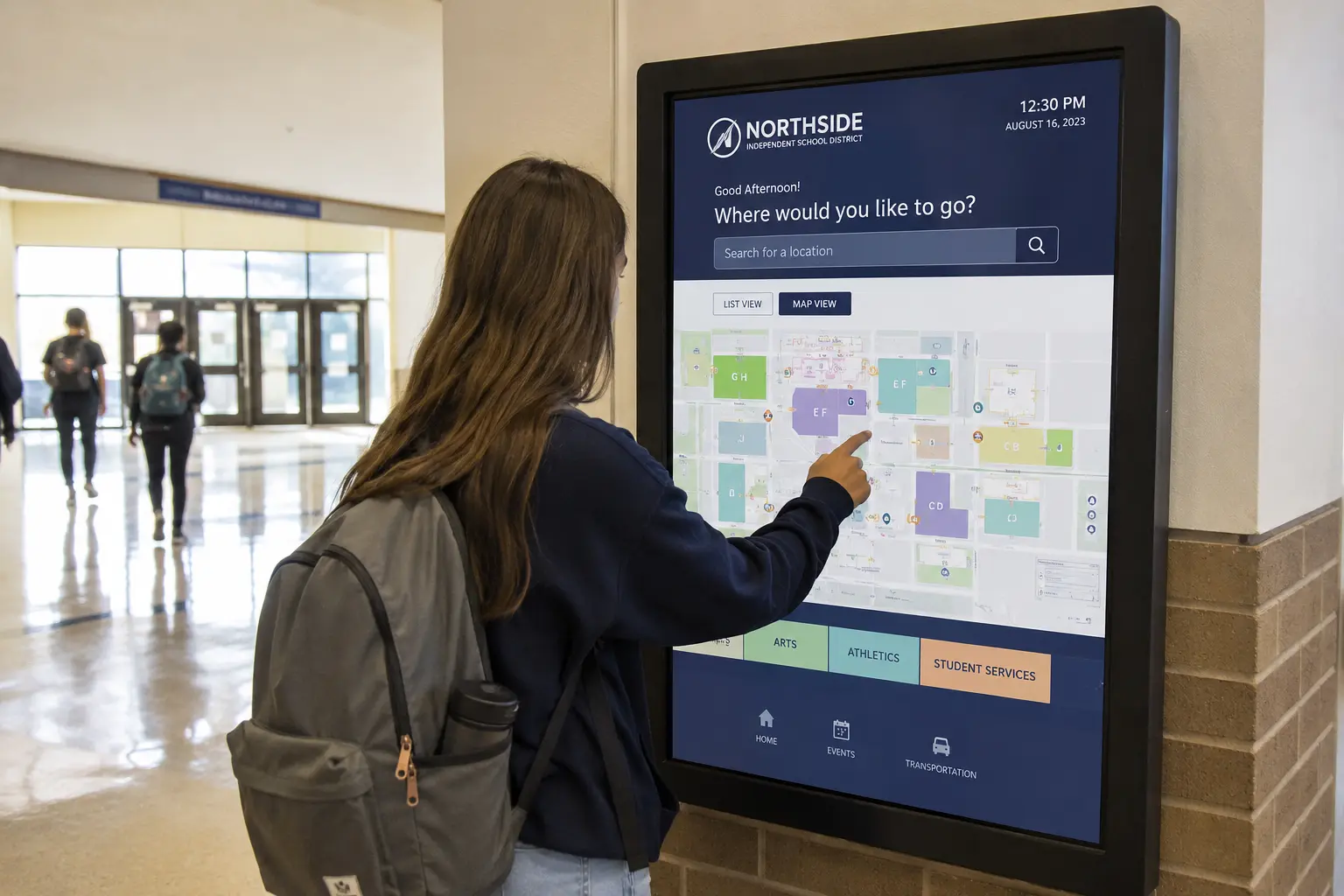
Campus wayfinding is the system of signs, maps, and digital screens that helps people navigate a school or university campus. An interactive wayfinding kiosk puts that system on one touchscreen: a visitor taps a destination and gets directions on the spot.
Schools and universities of every size share a common audience for wayfinding: facilities managers, IT and AV staff, administrators, and communications teams. All of those groups want fewer lost visitors and fewer interruptions at the front desk. The sections below cover what campus wayfinding is, the four types of wayfinding signage, how kiosks work, what they cost, how to set one up, and how to keep everything accessible.
What Is Campus Wayfinding?
Campus wayfinding is the combination of signs, maps, landmarks, and screens that helps people find their way around a school or university campus. Good wayfinding answers three questions at every decision point: Where am I? Where is my destination? Which way do I go next?
Digital wayfinding delivers those answers on electronic screens instead of, or alongside, printed signs. A wayfinding kiosk is a freestanding or wall-mounted touchscreen that displays an interactive campus map: a visitor taps a building, room, or department, and the screen shows the route from where they stand.
The goal is practical: help students, parents, staff, and visitors reach the right building without asking for directions. The people who need directions most are first-time visitors, new students, substitute teachers, and event guests. Those are exactly the people who don’t know where the front office is.
Wayfinding kiosks are one application of digital signage, which refers to screens that show content you can update remotely.
What Are the Four Types of Wayfinding Signage?
The four types are identification, directional, informational, and regulatory. A campus needs all four used together, and an interactive kiosk can carry every type on a single screen.
| Type | Purpose | Campus example |
|---|---|---|
| Identification | Confirms you have arrived at a place | “Building C — Science Wing” at a building entrance |
| Directional | Points the way to a destination | “Gymnasium →” arrows in a corridor |
| Informational | Answers general questions about the place | Office hours, campus map, today’s event schedule |
| Regulatory | States rules and requirements | “All visitors must check in at the front office” |
Staff must order, mount, and replace printed versions of these signs separately. Because a kiosk is digital, one screen can identify the building it stands in, give directions to any other building, display today’s schedule, and show visitor rules. A single content update changes all four at once.
How Do Interactive Wayfinding Kiosks Work?
An interactive wayfinding kiosk has two halves: hardware that people touch and software that decides what appears on screen.
Wayfinding Kiosk Hardware: What You Need
The hardware is simpler than most schools expect. A typical kiosk consists of:
- A commercial touchscreen display, usually 32 to 55 inches
- A media player that runs the signage software
- An all-in-one display with the player built in (as an alternative to a separate player)
- A floor stand, wall mount, or freestanding enclosure that holds the screen at an accessible height
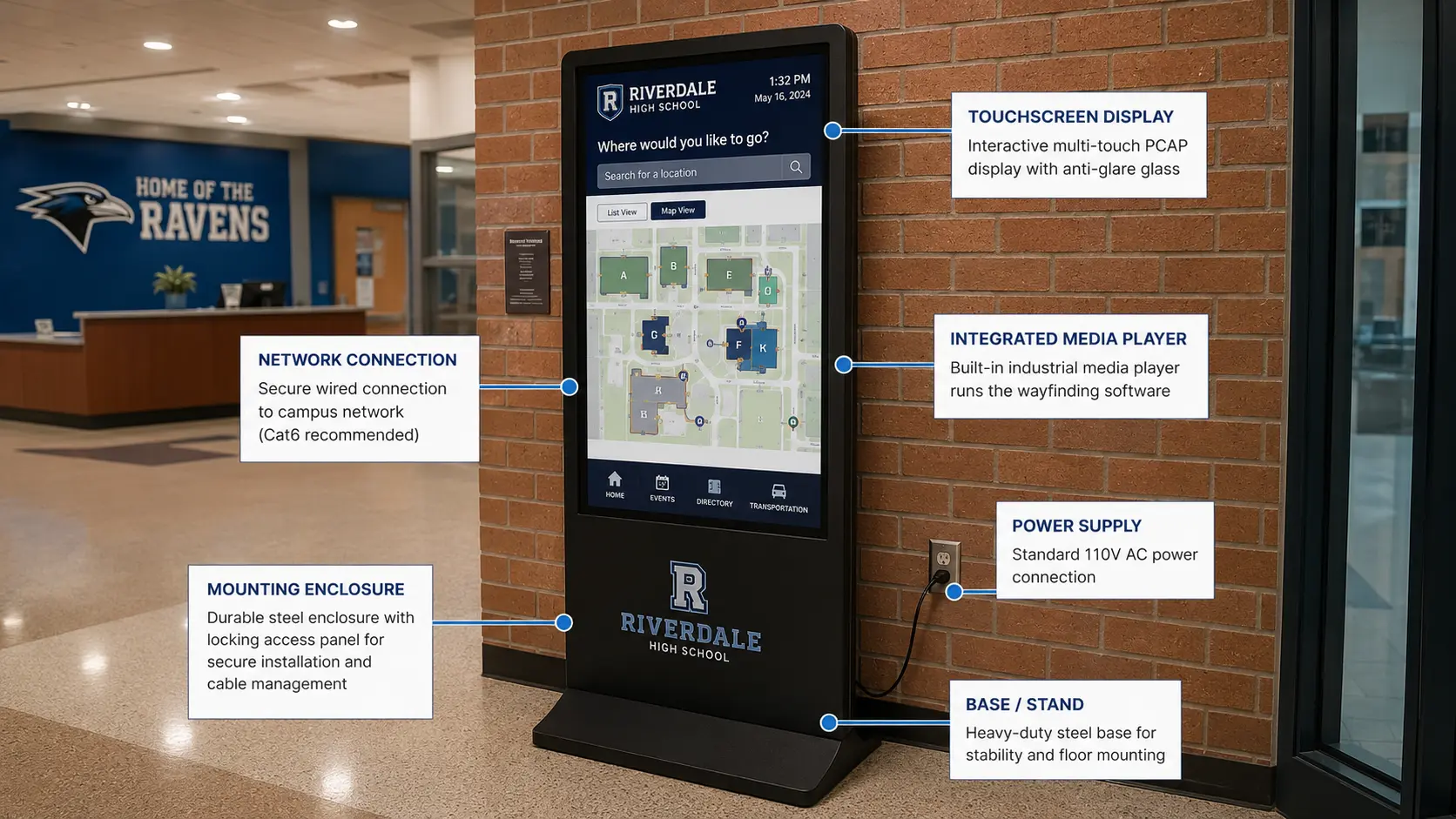
Schools that already own touchscreen displays or commercial TVs can often reuse them, which removes the largest hardware cost.
The Software Behind Digital Wayfinding
A content management system (CMS) is the web-based tool where you build what the kiosk shows and push updates to every screen remotely. For wayfinding, the CMS provides:
- An interactive campus map with tappable buildings and rooms
- A searchable directory of departments, staff, or classrooms
- A “you are here” marker oriented to the kiosk’s location
- QR codes that send the route to a visitor’s phone, so directions travel with them
- Remote updates, so a room change made at a desk appears on every kiosk within minutes
Kiosk software of this kind needs no coding. Staff assemble layouts from ready-made widgets.
Static Signs vs. Digital Wayfinding Kiosks
Printed signs still have a place on campus, but they behave very differently from digital kiosks. The comparison below shows where each one wins.
| Parameter | Static signs | Digital wayfinding kiosks |
|---|---|---|
| Update speed and cost | Each change requires a reprint and reinstall, often days and $50–$500 per sign | Because content is digital, a room change takes seconds and costs nothing |
| Interactivity | None — every reader sees the same fixed text | Visitors search, tap, and get personal routes |
| Content flexibility | One message per sign | Maps, directories, menus, and events rotate on one screen |
| Emergency messaging | Cannot change during an incident | Alerts can override all content campus-wide within seconds |
| Multilingual support | One language per printed sign, or cramped dual text | Visitors switch languages with one tap |
Why Do Schools and Universities Need Digital Wayfinding?
Campuses concentrate navigation problems into short, intense windows. An open day or graduation can bring thousands of first-time visitors in a single morning. During the first two weeks of a semester, a large share of late arrivals trace back to one cause: students who could not find the room. Between those peaks, front-office staff answer the same direction questions dozens of times a day.
Digital wayfinding addresses each of those pressure points:
- Fewer lost visitors, because directions are available at the entrance instead of behind a desk
- Less staff interruption, because the kiosk answers the questions the front office used to
- Better first impressions on tours and open days, because finding the auditorium is effortless
- Faster emergency communication, because every kiosk becomes an alert screen the moment it is needed
Campus Wayfinding for K-12 Schools vs. Universities
K-12 schools and universities share the same goal (nobody should be lost), but the scale and the daily use cases differ, so the kiosk setup should too.
K-12 School Wayfinding Use Cases
A K-12 campus is smaller, so one or two kiosks usually cover it. The common placements and uses are:
- A visitor lobby kiosk that handles check-in directions, staff directory, and the day’s schedule
- Event-day navigation for concerts, sports, and graduation, when hundreds of guests arrive at once
- Parent-teacher nights, where families need a specific classroom in a building they rarely enter
- Everyday content between events: lunch menus, announcements, and club schedules on the same screen
University and College Wayfinding Use Cases
A university campus multiplies the problem: more buildings, more visitors, and more turnover every semester. Typical higher education uses include:
- Multi-building campus maps at main entrances and transit stops
- Department and faculty directories in lobby kiosks
- Open-day and orientation navigation for thousands of prospective and new students
- Dorm and library screens that mix wayfinding with events and announcements
Both segments run on the same education digital signage platform. The difference is the number of screens and the depth of the map.
“The size of the deployment really depends on the campus,” says Chad Bogan, Director of Sales at NoviSign. “Across our customers, K-12 schools typically run around eight screens, while universities average closer to 50 screens because they’re usually managing multiple buildings.”
What Else Can a School Kiosk Display Besides Maps?
A wayfinding kiosk is idle most of the day, and that idle time is useful screen space. Between map sessions, the same kiosk can rotate:
- Event schedules and countdowns to game day or exams
- School announcements and student achievements
- Cafeteria menus, updated centrally each morning
- Weather and news tickers for at-a-glance information
- Emergency alerts that override everything else when triggered
Because one screen does double duty, the kiosk earns its place even on days when nobody needs directions.
How Do You Set Up a Campus Wayfinding Kiosk?
A first kiosk is a manageable project. Most schools go from decision to a live screen in one to two weeks. The steps:
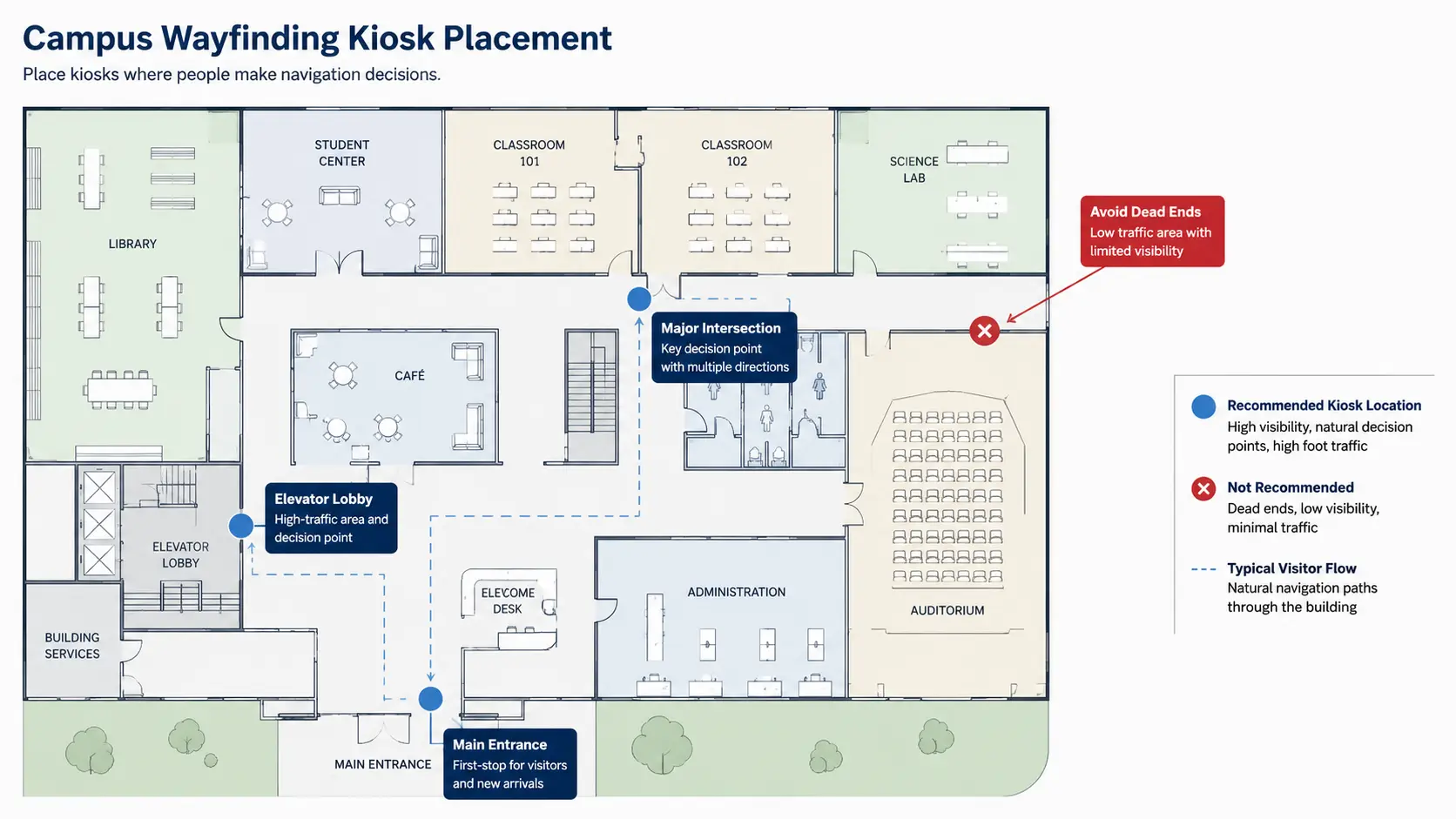
- Choose locations. Put kiosks where people make navigation decisions: main entrances, elevator lobbies, and major hallway intersections. One well-placed kiosk beats three hidden ones.
- Pick the hardware. Choose a commercial touchscreen with a stand or enclosure, or repurpose a touch-capable screen the school already owns.
- Install a signage CMS. Install the player app and pair the screen with your account. NoviSign, for example, runs on Android, ChromeOS, Windows, Samsung Tizen, and LG webOS screens, so most existing hardware works. (See supported players and hardware.)
- Build the interactive map. Start from a floor plan or campus map image, make buildings and rooms tappable, and add a “you are here” marker per kiosk. A drag-and-drop kiosk builder keeps the work in-house, with no design or IT skills needed.
- Test with a first-time visitor. Ask someone who doesn’t know the campus to find a specific room using only the kiosk. Wherever they hesitate, fix the map before launch.
- Schedule and maintain content remotely. Set playlists for normal days and event days, and update room changes from your desk. Every kiosk on campus is managed from one dashboard.
“Based on our onboarding data, the median education customer has their first wayfinding kiosk live in about one to two weeks after creating their account,” says Gil Matzliah, CEO of NoviSign. “Pairing a screen usually takes under two minutes, so most of the time goes into building the campus map rather than setting up the software.”
How Much Does a Wayfinding Kiosk Cost?
Wayfinding kiosk costs split into hardware and software, and the hardware side varies the most. Typical US ranges as of 2025:
- New commercial touchscreen (32 to 43 inches): roughly $800 to $2,500
- Freestanding kiosk enclosure or stand: roughly $1,200 to $2,000, so a complete new kiosk usually lands at $2,000 to $4,500
- Repurposed school-owned touchscreen or interactive flat panel: $0 hardware, plus a mount if needed
- Signage software subscription: roughly $10 to $30 per screen per month, depending on platform and plan
The budget version is real, not a compromise: if the school already owns touch-capable displays, the total cost of a wayfinding kiosk is the monthly software fee. Get current quotes before budgeting, since display prices move year to year.
How Do You Make Campus Wayfinding Accessible?
Accessible wayfinding is both a legal requirement and a usability win, and school procurement reviews increasingly require it. The essentials:
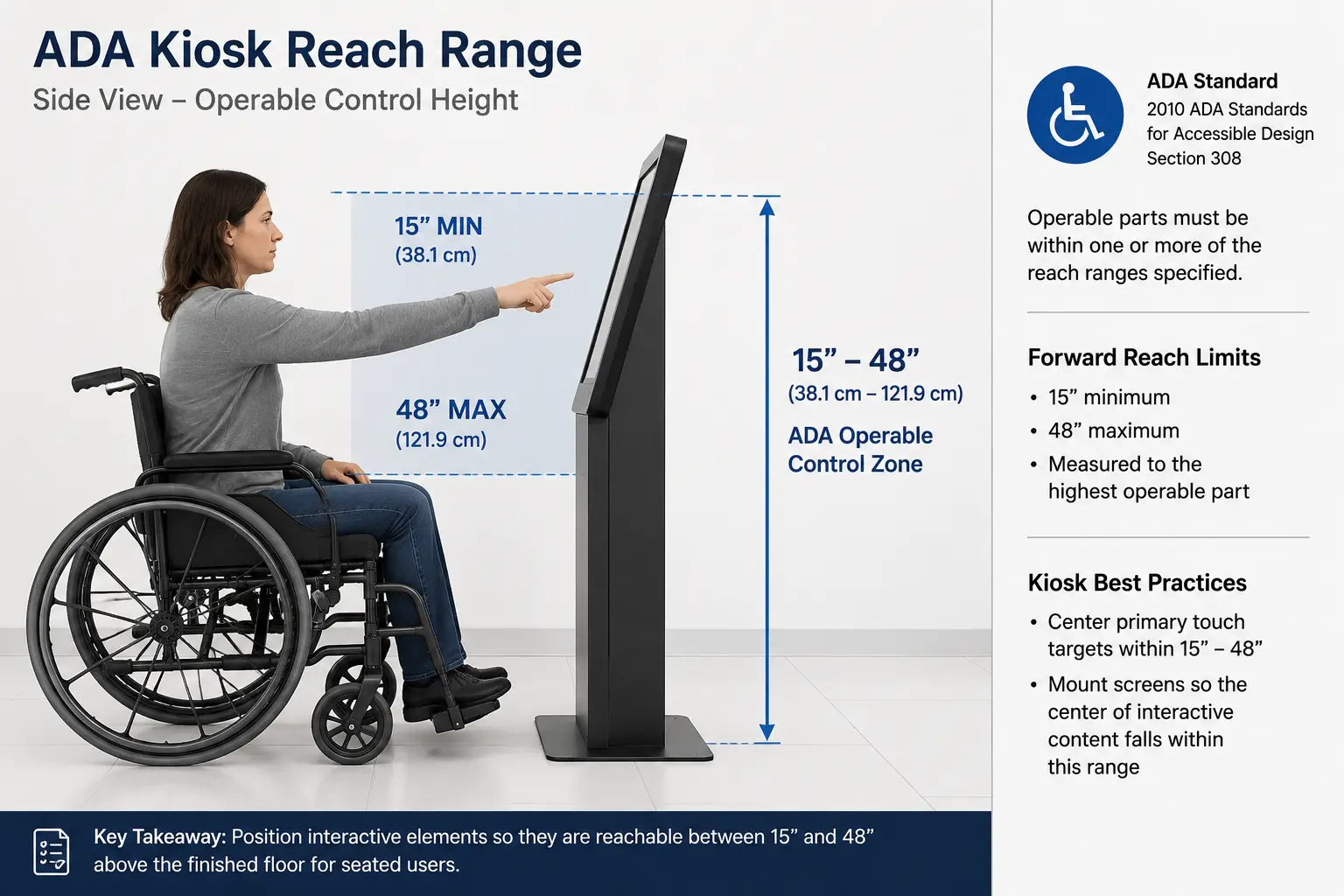
- ADA-compliant mounting. Under the Americans with Disabilities Act (ADA), the 2010 Standards for Accessible Design require operable touch controls within a 15 to 48 inch reach range. Mount interactive elements low enough for wheelchair users.
- High-contrast text. Use large type and strong contrast between text and background so signage is readable for low-vision users and from a distance.
- Multilingual content. Offer the languages your families actually speak. A language toggle on the home screen costs nothing to add.
- Audio and QR alternatives. QR codes that send directions to a phone give users a non-touch, screen-reader-friendly path, which also helps during flu season.
Building these features in from day one is far cheaper than retrofitting after a complaint or a failed procurement review.
Ready to Put a Map on Your Screens?
Campus wayfinding does not require a big integration project. A touchscreen, a signage CMS, and a good map cover most campuses. If you would like to see how it works in practice, start a 30-day free trial of NoviSign and build an interactive campus kiosk on a screen your school already owns.
Key Takeaways
- Wayfinding signage falls into four types: identification, directional, informational, and regulatory. A kiosk carries all four on one screen.
- Place kiosks where people make navigation decisions: main entrances, elevator lobbies, and hallway intersections.
- K-12 schools and universities need different setups. K-12 kiosks center on visitor lobbies and event days; university kiosks center on multi-building maps and department directories.
- A new freestanding touchscreen kiosk typically costs $2,000 to $4,500. Repurposing a screen the school already owns cuts the cost to a monthly software subscription.
- Accessible wayfinding requires ADA-compliant mounting heights (touch controls between 15 and 48 inches), high-contrast text, multilingual content, and a non-touch alternative such as QR codes.
- Test the kiosk with a first-time visitor before launch. If they get lost, fix the map before adding anything else.
FAQs
What is the difference between a wayfinding kiosk and a digital directory?
A digital directory lists destinations (departments, staff, room numbers), while a wayfinding kiosk adds the route to reach them. Most campus kiosks combine both: the visitor finds a name in the directory, taps it, and the screen shows the path from the kiosk’s location. A directory answers “where is it?”; wayfinding answers “how do I get there?”
Can schools use TVs they already own for wayfinding kiosks?
Yes, if the screen has touch input or pairs with a touch overlay. Signage software such as NoviSign runs on Android, ChromeOS, Windows, Samsung Tizen, and LG webOS displays, so many screens schools already own can become kiosks. Non-touch TVs can still show maps and QR codes that send directions to a visitor’s phone.
How can a wayfinding kiosk show emergency alerts?
The CMS lets administrators trigger an alert that overrides normal content on every connected screen at once. Because administrators manage the kiosks remotely, they can replace the campus map with a lockdown notice or evacuation map within seconds, from any computer or phone with account access. Administrators can also schedule alerts to clear automatically.
Do wayfinding kiosks work without touch (for accessibility or hygiene)?
Yes. Common non-touch options include QR codes that move the map to the visitor’s own phone, auto-rotating route screens for popular destinations, and keypad or voice input on some hardware. These alternatives matter for wheelchair users who cannot reach the full screen, for screen-reader users, and for schools that prefer touch-free interaction.
How long does it take to set up a campus wayfinding kiosk?
Most schools can launch a first kiosk in one to two weeks. The hardware install takes a day. The longer task is building and testing the interactive map, which typically takes a few working days for a single campus. Software setup is quick: pairing a screen with a signage CMS usually takes under 5 minutes.
About The Author: Ilan Melchior
More posts by Ilan Melchior