
This guide explains how to connect your BrightSign player to NoviSign using BSN.Cloud and pair it with your screen using Quick Link — no typing of long keys or logging in directly on the device.
This guide explains how to connect your BrightSign player to NoviSign using BSN.Cloud and pair it with your screen using Quick Link — no typing of long keys or logging in directly on the device.
When setting up a BrightSign player, the first thing the device needs to know is where its content will come from. This is done during the setup process, where the player is configured to use one of BrightSign’s available publishing modes.
BrightSign offers several setup options depending on how you want to manage and deliver content.
Make sure you have the following ready before starting:
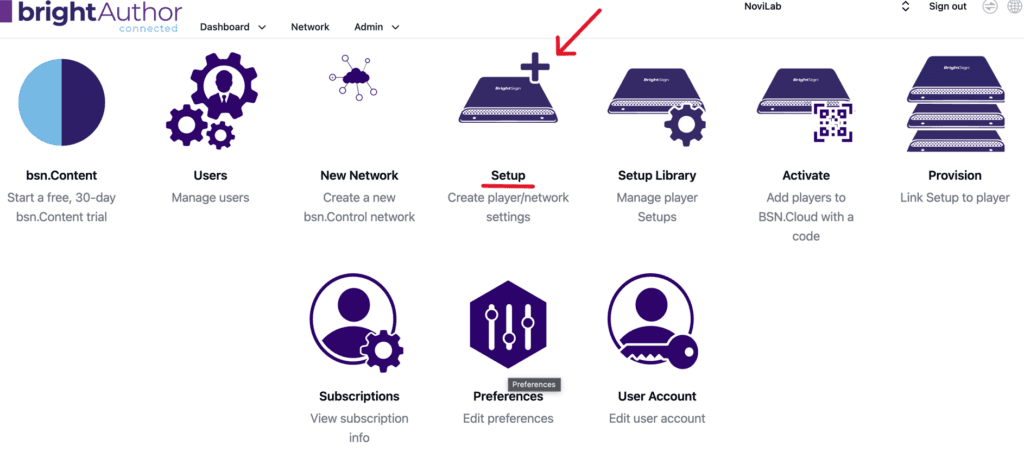
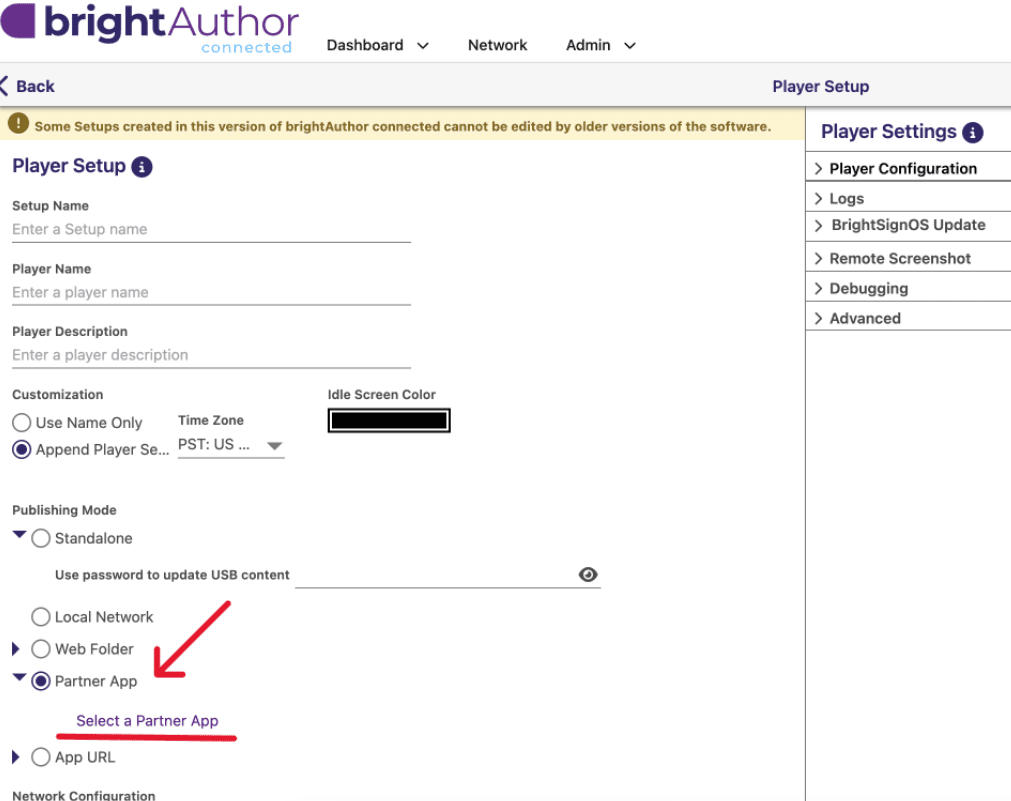
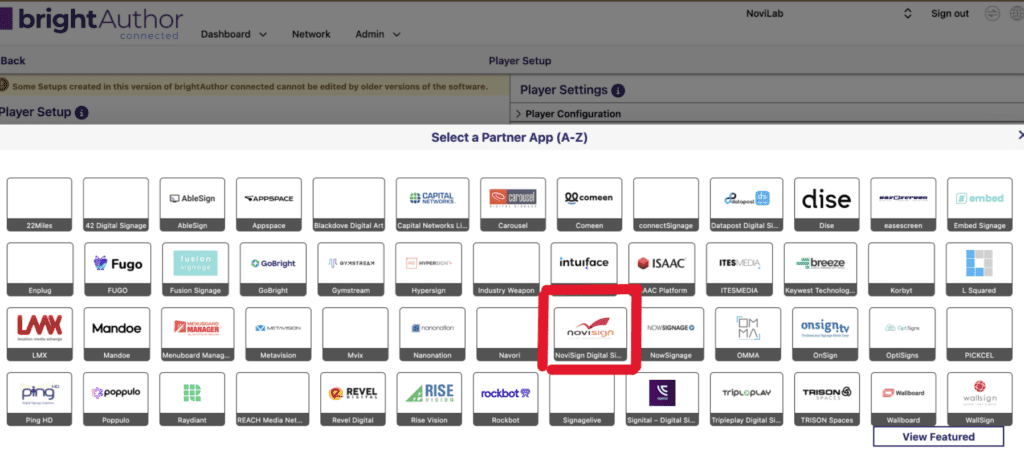
Once provisioned, the player reboots, launches the NoviSign app, and automatically shows the Quick Link pairing screen — no additional configuration needed.
When the NoviSign app launches on your BrightSign player, it automatically shows a Quick Link pairing screen with:
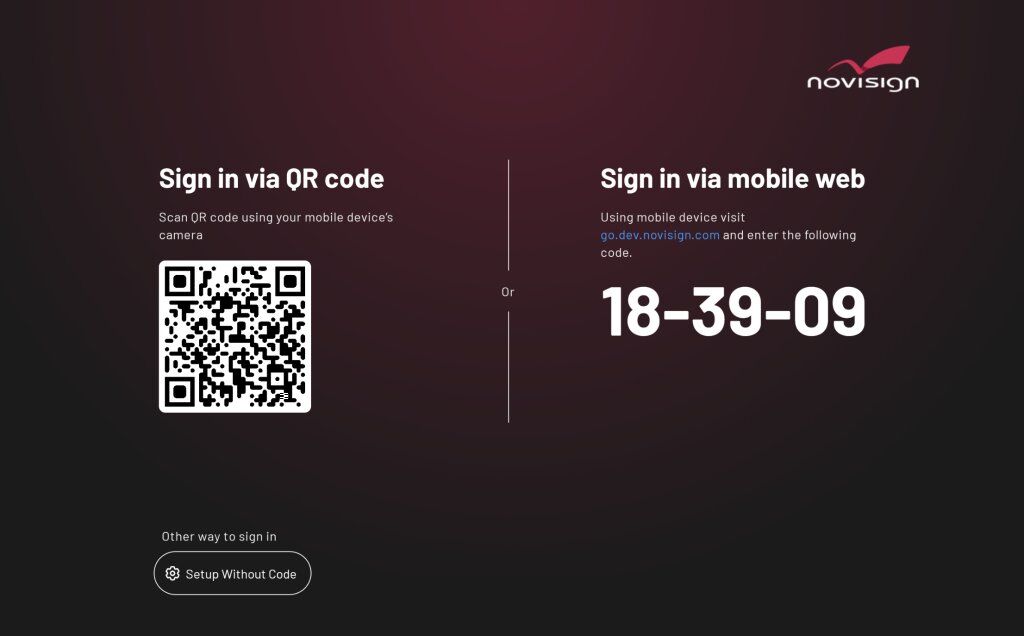
Complete the pairing from your phone or laptop — not directly on the player.
The player connects to your screen, downloads the playlist, and begins playback.
| Issue | Solution |
|---|---|
| Player not showing Quick Link screen | Confirm BSN.Cloud setup uses Partner App → NoviSign and player was provisioned |
| QR code not scanning | Use the 6-digit code option instead |
| Content not playing after pairing | Verify the screen in your NoviSign account has an active playlist assigned |
| Network issues | Check network settings in BSN.Cloud under Setup → Network |
For further help, contact support@novisign.com