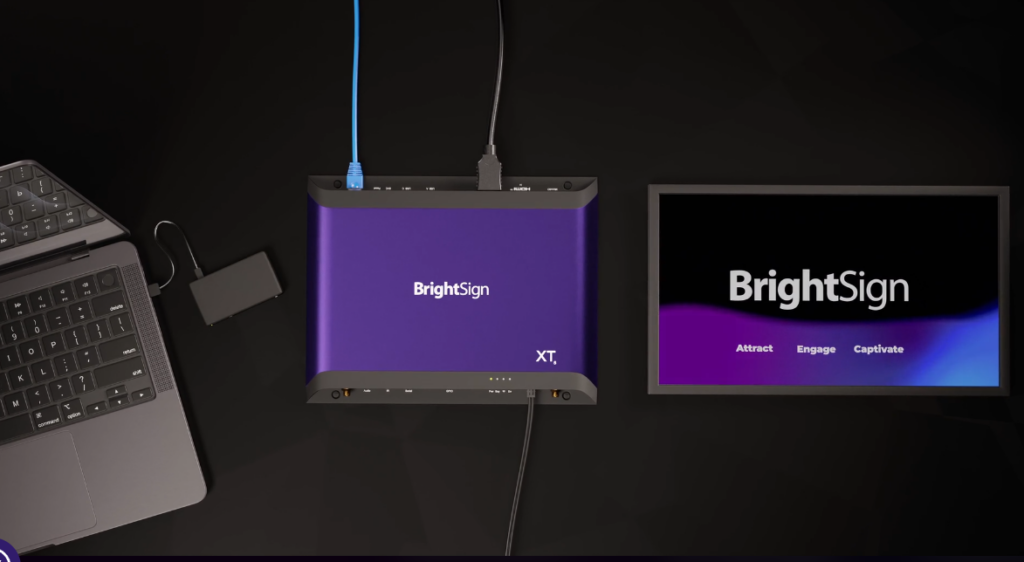
This guide explains the core concepts of setting up your BrightSign player, the available publishing methods, and how BSN.Cloud works.
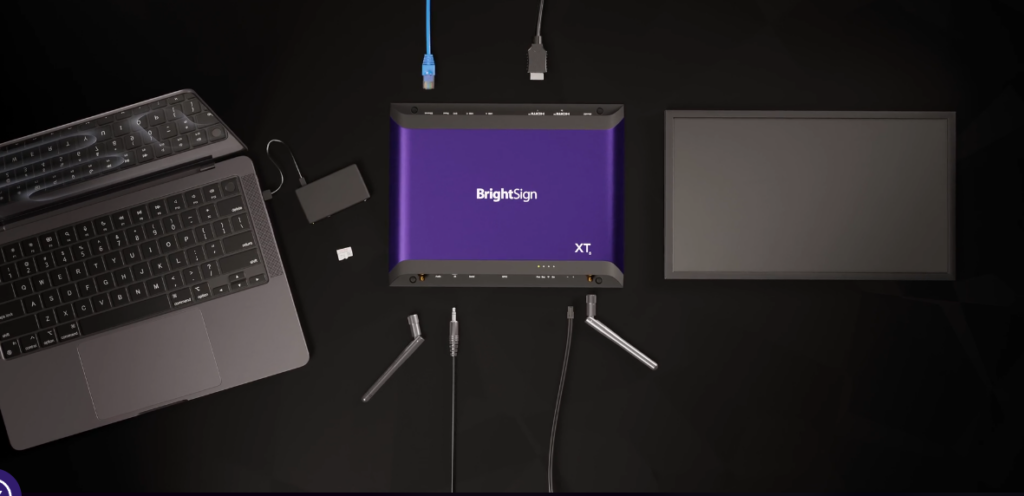
This guide explains the core concepts of setting up your BrightSign player, the available publishing methods, and how BSN.Cloud works.
When setting up a BrightSign player, the first thing the device needs to know is where its content will come from.
This is done during the setup process, where the player is configured to use one of BrightSign’s available publishing modes.
BrightSign offers several setup options depending on how you want to manage and deliver content.
Content Cloud is BrightSign’s paid Content Management System (CMS) and is part of the BSN.Cloud platform.
It allows you to:
This option is recommended for users who want a cloud-based solution with remote management capabilities.
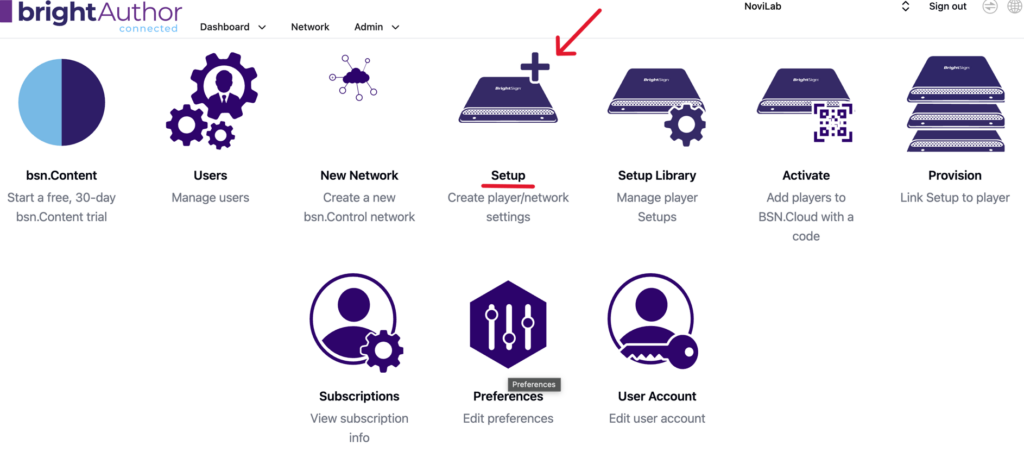
4.Fill in the required fields:
5. Under Publishing Mode, choose Partner App.
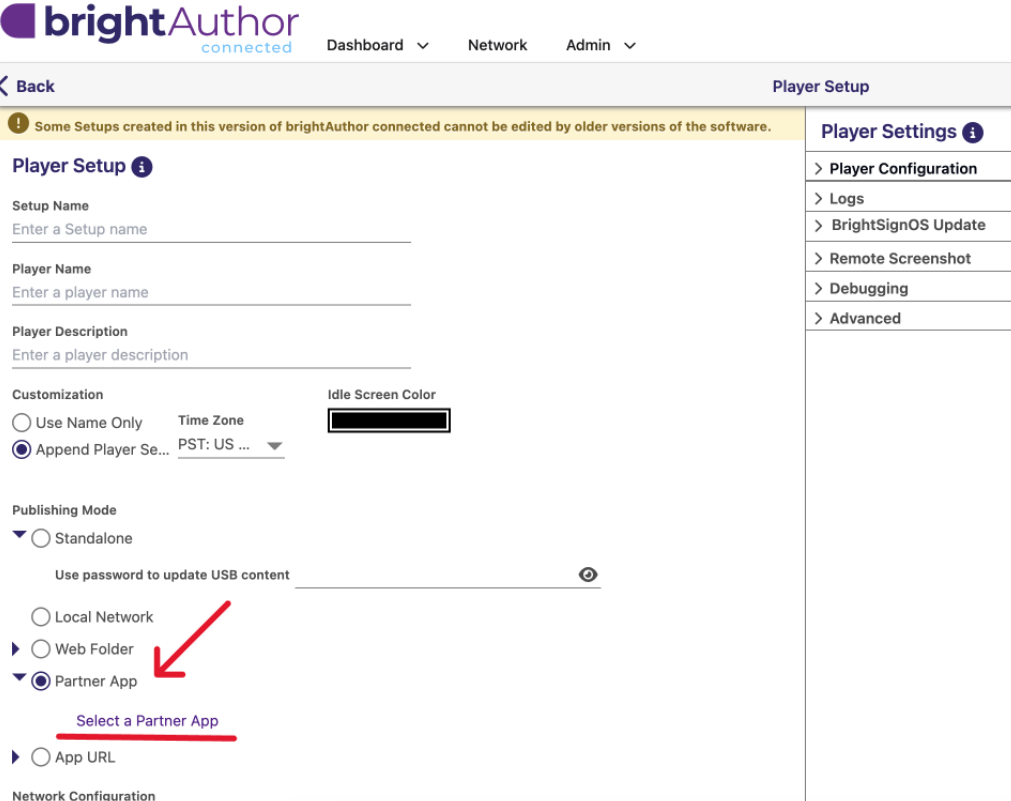
6. Click Select a Partner App.
7. Choose NoviSign from the list.
8. Save the setup and continue the provisioning process.
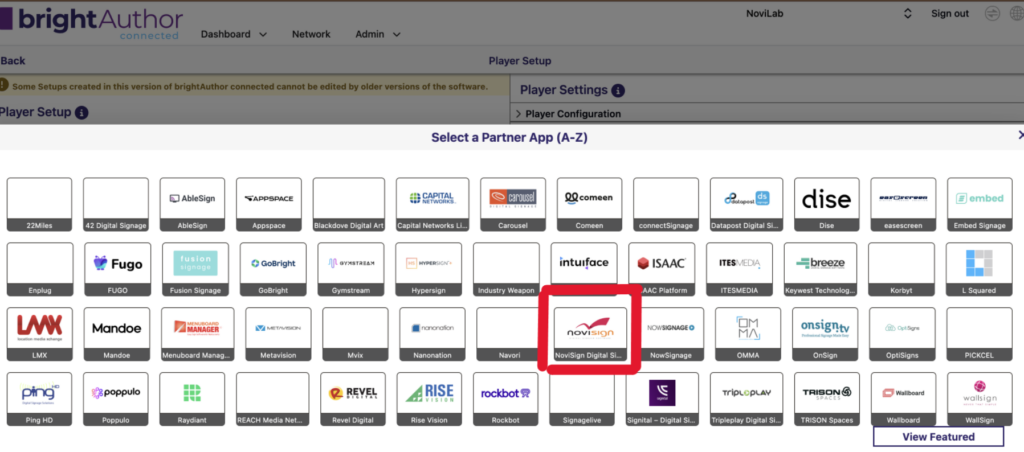
Once completed, your BrightSign player will be ready to work with NoviSign.
The Local Network setup uses the free desktop application BrightAuthor:connected to publish content to players on the same local network.
With this option you can:
This setup connects your BrightSign player to a web folder or FTP location for content updates.
You will use BrightAuthor:connected to create your presentations, while the player checks the remote folder for updates.
This is useful when you want remote updates without a full CMS platform.
For developers or advanced users, BrightSign supports deploying your own custom web application using a custom App URL.
This option is ideal for custom integrations or HTML applications.
Standalone mode is the simplest setup option.
You use BrightAuthor:connected to publish content directly to the player’s microSD card.
Benefits:
Simply insert the microSD card into the player and power it on.
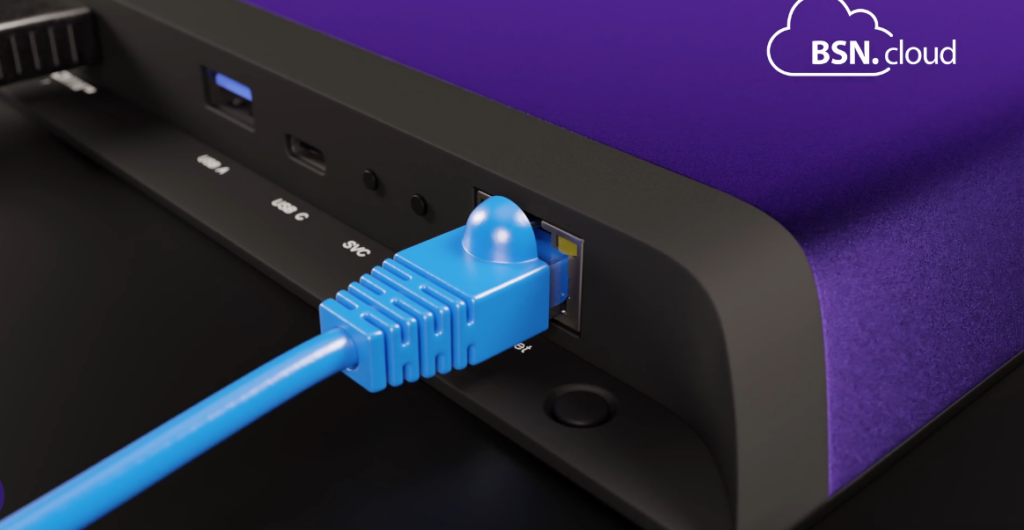
Set up the player online using Control Cloud, which is included with BSN.Cloud.
Benefits:
This is the recommended method for most users.
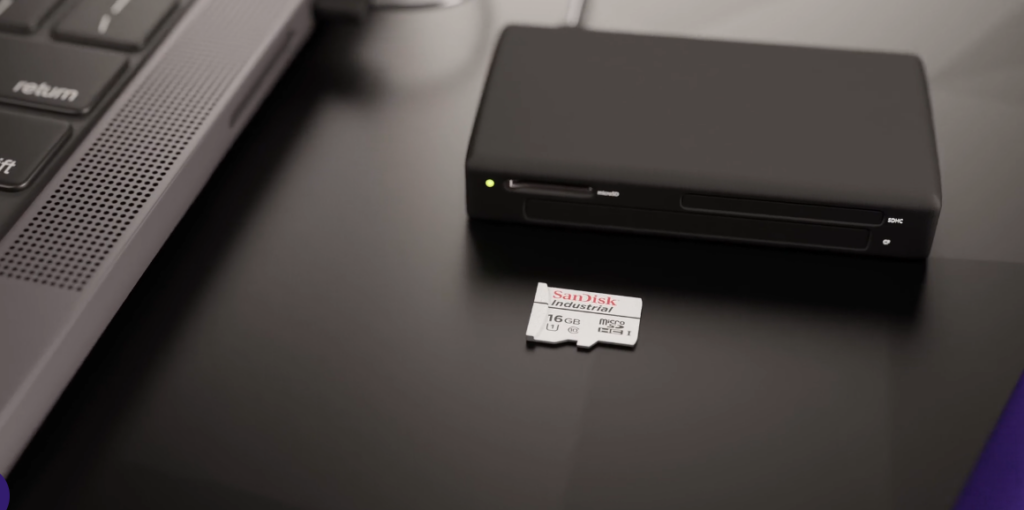
Create the setup files for the player and copy them directly to the microSD card.
Steps:
The player will complete the setup automatically.
BrightAuthor:connected is BrightSign’s setup and content creation software.
It is available as:
You can use it for:
BSN.Cloud is BrightSign’s cloud platform for managing players.
With a BSN.Cloud account, you can:
When you assign a player to a publishing mode through BSN.Cloud, the process is called Provisioning.
Provisioned players can be managed remotely through the BSN.Cloud dashboard.
If you want to use BrightSign’s paid CMS (Content Cloud), you can add subscriptions to one or more players in your BSN.Cloud network.
This provides:
| Need | Recommended Setup |
|---|---|
| Simple offline playback | Standalone |
| Remote management | Content Cloud |
| Free remote setup | Control Cloud |
| Internal network publishing | Local Network |
| FTP / hosted folder updates | Web Folder |
| Custom web apps | Custom App URL |
| Existing third-party CMS | Partner CMS |
BrightSign provides flexible setup options for every type of deployment — from simple offline signage to advanced cloud-based networks.
Whether you choose Standalone, Local Network, BSN.Cloud, or a third-party CMS, BrightSign offers a solution to match your needs.