
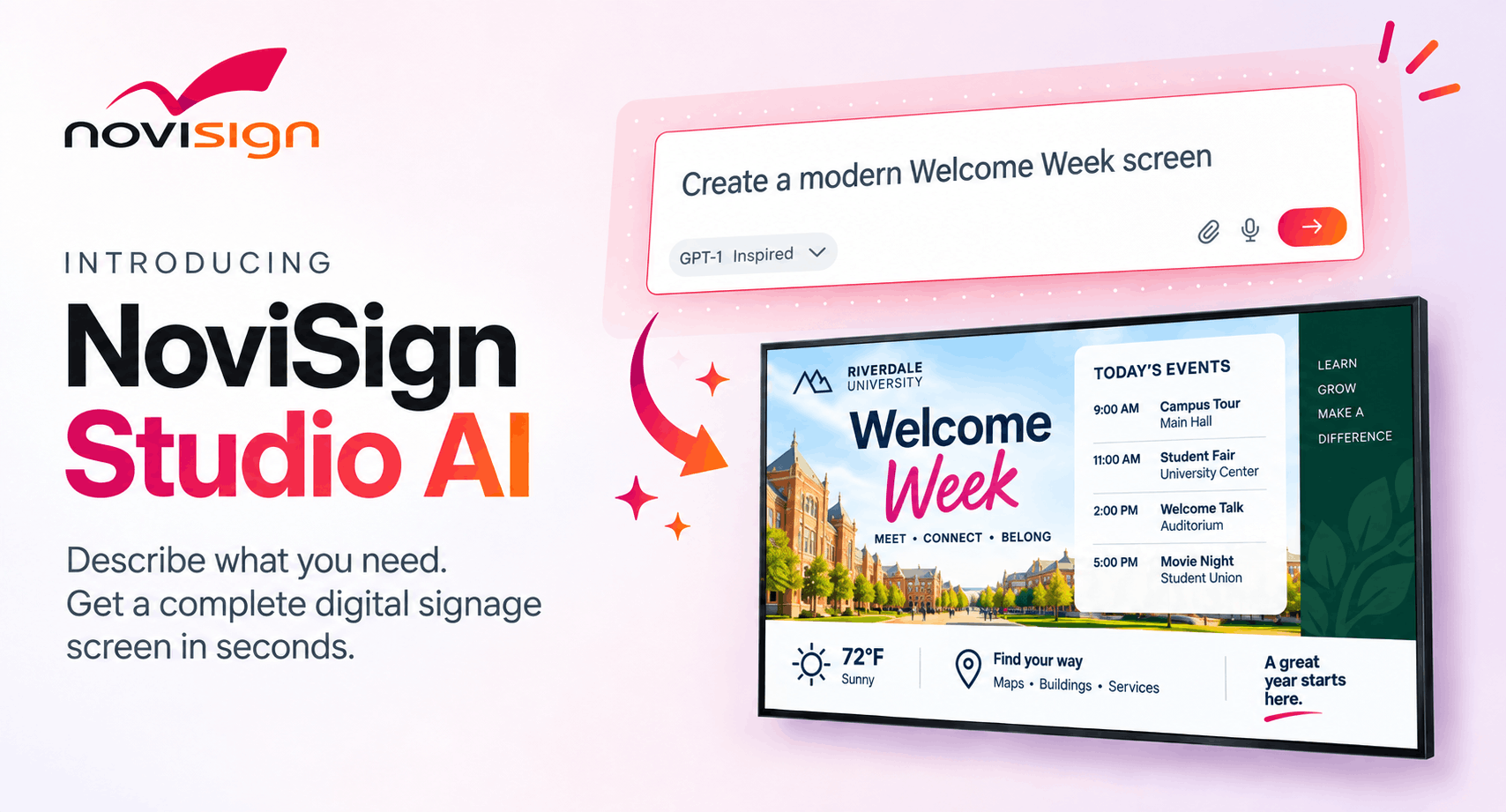
We’re excited to introduce NoviSign Studio AI, a new way to create digital signage using AI.
Creating digital signage has traditionally meant starting with a blank canvas or template, writing content, finding images, arranging the layout and making adjustments until everything looks right.
With NoviSign Studio AI, there’s now another way. Instead of building your screen element by element, simply describe what you want. Studio AI turns your instructions into a complete digital signage screen, including the content, layout, images and other elements needed to bring your idea to life.
Once your creative has been generated, you can continue talking to Studio AI to make changes or switch to the regular NoviSign Studio for full manual control. This gives experienced users a faster way to create while making digital signage more accessible to people without design experience.
How NoviSign Studio AI Works
Getting started with NoviSign Studio AI happens directly inside the NoviSign Studio.
Click Create in the top-right corner of the Studio. From the dropdown, you can choose to start with a template as usual or create with AI.
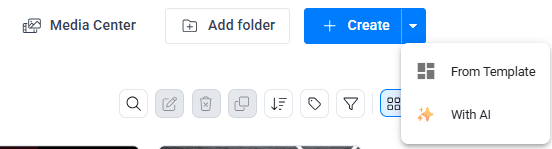
Choose AI and you’ll be taken to the NoviSign Studio AI lobby. This is where your screen begins.
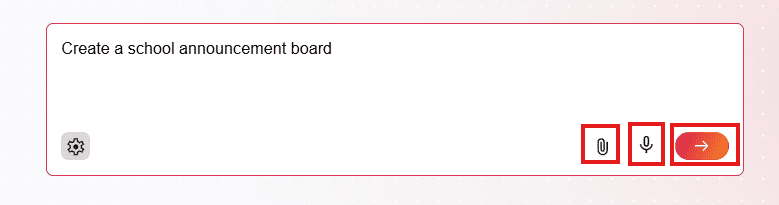
Simply describe what you want to create. Your prompt can be short and simple or include more detail about the information, imagery, branding and style you want on the screen.
You can also attach your own images, such as a company logo, product photo or other visual you want Studio AI to include in the creative. You can also click the microphone and say what you want instead of typing it.
When you’re ready, click the arrow to send your prompt.
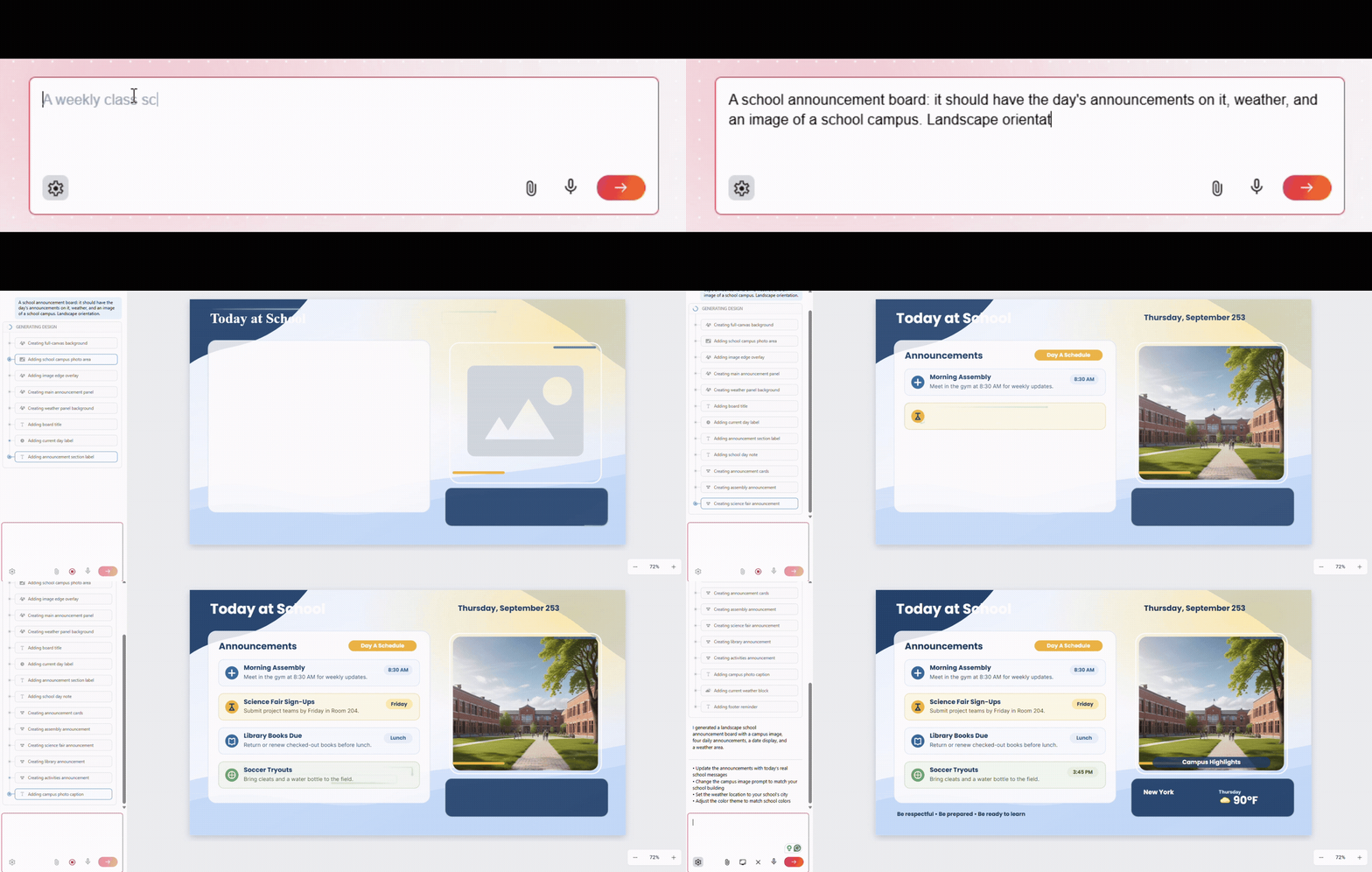
Studio AI gets to work, and you can watch your screen come to life in just a few seconds.
Once the screen is created, the AI chat remains available on the right. The first result doesn’t have to be the final one. Continue the conversation and tell Studio AI what you want changed.
For example:
EXAMPLE PROMPT
“Make the headline bigger and add today’s weather.”
Or:
EXAMPLE PROMPT
“Use our uploaded logo and make the design match our brand.”
You can also describe the result you want without specifying every individual change:
EXAMPLE PROMPT
“There’s too much information on the screen. Simplify it and make the most important announcements stand out.”
Studio AI updates the creative based on your instructions, allowing you to continue refining the screen through a conversation rather than rebuilding it.
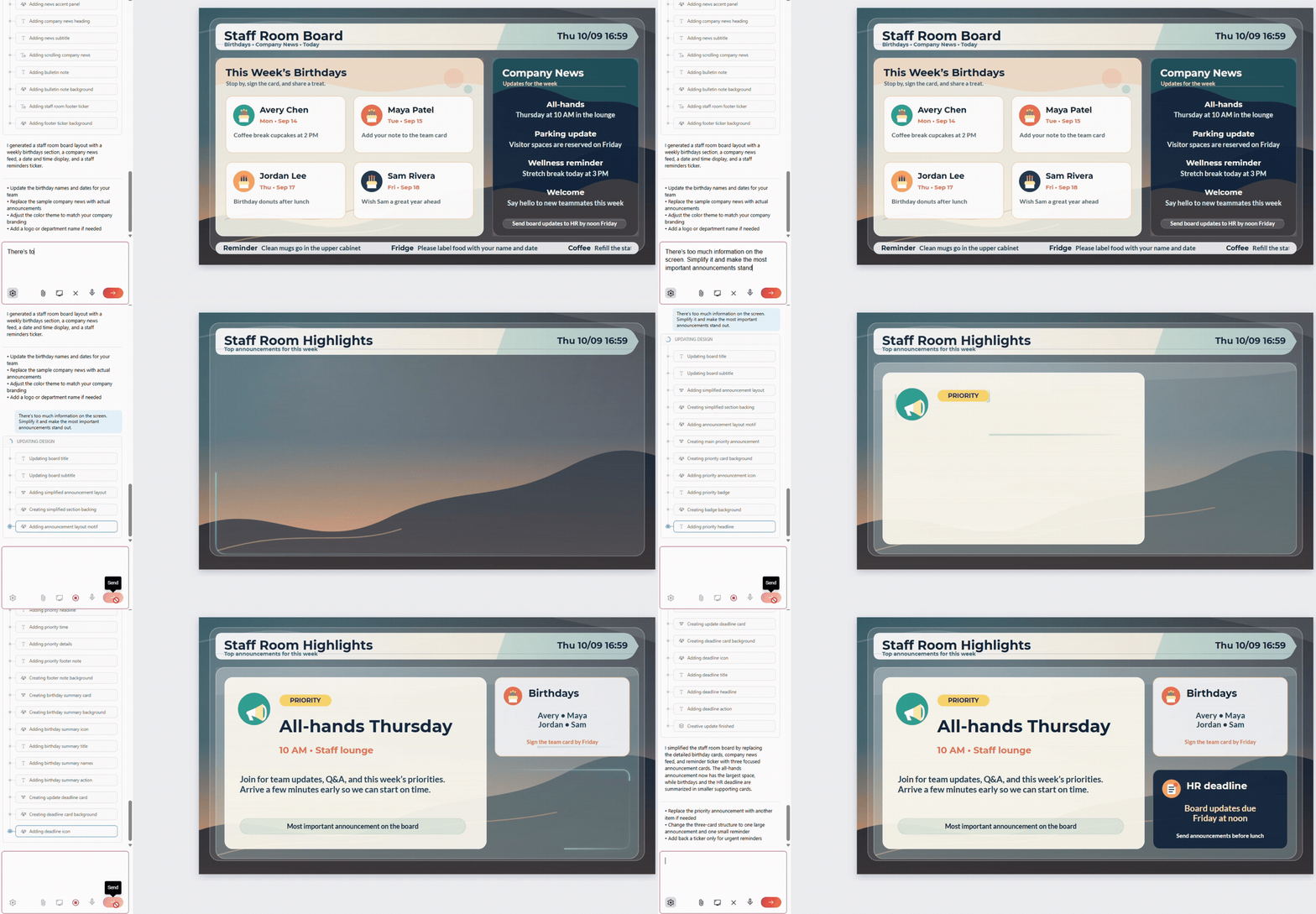
When you’re happy with the result, click Preview to see your creative at full size. Click Save, and it will be saved to your Creatives section.
From there, you can assign and schedule the creative to your displays through NoviSign as usual.
What Can You Create With NoviSign Studio AI?
NoviSign Studio AI isn’t designed around one particular type of screen. From school announcements and hotel information to corporate communications and menu boards, describe what you need and let Studio AI create the starting point.
Here are a few examples.
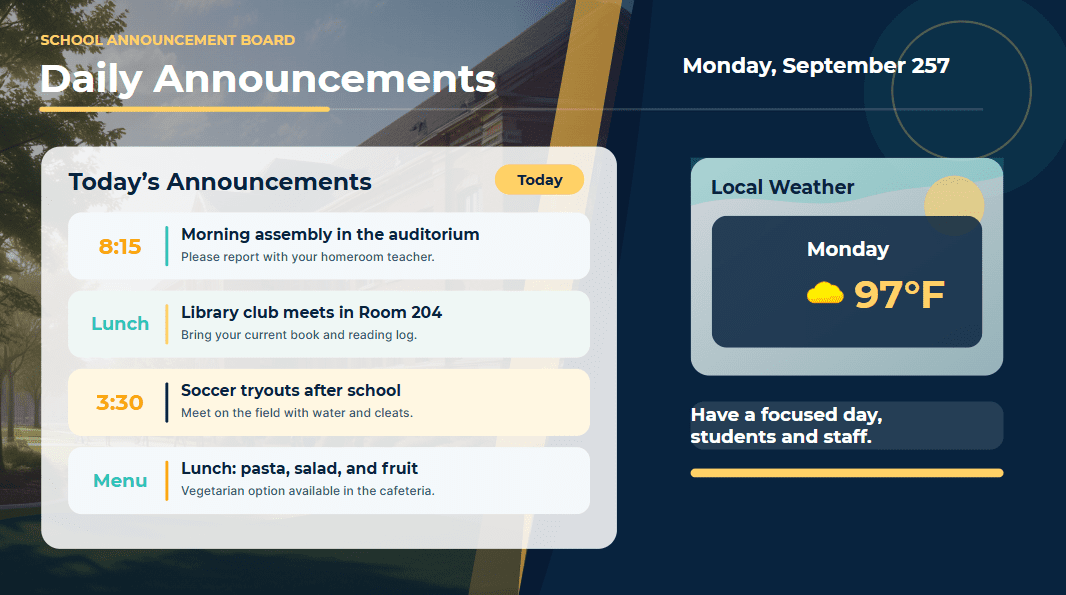
Education
EXAMPLE PROMPT
“Create a school announcement board: it should have the day’s announcements on it, weather, and an image of a school campus.”
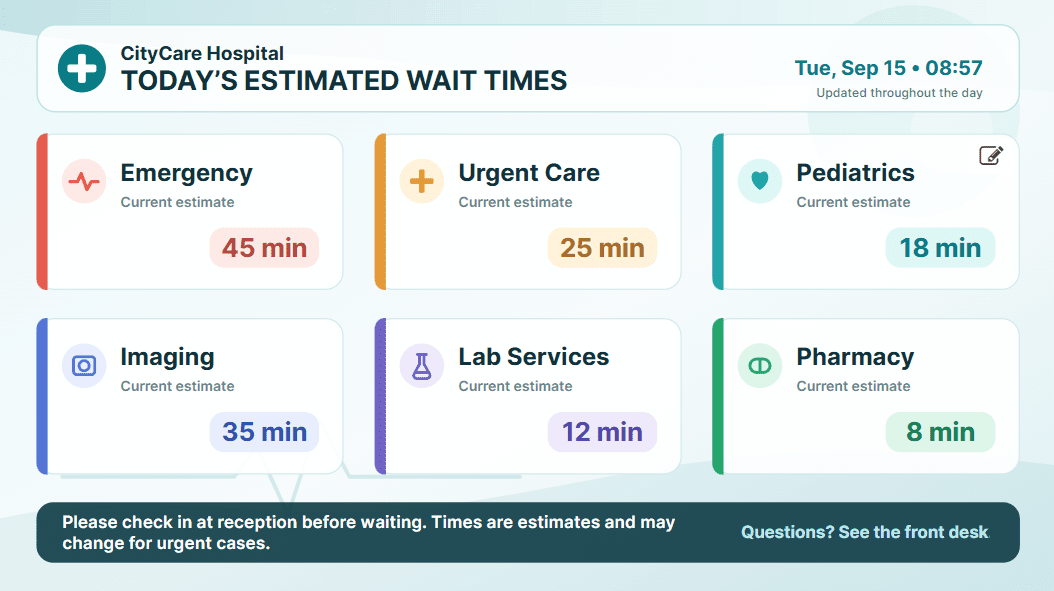
Healthcare
EXAMPLE PROMPT
“Create a hospital waiting room board showing today’s estimated wait times by department.”
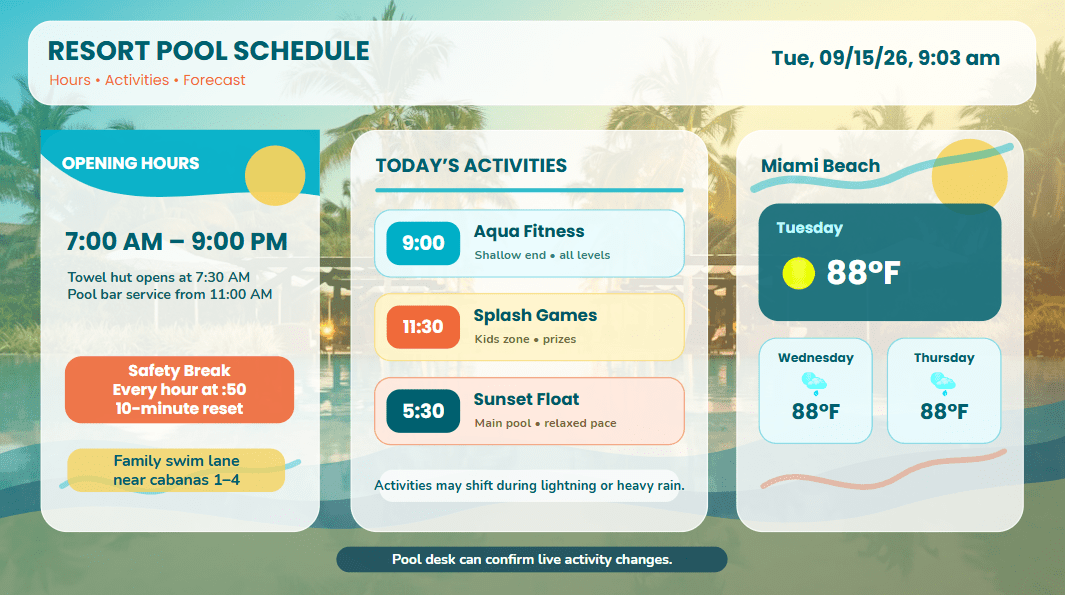
Hospitality
EXAMPLE PROMPT
“Create a resort pool schedule showing opening hours, today’s activities, and a weather forecast. ”
Internal Communications
EXAMPLE PROMPT
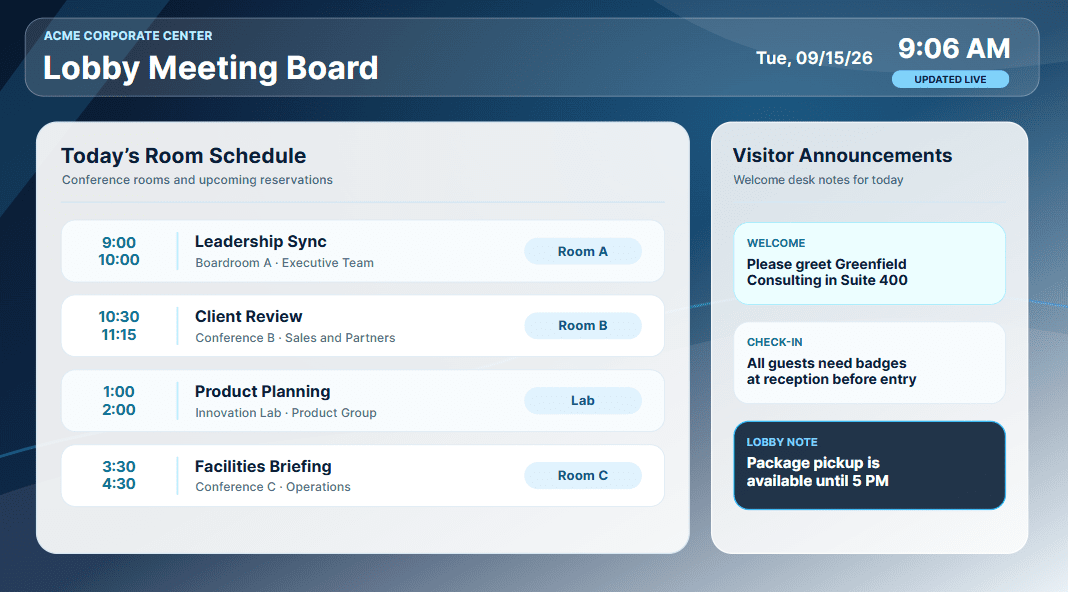
“Create an office lobby board showing today’s meeting room schedule and any visitor announcements.”
Menu Boards
EXAMPLE PROMPT
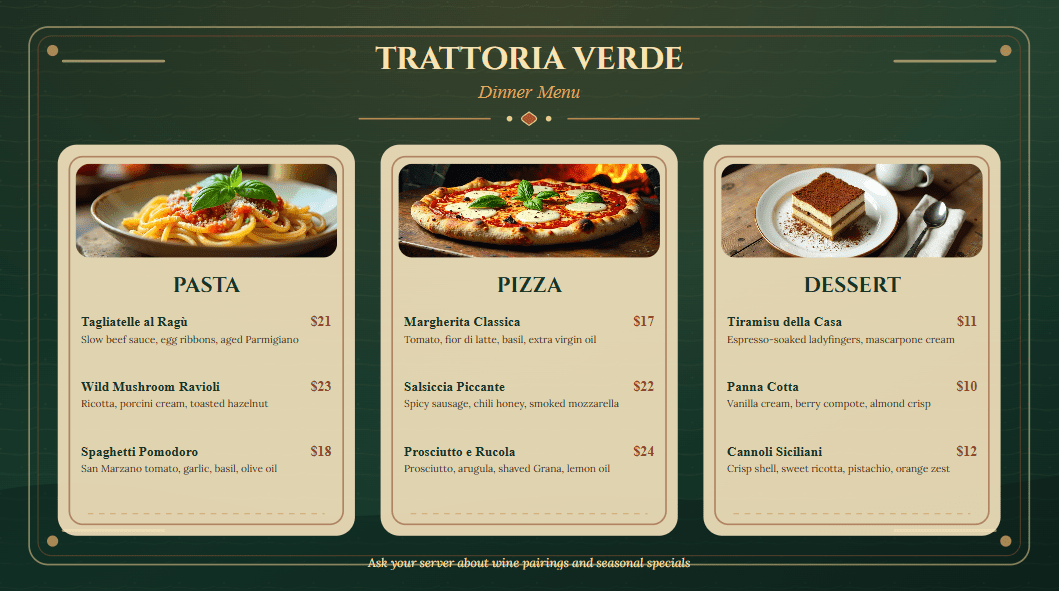
“Create a dinner menu for an Italian restaurant, showing pasta, pizza, and dessert sections with prices.”
These are only examples. Studio AI can help create promotions, announcements, welcome screens, event signage, informational displays and many other types of digital signage.
Using AI on Existing Creatives
NoviSign Studio AI isn’t only for creating new content. You can also use AI to update existing NoviSign creatives.
Instead of opening a creative and manually finding and changing individual elements, tell Studio AI what needs to happen. For example:
EXAMPLE PROMPT
“The all-hands meeting has moved to 3:30 PM in the main auditorium. Update the screen.”
Or make several changes with one instruction:
EXAMPLE PROMPT
“Change the Margherita to $12.99 and the Family Combo to $29.99, remove the sold-out chicken wings and promote mozzarella sticks instead.”
Studio AI can also help when plans change and signage needs to be updated quickly:
EXAMPLE PROMPT
“The rooftop bar is closed because of rain. Remove the promotion and replace it with tonight’s live music in the lobby bar at 8 PM.”
Translate an Entire Screen
For organizations operating displays across multiple countries or regions, adapting the same creative for different languages can involve changing text throughout an entire screen.
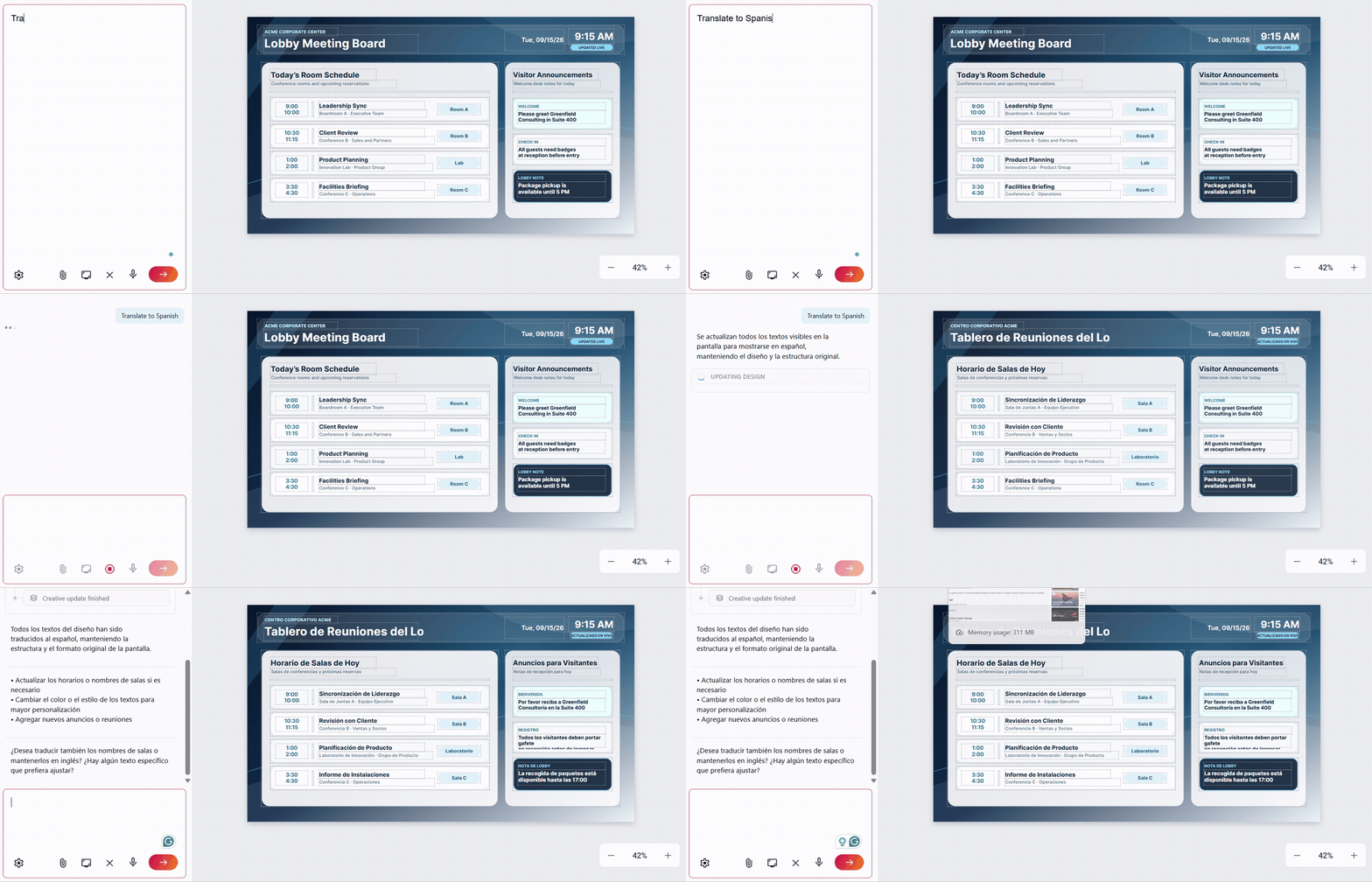
With Studio AI, you can simply ask:
EXAMPLE PROMPT
“Translate this entire screen into Spanish.”
Rather than translating and replacing each text element individually, Studio AI can help adapt the complete creative for another language. You can then review and refine the translated screen before publishing it.
This makes it easier to adapt existing signage for different countries, regions and audiences from the same starting creative.
Full Control Over Your Creative
Using Studio AI doesn’t mean giving up the familiar NoviSign editing experience.
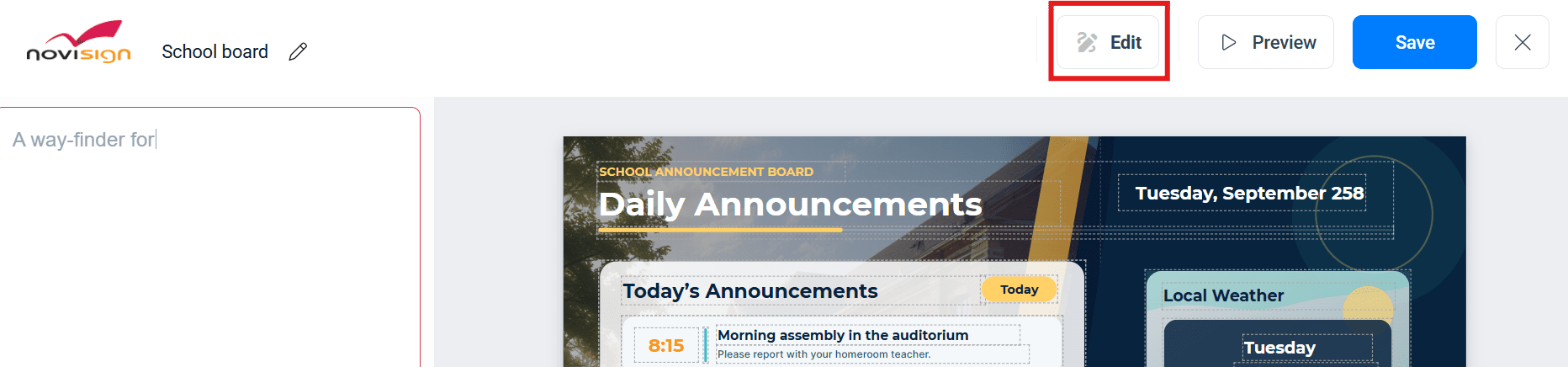
At any point, click Edit above the screen to move into the regular NoviSign Studio. From there, you can manually adjust the creative using NoviSign’s drag-and-drop widgets and editing tools.
To continue working with AI, click AI to return to the AI chat.
This gives you the flexibility to move between AI-assisted creation and manual editing at any time, while keeping every element of your creative editable.
Cost
Everyone can try NoviSign Studio AI with several prompts for free.
This gives you the opportunity to experiment with the feature, create screens and see what Studio AI can do before subscribing.
After the free prompts have been used, a subscription is required to continue using NoviSign Studio AI.
Summary
NoviSign Studio AI introduces a new way to create and update digital signage. Instead of starting with a blank canvas and building everything manually, simply describe what you need and let AI create it.
Continue refining your screen with AI, switch to manual editing whenever you want, and use Studio AI to make future updates to existing creatives.
Whether you’re creating something new or updating content already in use, Studio AI makes the path from idea to screen faster and simpler.
About The Author: Ilan Melchior
More posts by Ilan Melchior