
 Ilan Melchior, Marketing Manager
TL;DR
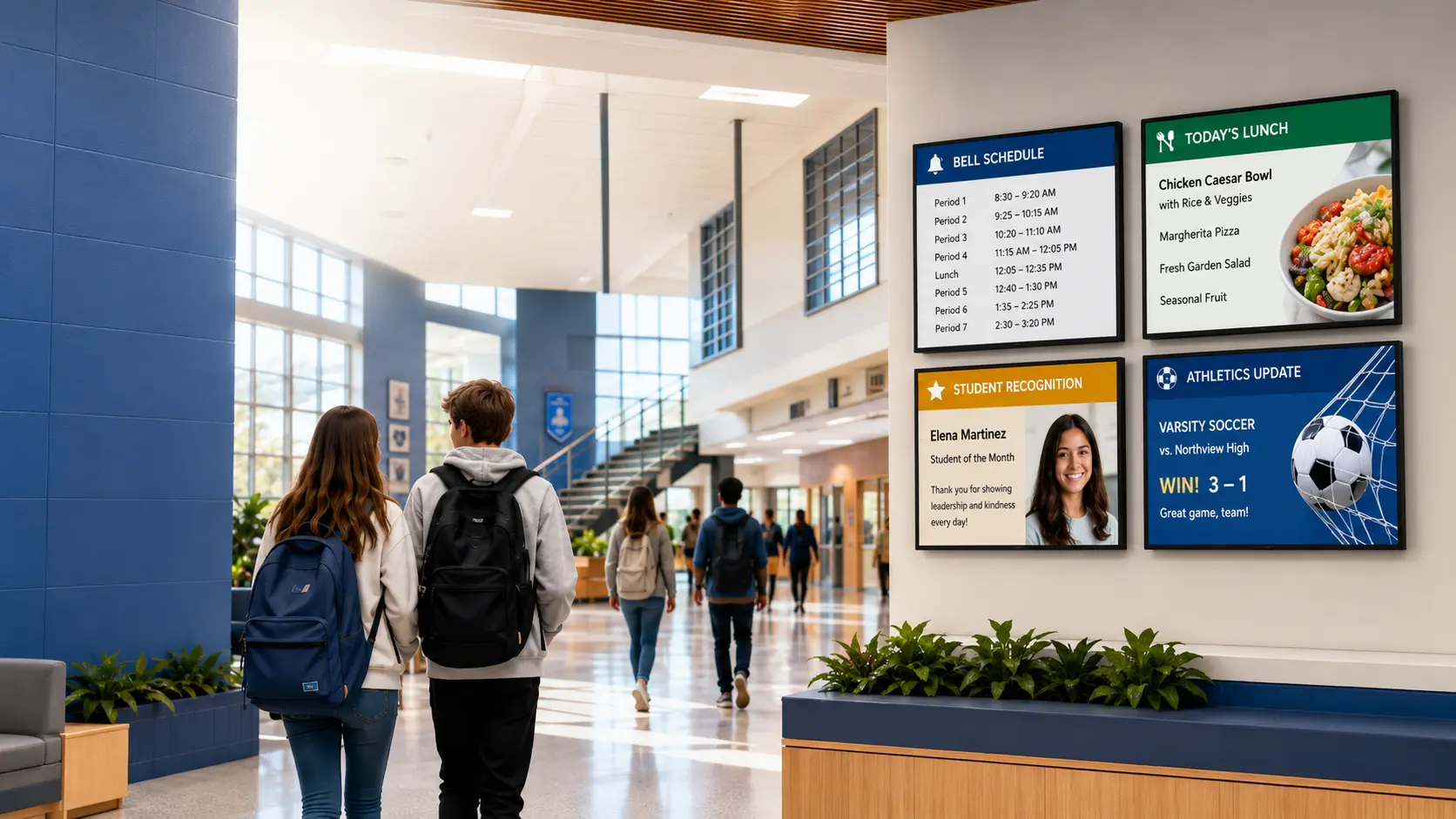
- School digital signage shows announcements, menus, events, recognition, and emergency alerts on screens you update remotely.
- The most useful setups match each idea to a screen location, an update frequency, and a data feed that keeps content current automatically.
- You can sort ideas by campus location and grade level, so younger students see bright visuals and older students see schedules, scores, and deadlines.
- You can often use a TV you already own, with a small media player, so the software you choose matters more than the hardware.
School digital signage ideas fall into a few clear buckets: daily communication, student recognition, event promotion, cafeteria menus, safety alerts, wayfinding, and live data. The guide lists 35 of those ideas, then shows where each screen goes, how often to update it, and which data feed keeps it current. You will also find ideas sorted by campus location and grade level, a short setup walkthrough, and free templates to get a first screen live.
What is school digital signage?
School digital signage is an electronic display, such as a TV or panel, that shows content you manage through a content management system (CMS), the cloud software where staff build, schedule, and publish what appears on screen. A small media player or signage stick behind the screen runs that content; on some smart TVs, the software runs on the screen itself.
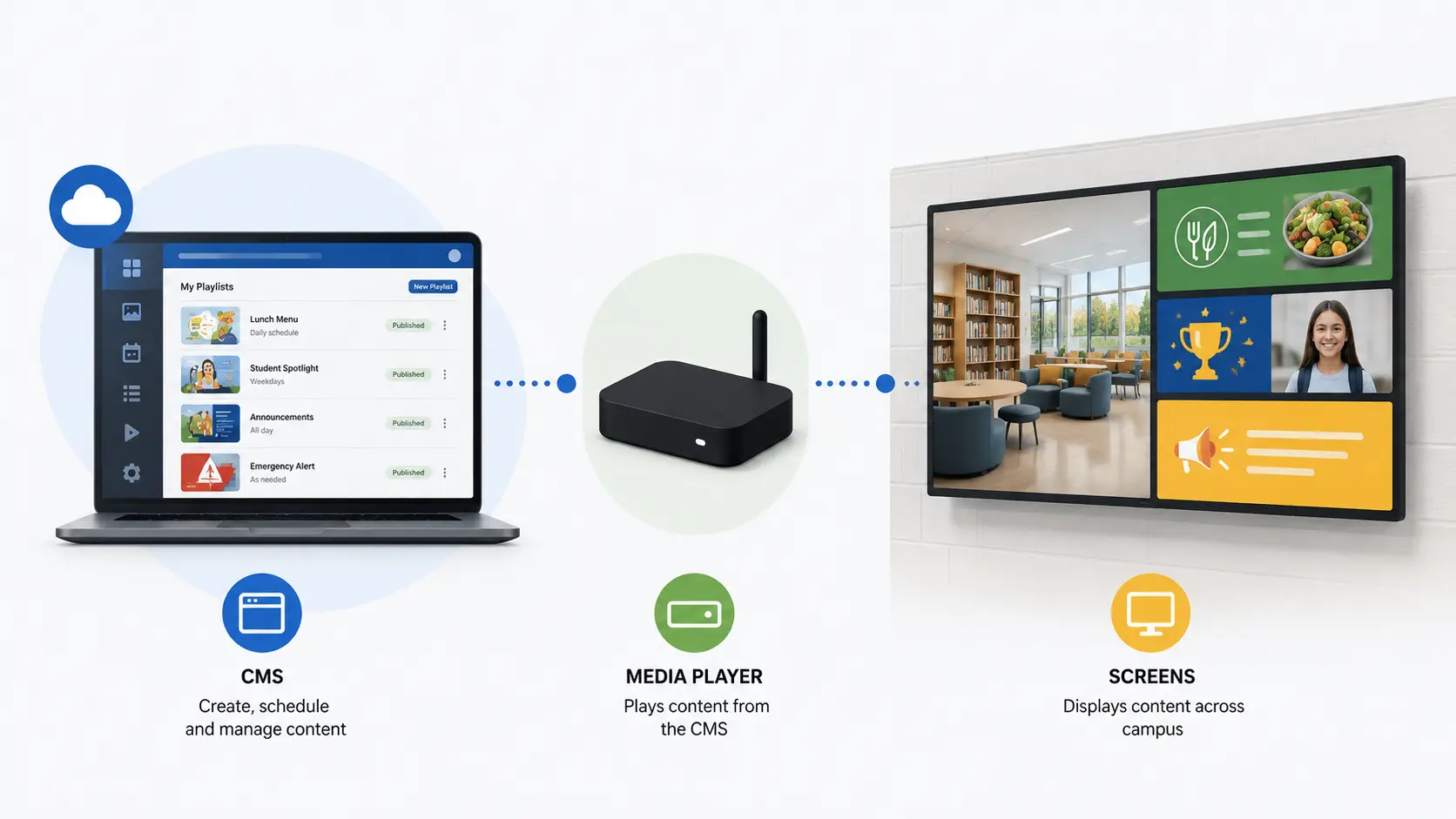
The screen is the visible part, but the CMS makes it useful. One person can update every screen across a building or district from a laptop, schedule different content for different times of day, and switch every display to an emergency message at once.
Why do schools use digital signage?
Schools use digital signage because it reaches students and staff in shared physical spaces that email and apps often miss. A hallway screen catches the student who muted notifications; a cafeteria menu board answers a question before anyone has to ask it. Screens also reinforce the alerts a school sends by SMS or email, so a message someone misses on their phone still reaches them on a wall.
The category is growing as more campuses modernize. The digital signage in education and universities market reached about $2.15 billion in 2024 and should hit roughly $5.48 billion by 2034, a 9.8% compound annual growth rate, with North America holding about 38.4% of the market in 2024 (Market.us, 2025).
Cheaper hardware and cloud-based content management drive that growth, because small teams can run many screens from one place. Safety is often the highest-stakes reason a school invests.
Schools increasingly rely on digital signage for emergency communication because a visual alert cuts through a noisy classroom and reaches everyone, including deaf and hard-of-hearing students, through flashing, multicolored messages. Compared with printed signs, screens also lower long-run cost, because you create content once and update it for free instead of reprinting.
35 school digital signage content ideas

Each idea below is one line you could act on this week. Group them on screen by category so content stays scannable.
Announcements and daily communications
- Daily announcements and the morning bulletin
- Bell schedules and any schedule changes
- Dismissal and early-release updates
- Club and activity sign-ups
- Bus and carpool changes
- Substitute teacher and room-change notices
Student recognition and achievements
- Student of the week or month
- Honor roll and academic milestones
- Student artwork and photography
- Sports scores and team results
- Birthday and graduation shout-outs
Event promotion and countdowns
- Upcoming games, plays, and concerts
- Fundraiser progress and goals
- Registration and application deadlines
- Live countdown timers to big events
Cafeteria and digital menu boards
- Daily and weekly menus with photos
- Nutrition information and allergen labels
- Pricing and meal-deal promotions
- Line-status and serving-time updates
Emergency alerts and safety messaging
- Lockdown and shelter-in-place instructions
- Severe-weather alerts and closures
- Evacuation routes and assembly points
- Full-screen override that interrupts all content on a trigger
Wayfinding and campus maps
- Room finders and building directories
- Event locations for visitors and substitutes
- Directions to the office, nurse, and key services
Inspiration and learning moments
- Word of the day and vocabulary builders
- Fun facts, trivia, and quizzes
- Quote of the day
Social and live data
- A moderated school hashtag or social media wall
- Club and team social feeds
- Live weather and news ticker
- House-points or reading-challenge leaderboards from a live Google Sheet
Community recognition
- Donor and sponsor walls
- Booster club and partner thank-yous
Match each idea to a screen, a schedule, and a feed
The table below connects each idea to where the screen goes, how often you refresh it, and what automates it.
| Content idea |
Best screen location |
Update frequency |
Automate with |
|---|---|---|---|
| Daily announcements | Main entrance, hallways | Daily | Google Calendar / RSS feed |
| Digital lunch menu | Cafeteria | Daily / weekly | Spreadsheet or menu feed |
| Student of the week | Lobby, library | Weekly | Playlist scheduler |
| Event countdown | Hallways, gym | Per event | Countdown widget |
| Emergency alert | Every screen (override) | Instant, on trigger | Alert system integration (RAVE, Alertus, Everbridge) |
| Wayfinding map | Entrances, junctions | As needed | Interactive layout |
| Live weather + news | Common areas | Real-time | Weather + news widgets |
| Social media wall | Cafeteria, commons | Real-time (moderated) | Social feed aggregator |
School digital signage ideas by location
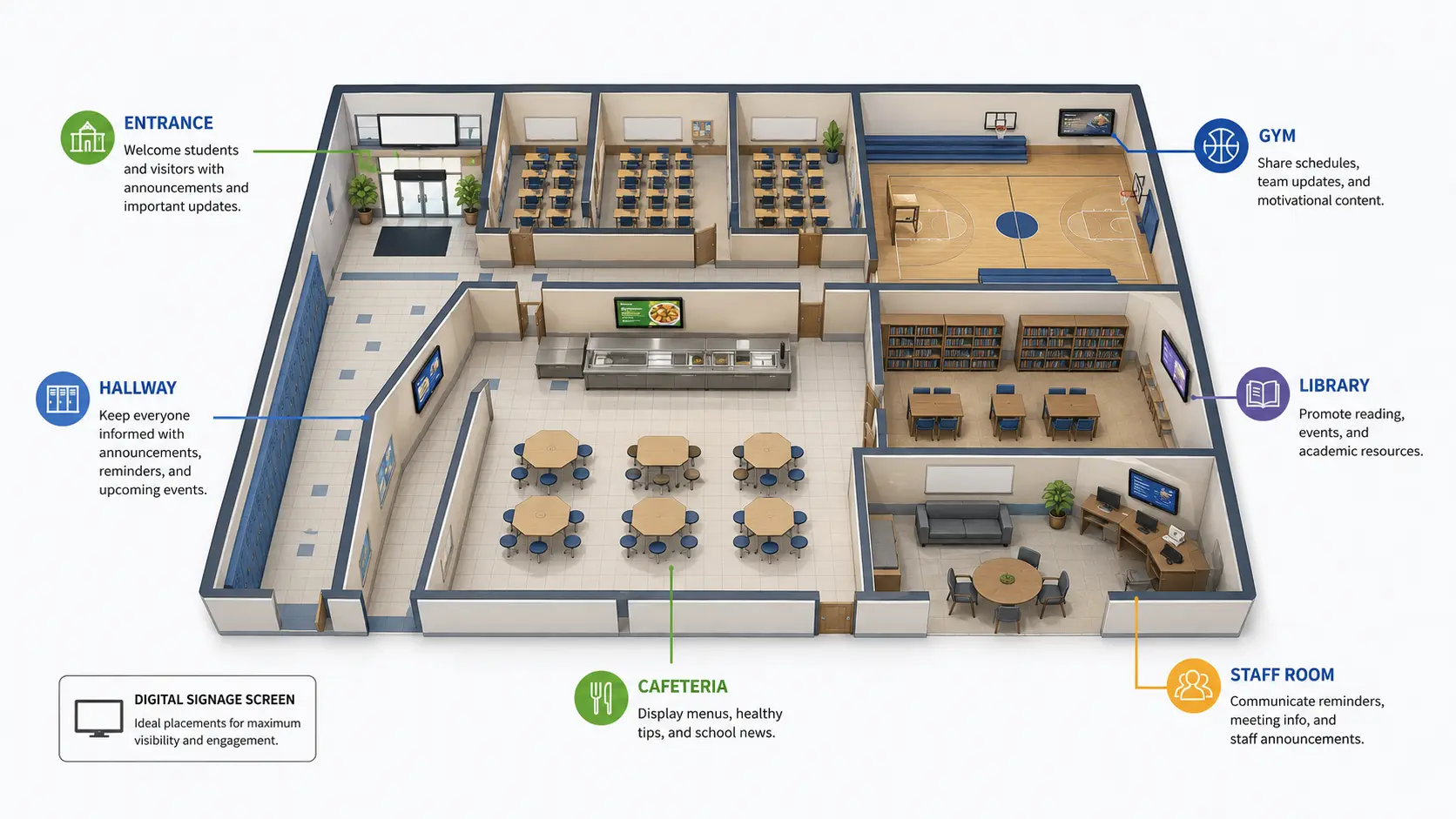
Where a screen sits should decide what plays on it, because dwell time changes from one space to the next.
- Entrance and lobby. Visitors and substitutes pass through here, so lead with welcome messages, the day’s events, and a wayfinding directory. Add donor and sponsor recognition.
- Hallways. People are walking, so content needs to register in 7 to 10 seconds. Use one message per slide with large type: announcements, countdowns, and student recognition work well.
- Cafeteria. Students sit and wait, so screens can hold longer content. Run menus with photos, allergen and nutrition details, a social media wall, and event promos.
- Library and study areas. Quieter dwell time suits learning content, book features, quiet-hours reminders, and event listings.
- Gym and auditorium. Game-day screens carry scores, schedules, and sponsor walls; for events, switch to countdowns and program info.
- Staff room. Internal screens keep teachers current on meetings, professional-development dates, and policy reminders without another all-staff email.
School digital signage ideas by school type and grade level
The audience in front of the screen should shape the content mix.
Elementary schools
Keep it visual and parent-facing. Celebrate student work, show simple daily schedules with icons, and run pickup and dismissal reminders. Bright images and short messages do more than text here.
Middle schools
Lean into clubs, behavior incentives, and events. Student-of-the-week features, sports results, and countdowns to dances or trips give students reasons to check the screens.
High schools
Athletics, college and career information, and student-run content carry the most weight. Let a student media or journalism class produce slides; show scholarship deadlines, exam schedules, and game scores.
Colleges and university campuses
Larger campuses need wayfinding, room and exam scheduling, dining menus, and zoned emergency alerts across many buildings. Centralized software matters most here, because one team manages screens across dozens of locations.
Content best practices for school screens
- Keep hallway content readable in 7 to 10 seconds, with one message per slide.
- Use large, high-contrast type and limit body text so a message lands at a glance.
- Automate with data feeds, such as calendars, spreadsheets, RSS, and social, so screens update without manual work.
- Use templates and consistent branding so every screen looks like one school.
- Plan a simple content calendar and assign one owner to keep screens current.
- Remove expired events promptly; outdated slides train people to ignore the screen.
How to set up digital signage in your school
Setup is more approachable than most staff expect. The basic path is five steps:
- Pick a screen, either a commercial display or a TV you already own.
- Connect a media player or signage stick, unless the display runs the software itself.
- Choose digital signage software (the CMS) that fits your screens and skills.
- Build content from a template instead of designing from scratch.
- Schedule and publish remotely, then update from any computer.
NoviSign works with almost any TV that has an HDMI port, using a small media player such as the Amazon Signage Stick.
Free templates and tools to get started
If you searched for templates or free software, these are the quickest ways to get a first screen live. School-specific templates for menus, announcements, and event slides let you swap in your own text and publish the same day. NoviSign offers school templates and a 30-day free trial with no credit card, so you can build a screen and see it live before committing budget.
Schools can pick and customize a template from the NoviSign library, or use NoviSign AI Studio. In AI Studio, you describe the screen you want in one prompt, and the AI builds the layout, content, and images. You can then change it with another prompt, or edit any element by hand in Studio.
Key takeaways
- Group screen content by where it goes: entrance, hallway, cafeteria, library, gym, and staff areas each suit different messages.
- Hallway slides need to be readable in 7 to 10 seconds, so use one message per slide and large type.
- Automate with calendars, spreadsheets, and RSS feeds so screens stay current without daily manual edits.
- For safety, pick software that supports a full-screen emergency override and connects to the alert system your school already uses, such as RAVE, Omnilert, Everbridge, Alertus, or Blackboard Connect.
- Elementary, middle, high school, and college campuses each need a different content mix; plan the screens around the audience in front of them.
- Start with one screen and a template, assign an owner, and expand once the workflow is working.
FAQs
What should you put on school digital signage?
Put daily announcements, lunch menus, event promotions, student recognition, emergency alerts, and wayfinding on school screens. Match each type to a location: menus in the cafeteria, recognition in the lobby, and announcements in high-traffic hallways.
What is the best digital signage software for schools?
The best school digital signage software runs on the screens you already own, stays simple enough for non-technical staff, supports remote management, and includes an emergency override. NoviSign meets these criteria and works with a wide range of screens and media players.
How much does digital signage for schools cost?
School digital signage cost has three parts: the screen, a media player or signage stick if the TV needs one, and a per-screen software subscription. Budgeting by total cost per screen, rather than hardware alone, gives a more accurate picture.
Can you use a regular TV for school digital signage?
Yes. A regular TV becomes a digital sign when you add a media player or signage stick that runs the content. Some commercial displays can also run the signage software themselves, with no extra device. You do not need a specialized commercial display to start.
Is there free digital signage software for schools?
Some platforms offer free trials or limited free tiers. Free options work well for testing, though free tiers often cap screens, features, or support. A 30-day free trial is usually the most realistic way to evaluate a platform with real content.
How do schools use digital signage for emergencies?
Schools use a full-screen override that interrupts normal content the moment an alert triggers, often sent from a connected alert system such as RAVE, Alertus, or Everbridge. Zoned alerts can target one building without notifying the whole campus, which helps with localized incidents like a medical emergency.
How often should you update school signage content?
Update frequency depends on the content: daily for announcements and menus, weekly for student recognition, per-event for countdowns, and instantly for emergencies. Connecting calendars and data feeds means most of these updates happen on their own.
About The Author: Ilan Melchior
More posts by Ilan Melchior