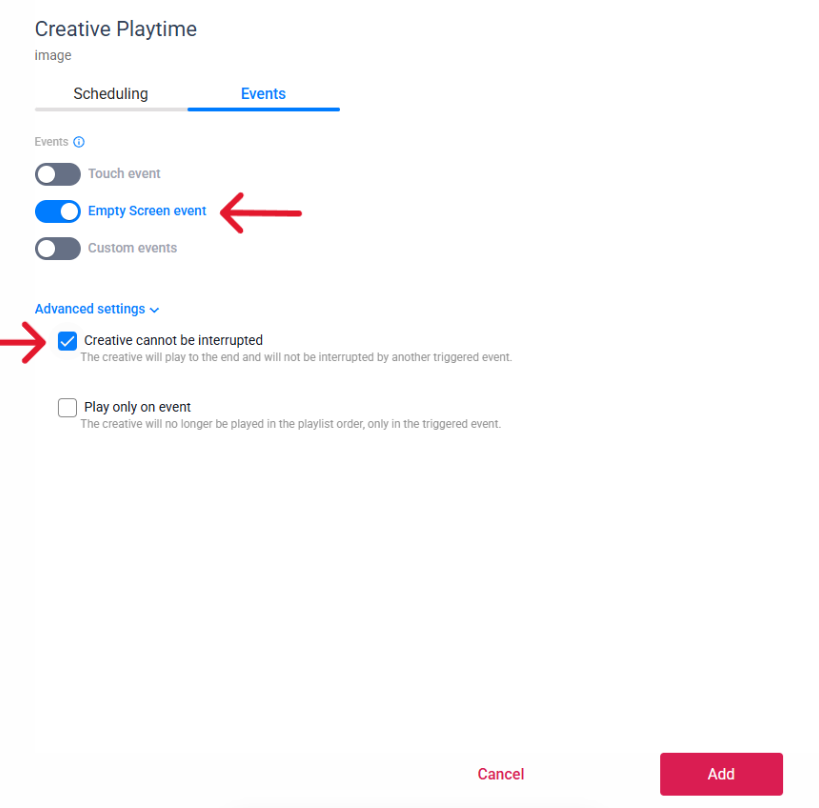
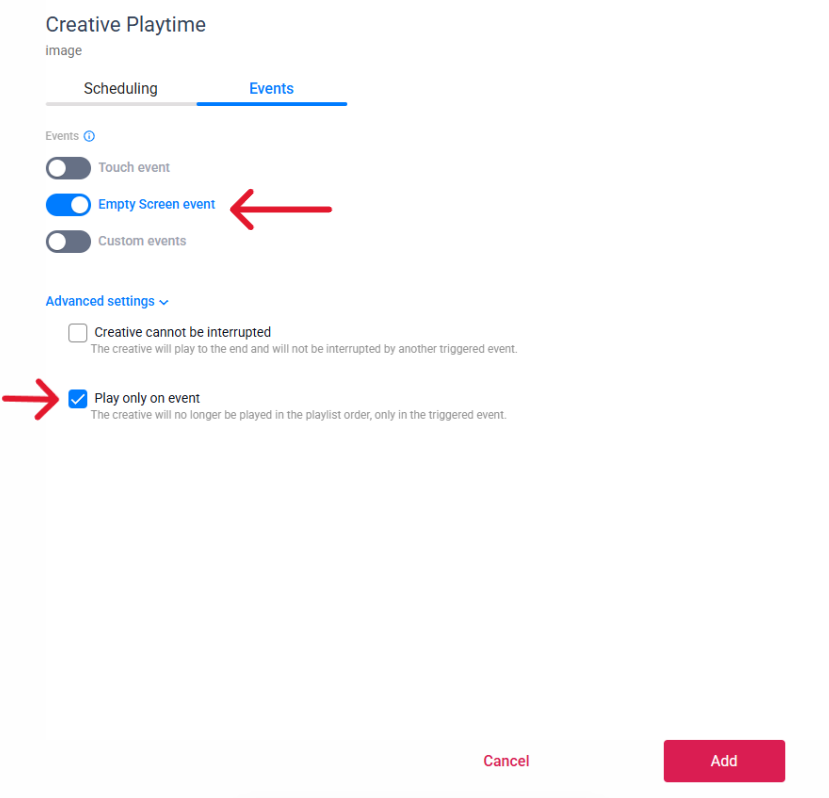
The Empty Screen Event allows specific content to play automatically whenever the screen has no other scheduled or active content to display.
This is useful for ensuring your screens never appear blank and always show relevant information during idle times.
Instead of leaving the display empty between schedules, outside business hours, or when no playlist is currently active, you can assign a creative to appear automatically as a fallback.
What Is the Empty Screen Event?
The Empty Screen Event is an event trigger available in the Creative Playtime settings, under the the Playlist.
When enabled, the selected creative will play only when the screen becomes empty because no other content is scheduled or available.
It acts as a default content layer that fills unused screen time.
NOTE: The Empty Screen Event must be added to the account in the NoviSign Admin system.
For Partners: You can add this event to your Users by adding the event through the Admin Portal.
For End Users: You should already have this event available and ready for use in your Studio.
When Is It Used?
The Empty Screen Event is ideal in the following scenarios:
1. Outside Business Hours
Display a “Closed” message, business hours, or contact information after regular schedules end.
2. Between Scheduled Campaigns
Prevent black or blank screens between campaigns or time-based playlists.
3. Emergency or Placeholder Content
Show branded fallback content, announcements, or standby messaging.
4. Reception or Waiting Areas
Keep screens active with welcome messages or general information whenever no campaign is running.
5. Retail Stores
Display store branding or promotions when scheduled ads are not active.
How to Enable the Empty Screen Event
Follow these steps:
Step 1: Open Your Playlist
Go to the playlist where you want to add fallback content.
Step 2: Add or Select a Creative
Choose the creative you would like to display when the screen is empty.
Step 3: Open Creative Playtime settings
Click the calendar icon to reach the settings.
Step 4: Go to the Events Tab
Select the Events tab.
Step 5: Enable Empty Screen Event
Turn ON the Empty Screen event toggle.
Step 6: Save Changes
Click Add.
Step 7: Publish to Screen
Make sure the playlist is assigned and updated on the screen.
Advanced Settings
When enabled, the creative will play to the end and will not be interrupted by another triggered event.
Use when:
Showing important messages
Full-screen videos
Announcements that should complete
When enabled, the creative will not play in the regular playlist order. It will only appear when the Empty Screen Event is triggered.
Recommended for most fallback content.
Best practices
Use Simple, Clear Content
Fallback content should be easy to understand at a glance.
Examples:
Welcome message
Business hours
Contact details
Brand image/Logo
Standby promotion
Keep It Lightweight
Use optimized images and videos to ensure smooth playback on all devices.
Use Play Only on Event
This prevents the creative from appearing during normal playlist playback.
Test Scheduling
Check that your regular schedules end correctly so the Empty Screen Event can activate when expected.
Example Use Case
A restaurant runs menu promotions from 8:00 AM to 10:00 PM. After 10:00 PM, no scheduled content remains.
Instead of showing a blank screen, the Empty Screen Event displays: