To begin designing your content, click the “New Creative” button.
This will open the Creative Composer — the workspace where you can build your digital signage content using images, videos, text, widgets, and more.
Think of it as your digital canvas — ready for you to create and customize engaging content!
Understanding the “Creatives” Tab
When you’re in the Creatives section, your screen should look like the image below. This is where you manage all of your creative content.
At the top of the page, you’ll see a white bar with three main tabs located just to the right of the NoviSign logo:
Creatives – These are your individual content pieces (creatives), which serve as the building blocks for your playlists.
Playlists – This is where you group one or more creatives into a playlist. You can schedule playlists by week, day, hour, or set them to repeat or expire as needed.
Screens – This tab allows you to assign your playlists to one or more media players or display screens.
Creative Management Options
Below the top white bar, you’ll find a series of orange action buttons that help you manage your creatives:
New Creative – Opens the Creative Composer to start designing a new creative with powerful widgets.
Media Library – Lets you upload and access your media files, including videos and images.
New Folder – Create folders to keep your creatives organized.
Edit – Select a creative and click Edit to open and make changes.
Duplicate – Make a copy of an existing creative. Useful for backups or creating similar versions.
Delete – Remove a selected creative from your library.
Sort – Sort your creatives based on specific criteria (e.g., date, name).
Filter – Filter creatives to quickly find what you need.
View – Switch between thumbnail view and list view for easier browsing.
Watch the Training Video
Below is a short video walkthrough that shows you how to get started with designing content inside the Creative Composer. It covers how to create a new creative, upload media, and use the available tools and widgets to build engaging digital signage.

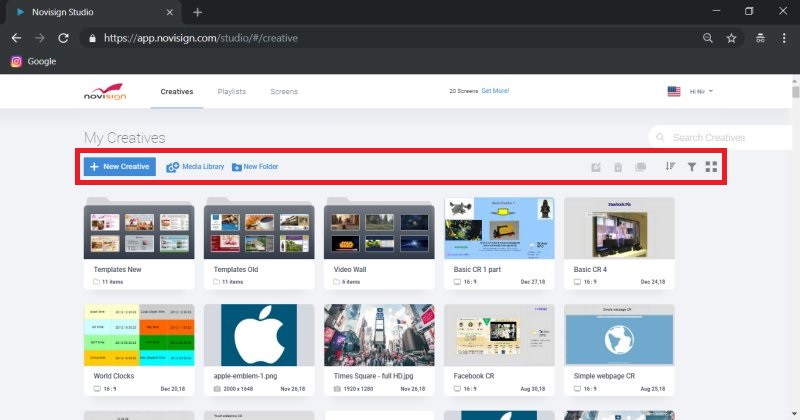 This is where you manage all of your creative content.