
This is a manual to show you how to migrate your media players from doPublicity digital signage software to NoviSign’s software in complete steps.
Please notice that this manual’s steps should be done, AFTER you already created some basic content (or recreated your previous content) using your account at NoviSign’s Studio CMS. For doing so, you can start from the 1st step here.
If your Android based media player has the Google Play store app installed, you can skip all the following steps and use this short quick start guide.
Step 1 – Restart/reboot the media player
Step 2 – Factory data reset – this is optional – this can take 5 to 7 minutes
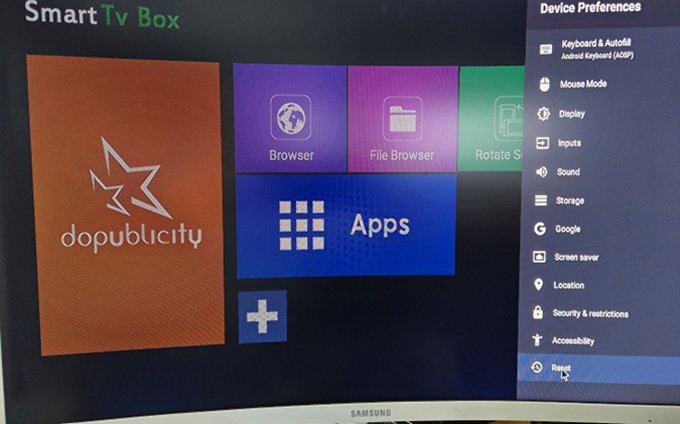
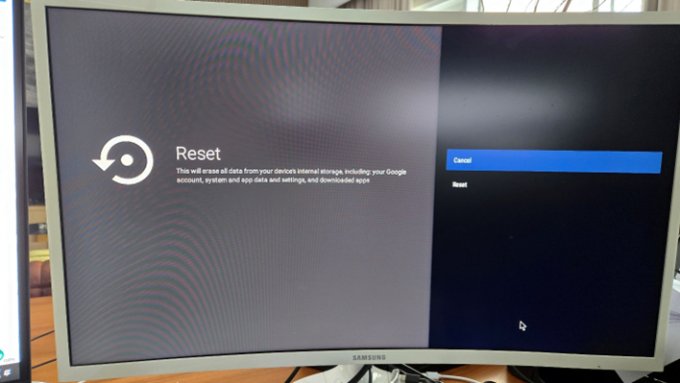
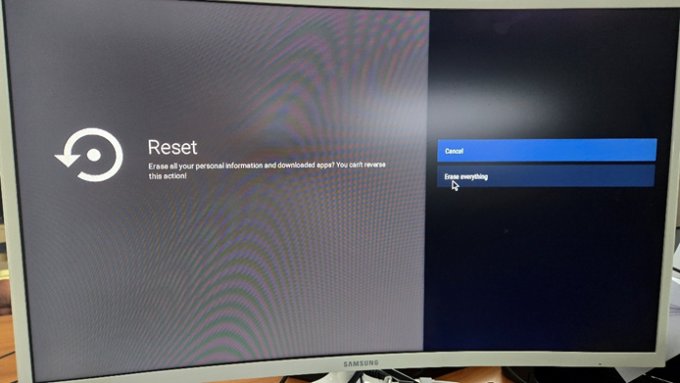
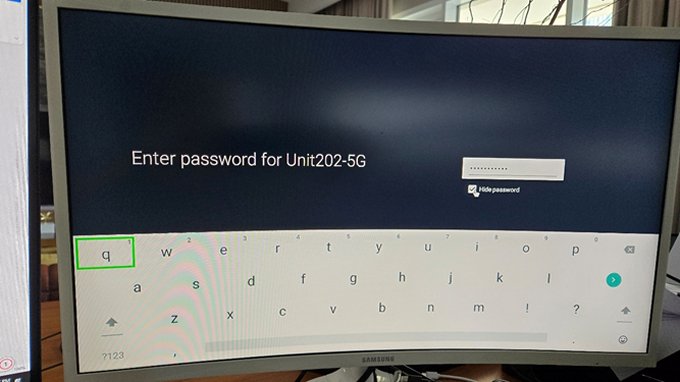
Step 3 – Connect to the internet
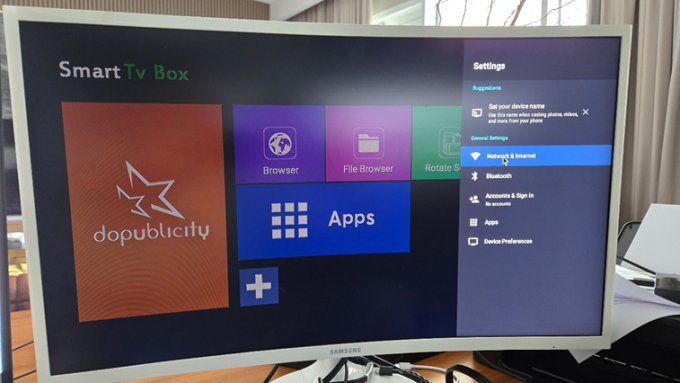
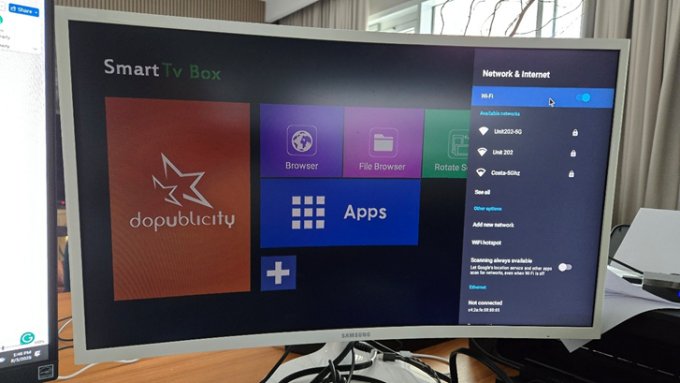
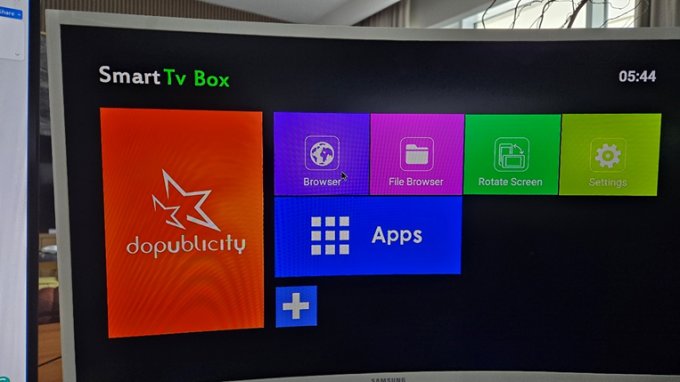
Step 4 – Click on chrome / browser (on the desktop)
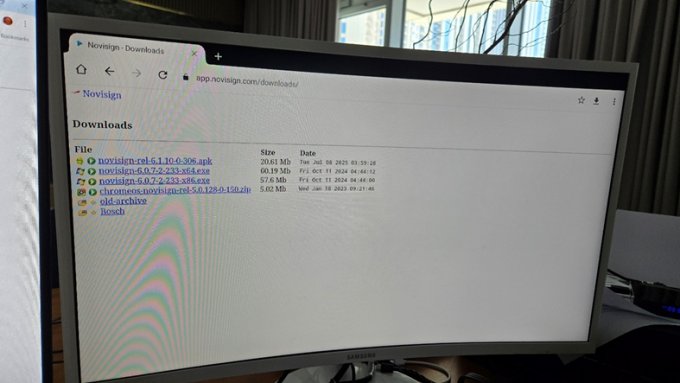
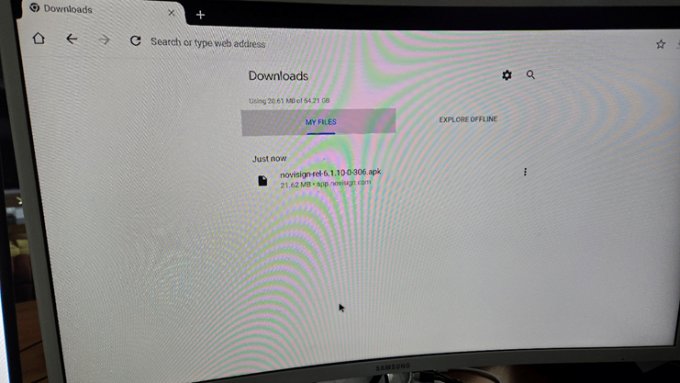
Step 5 – Go to app.novisign.com/downloads
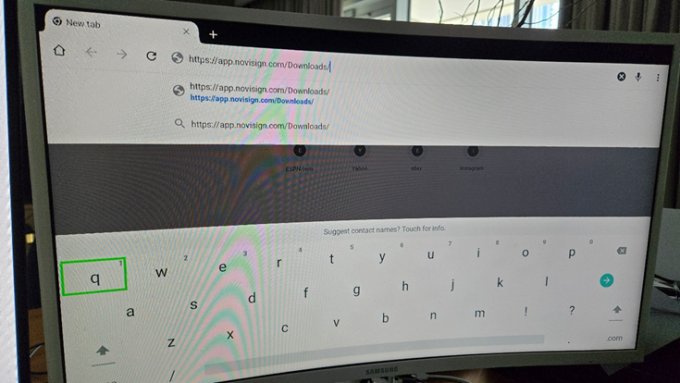
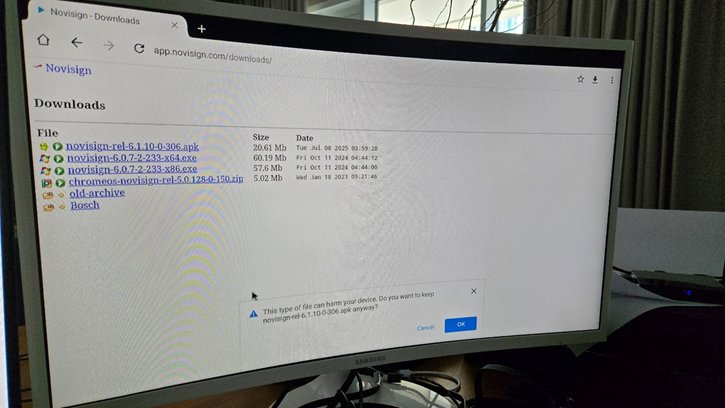
Step 6 – Click on the 1st link that ends with “.apk” extension
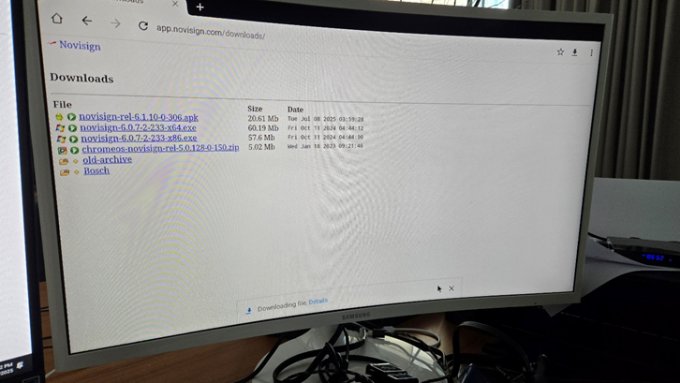
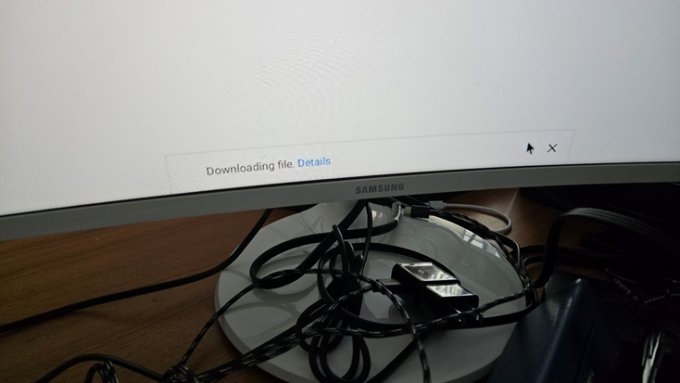
Step 7 – Download the application (APK file)
Step 8 – Install the NoviSign’s application

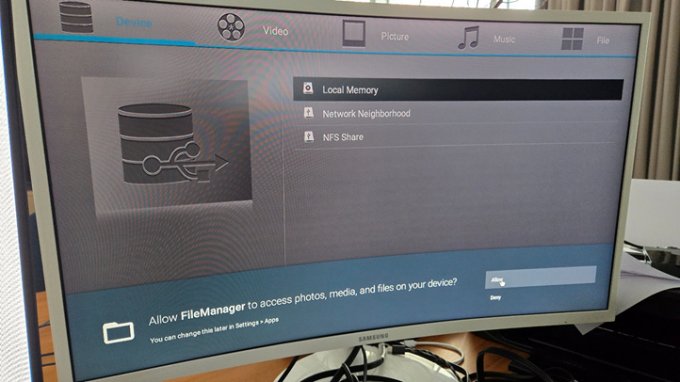
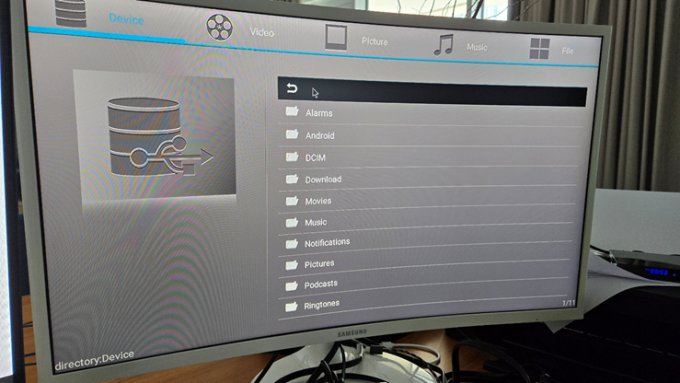
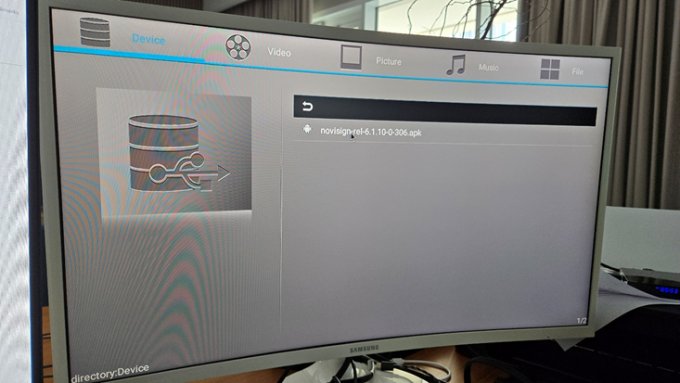
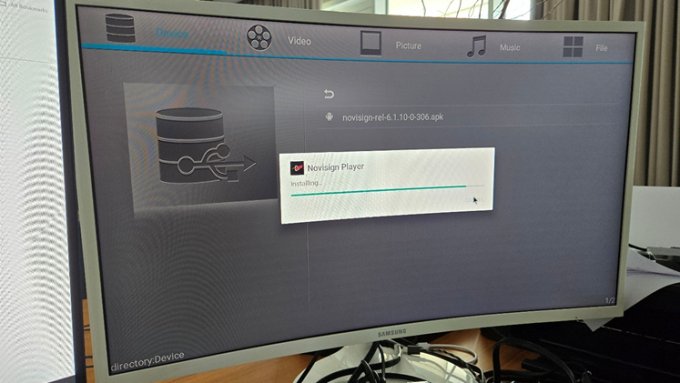
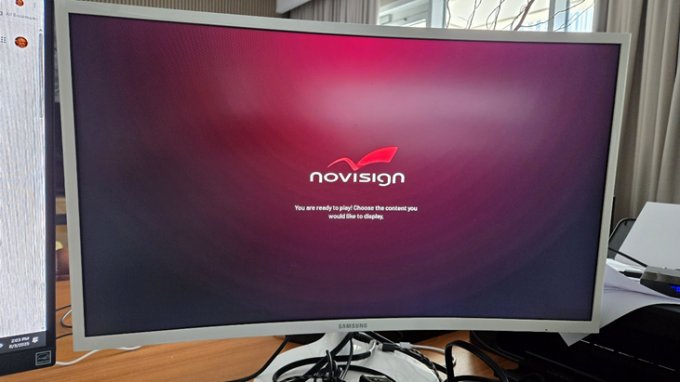
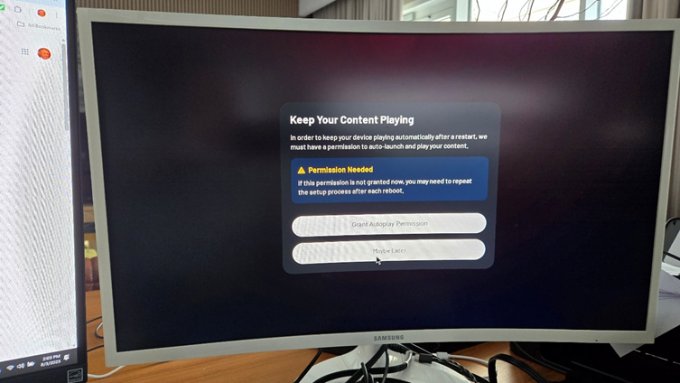
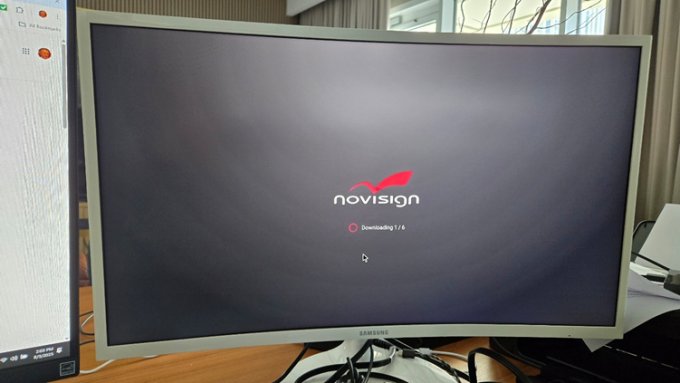
Step 9 – Run the NoviSign application
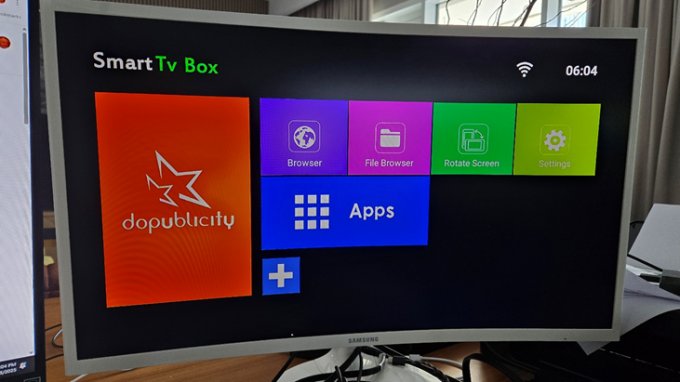

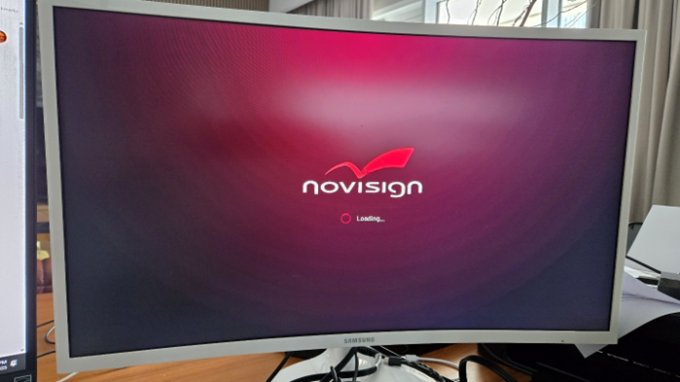
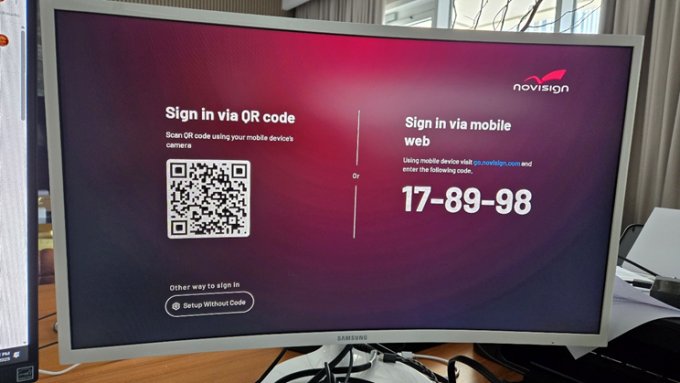
Step 10 – Pair your screen using our QuickLink feature
Need any help with the above? Feel free to contact your account manager or our support team via email (support@novisign.com) or phone (U.S.A.: (646) 893-7770).